
Betterness
How it worksBett-iTutorialsAboutFor businesses ↗, opens Betterness One in a new tabLog inSign up
How it worksBett-iTutorialsAboutFor businesses: Betterness One ↗, opens Betterness One in a new tab
Log inSign up
Skip to content
Tutorials

How to use Betterness.


Each tutorial shows one task in a few hand-drawn sketches.

Getting started

Your account and your first device.

  • Your first five minutes
  • Sign in with Face ID

Better Health

Your day, your workouts, your meals and your labs.

  • See your day in Health
  • Relive a workout, beat by beat
  • Know your lab results
  • Log a meal with one photo

Better Life

Today, Community, Media and Calendar.

  • Start your day with Today
  • Cheer your people in Community
  • Learn, relax or get moving with Media
  • See where things fit in Calendar

Together

Bring in the coach, gym and shop you trust.

  • Tap in at your gym
  • Invite your coach or gym, free for them
  • Choose what you share
  • What your coach, gym or doctor asks for, and why
  • Your class pass on Home
  • Move your class to another time
  • Find perks by category

Bett-i and settings

Bett-i, your profile and settings.

  • Ask Bett-i from any screen
  • Your handle and profile
  • Settings and privacy
  • Connect Claude or ChatGPT
  • Your Inbox
Getting started · 4 steps

Your first five minutes

In five minutes Betterness gets what it needs: an account, three answers and your data. Connecting a device is free.
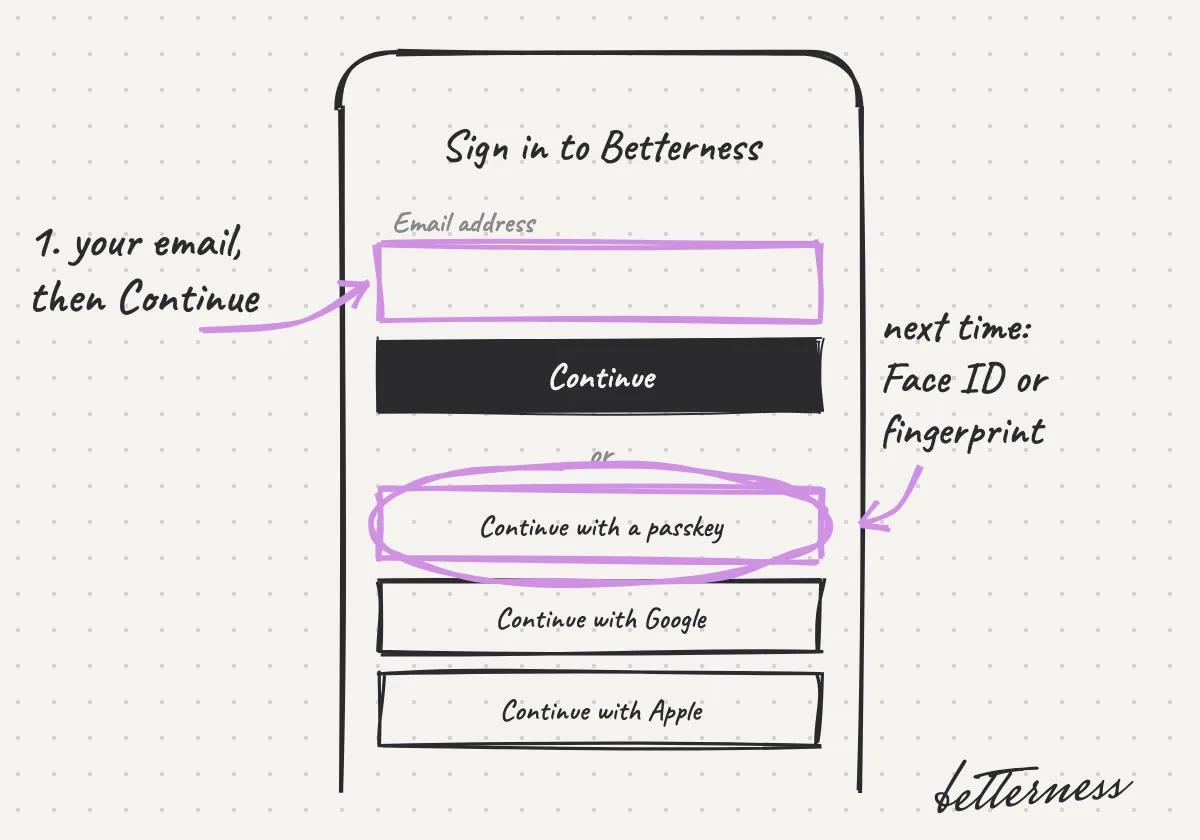
  1. Sketch: the Sign in to Betterness screen: Email address and Continue first, then Continue with a passkey circled, then Google and Apple.

    1Type your email and tap Continue. Then save a passkey, so next time Face ID or your fingerprint signs you in.
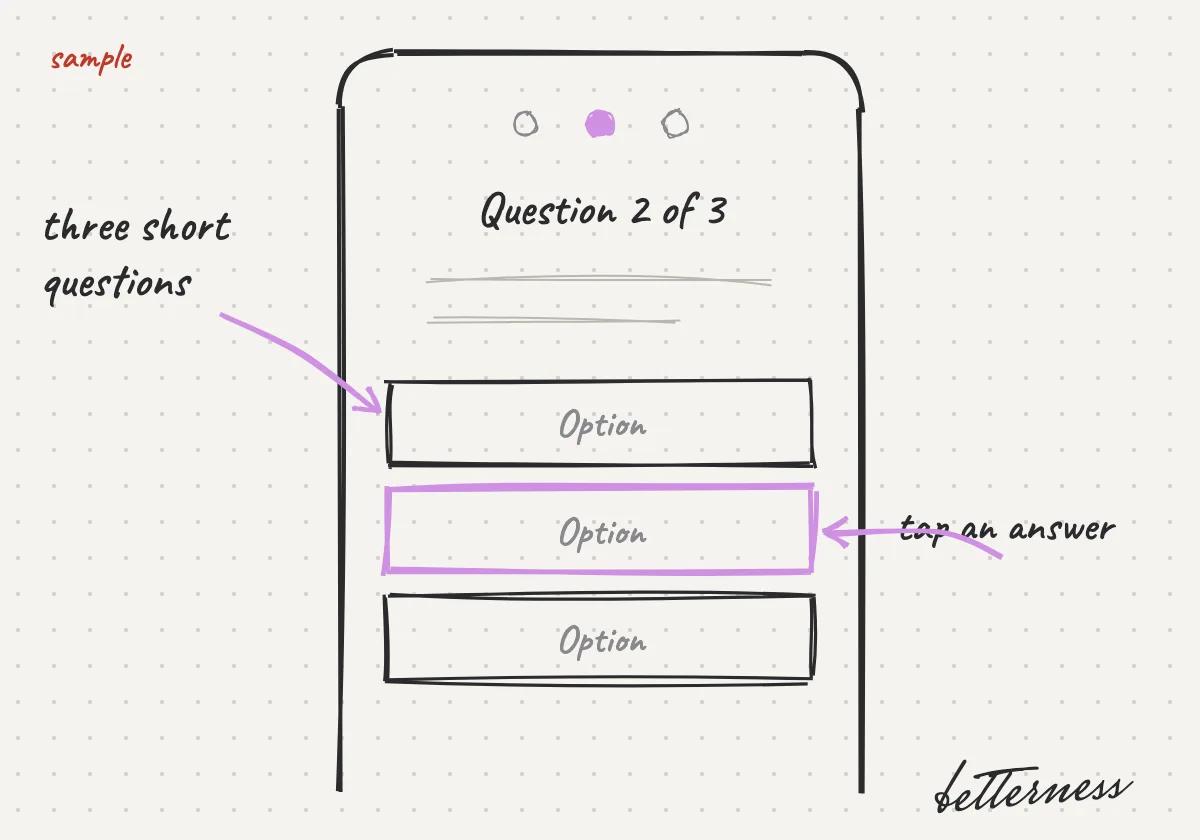
  2. Sketch: question 2 of 3, with one answer tapped.

    2Answer three short health questions.
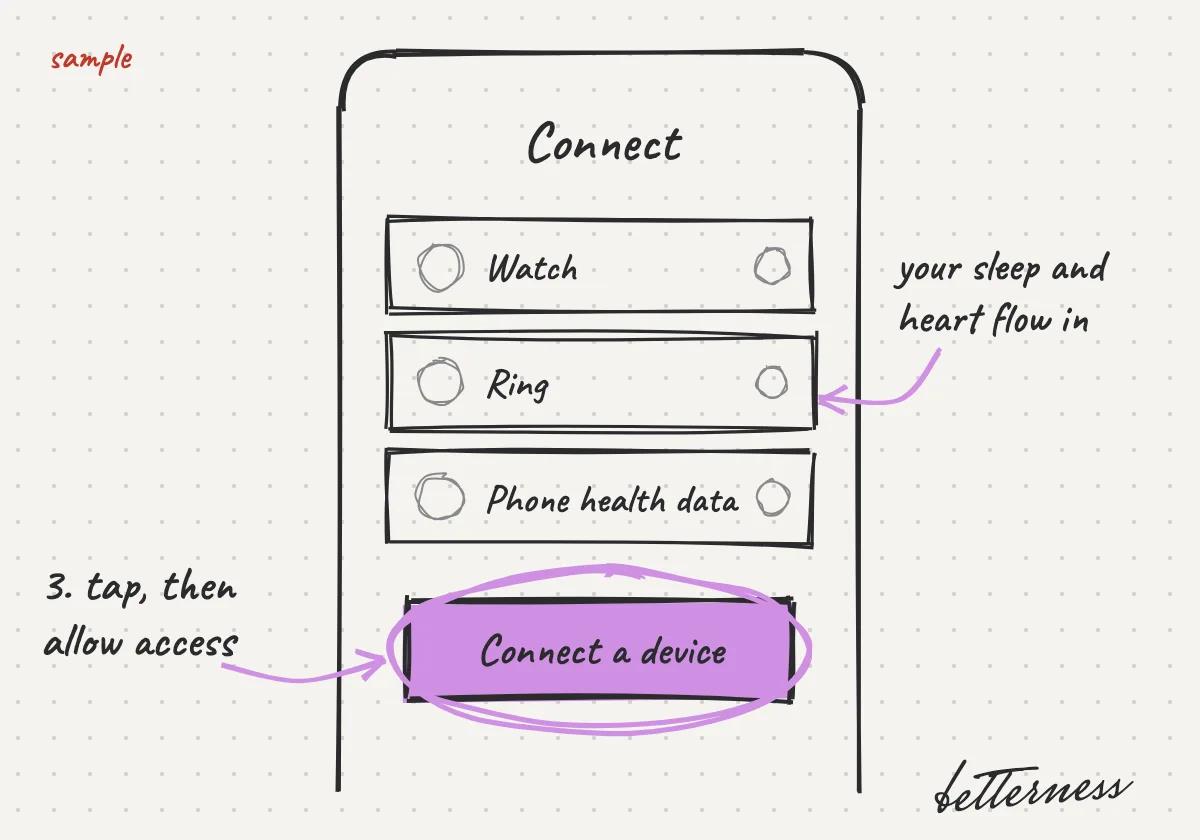
  3. Sketch: the Connect screen with Watch, Ring and Phone health data, and the Connect a device button.

    3Connect your watch, ring or phone.

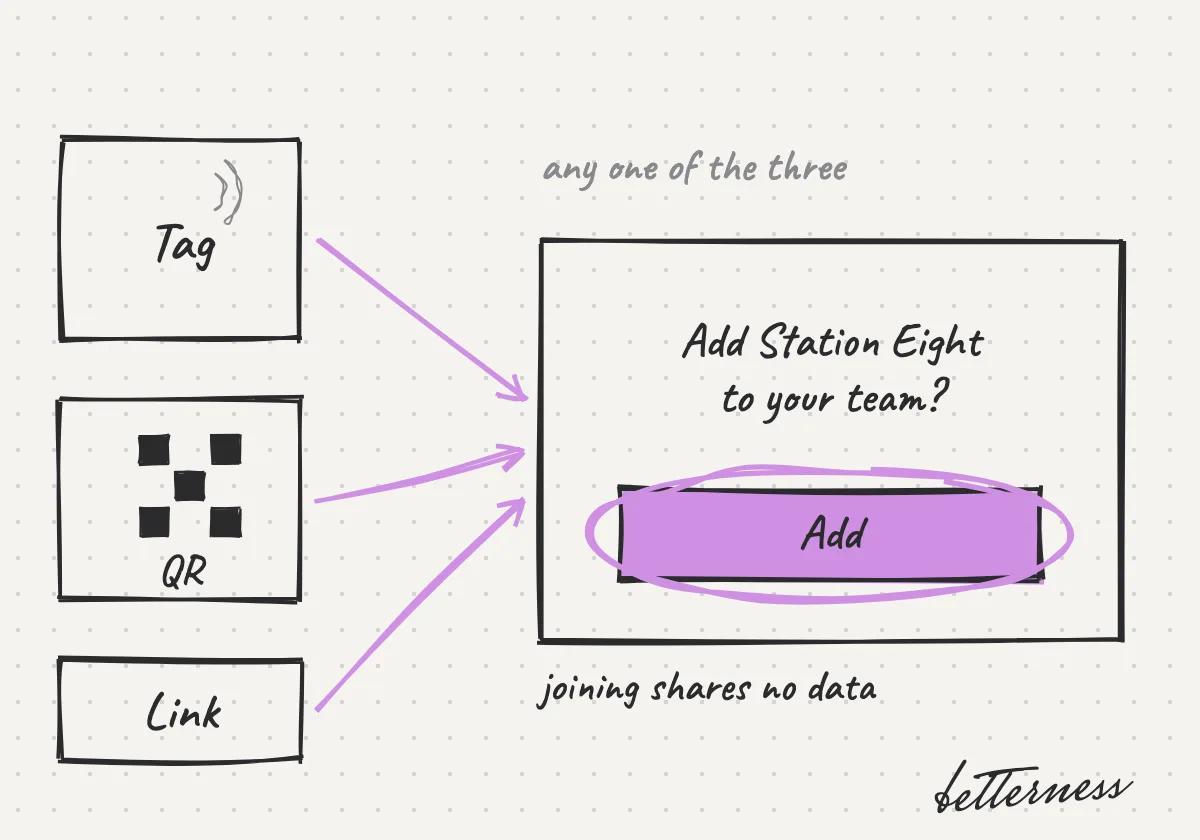
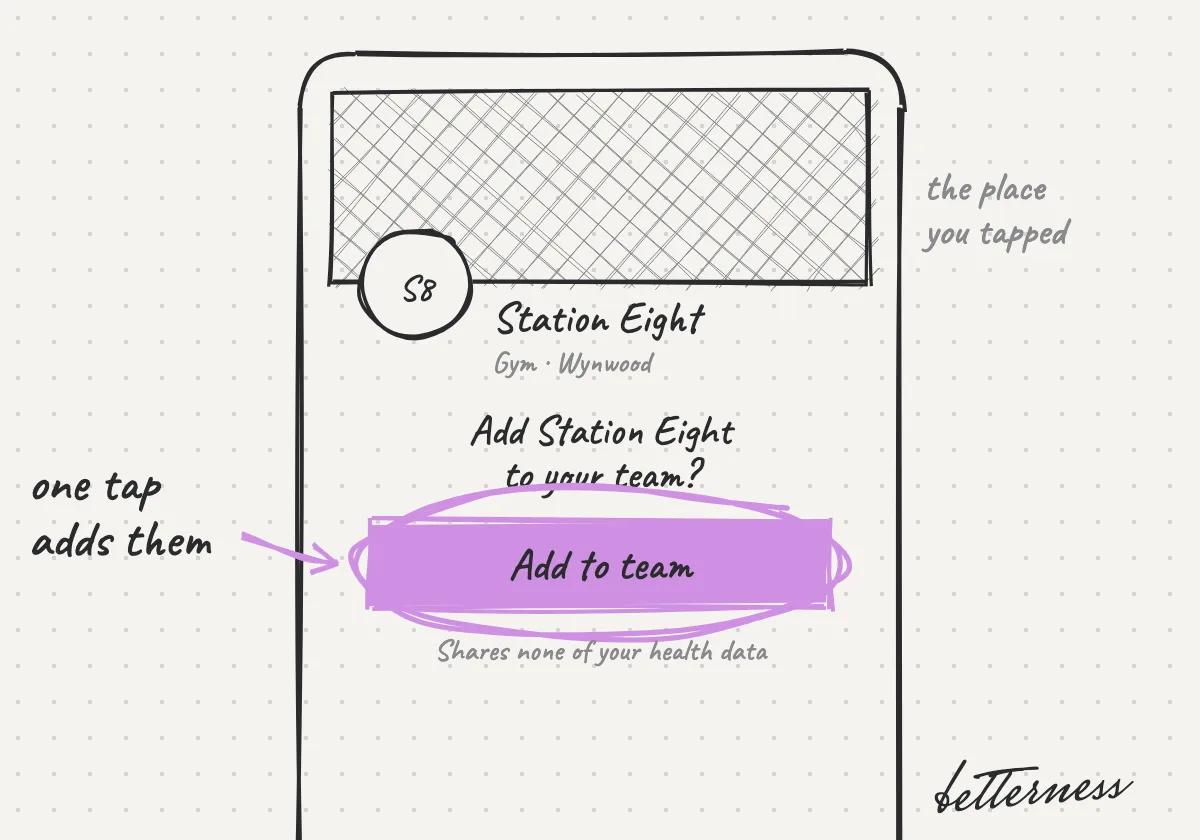
  4. Sketch: a tag, a QR code or a link all open "Add Station Eight to your team?".

    4If your coach or gym gave you a tag, QR code or link, use it to add them to your Team.

Getting started · 3 steps

Sign in with Face ID

A passkey signs you in with your face or your fingerprint, so there is no password to remember or type.
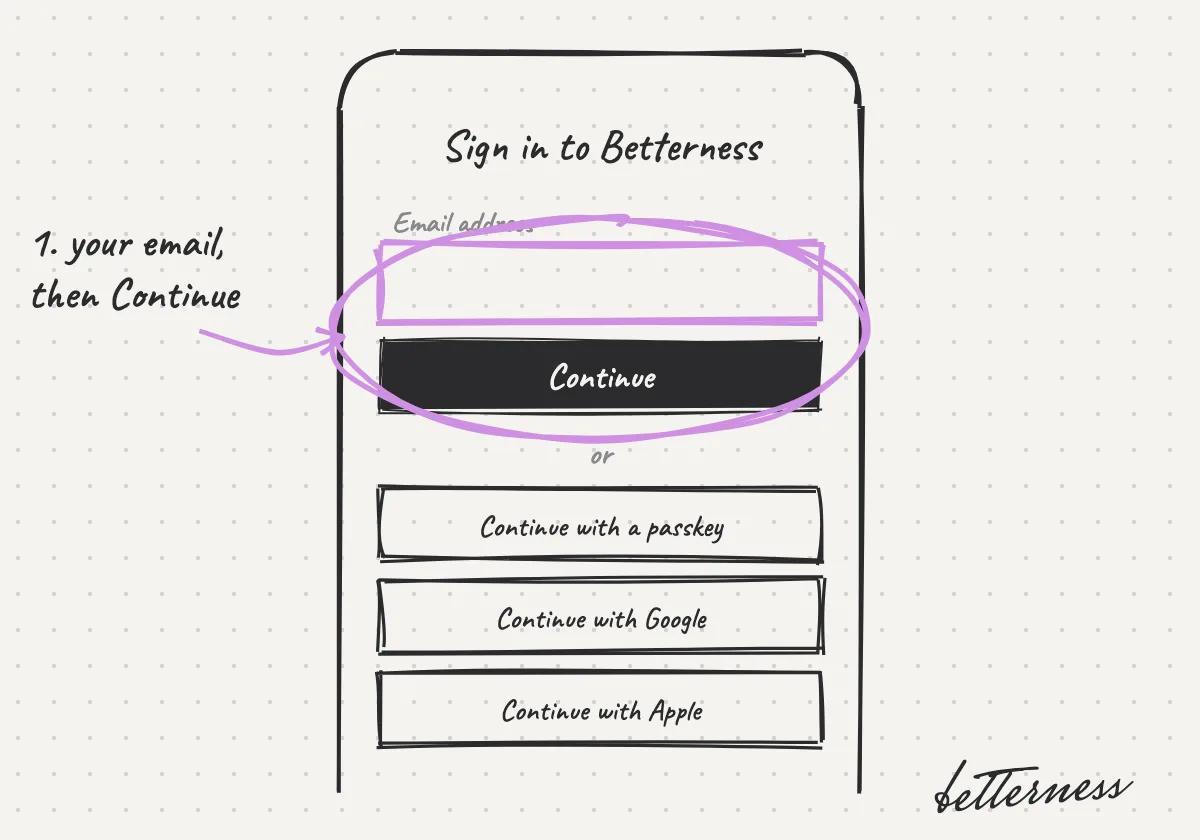
  1. Sketch: Type your email and tap Continue.

    1Type your email and tap Continue.

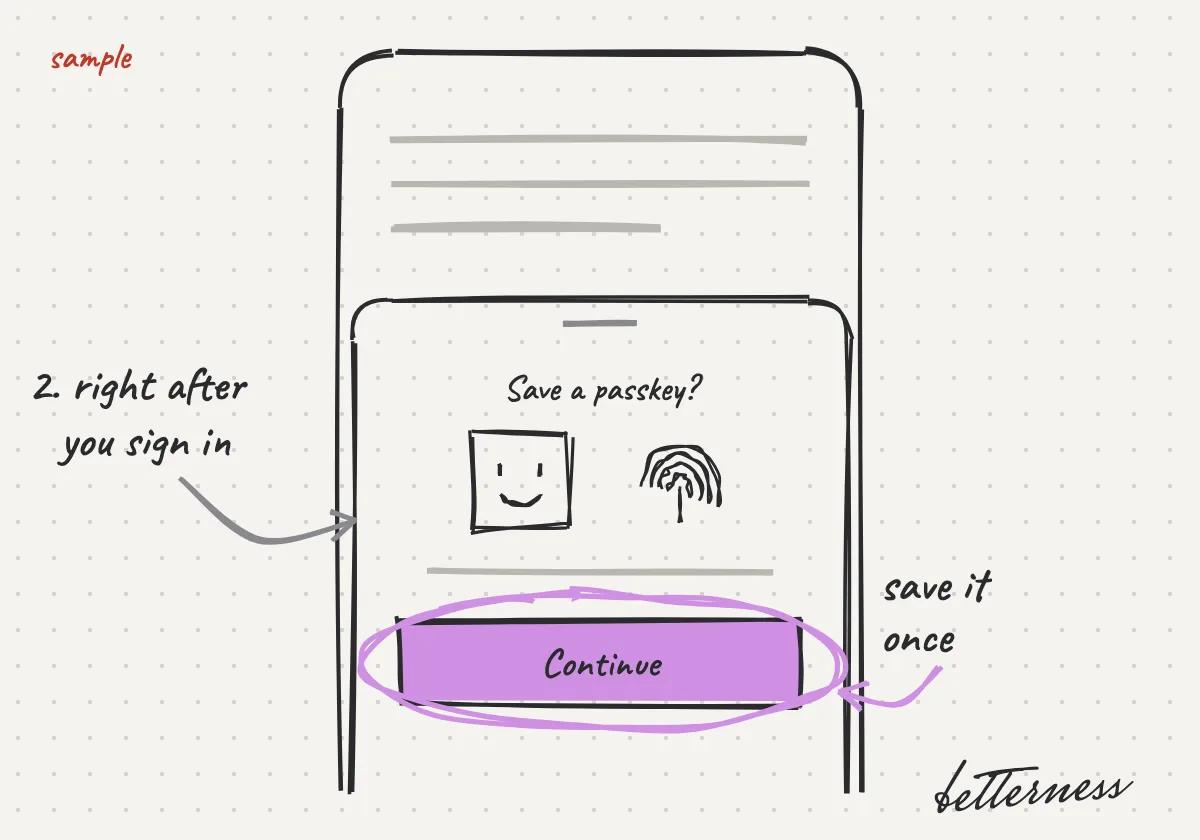
  2. Sketch: Save a passkey when Betterness asks, right after you sign in.
    2Save a passkey when Betterness asks, right after you sign in.

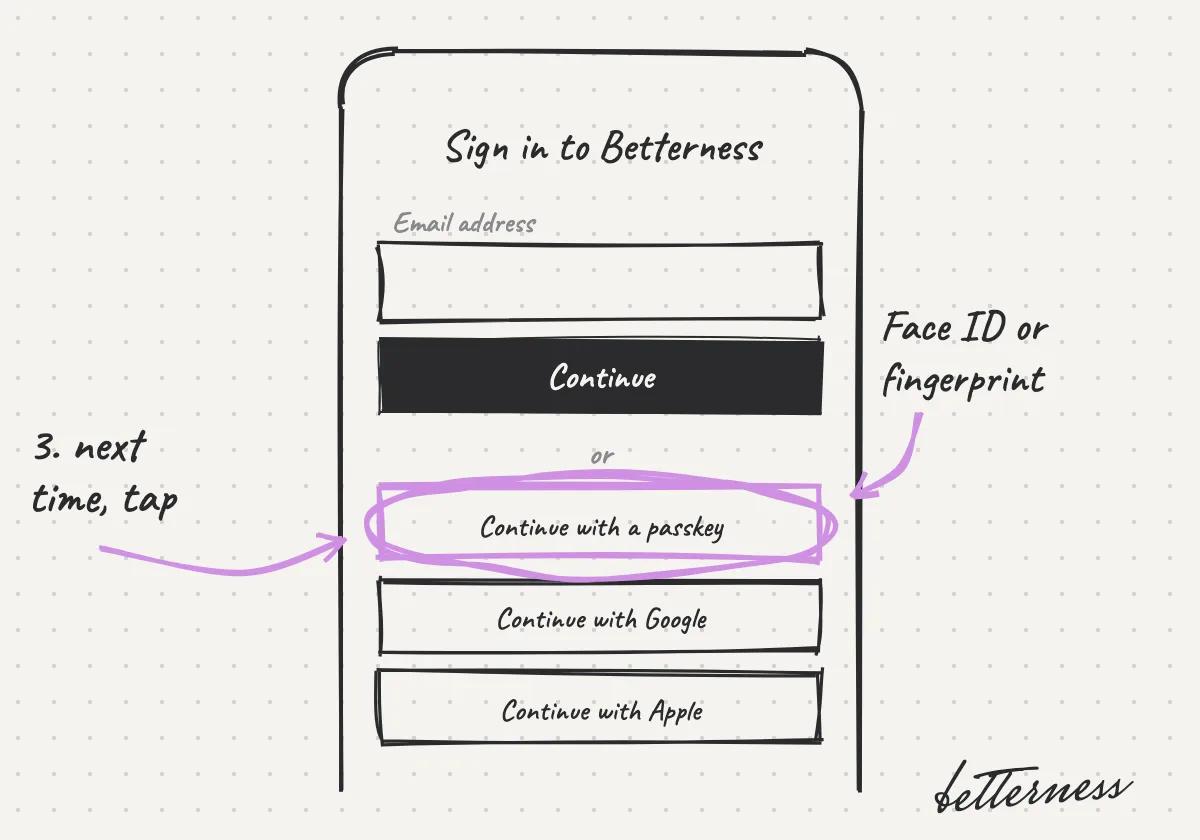
  3. Sketch: Next time, tap Continue with a passkey. Face ID or your fingerprint signs you in.

    3Next time, tap Continue with a passkey. Face ID or your fingerprint signs you in.

Better Health · 4 steps

See your day in Health

Connect your watch or ring, free. Health shows sleep, heart, activity and body side by side. Bett-i says what changed.
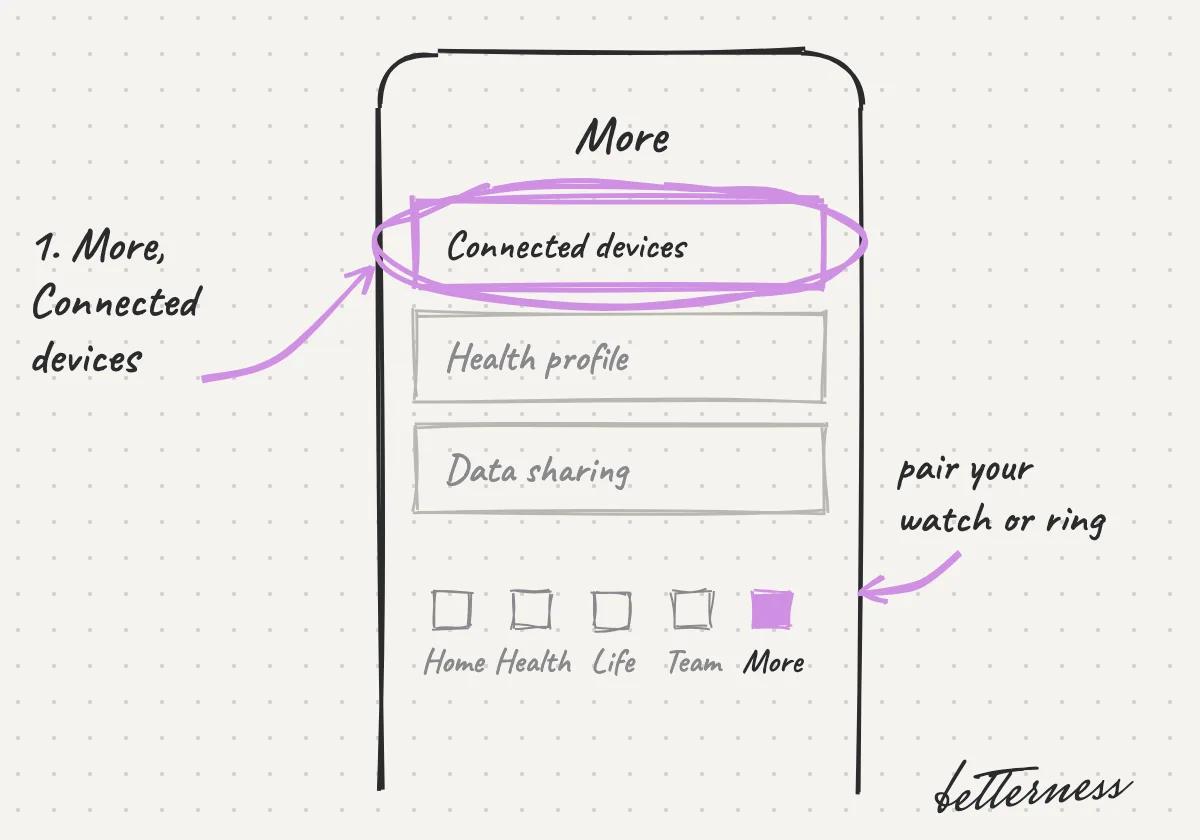
  1. Sketch: the More tab with Connected devices circled.

    1Connect your device in More, Connected devices.
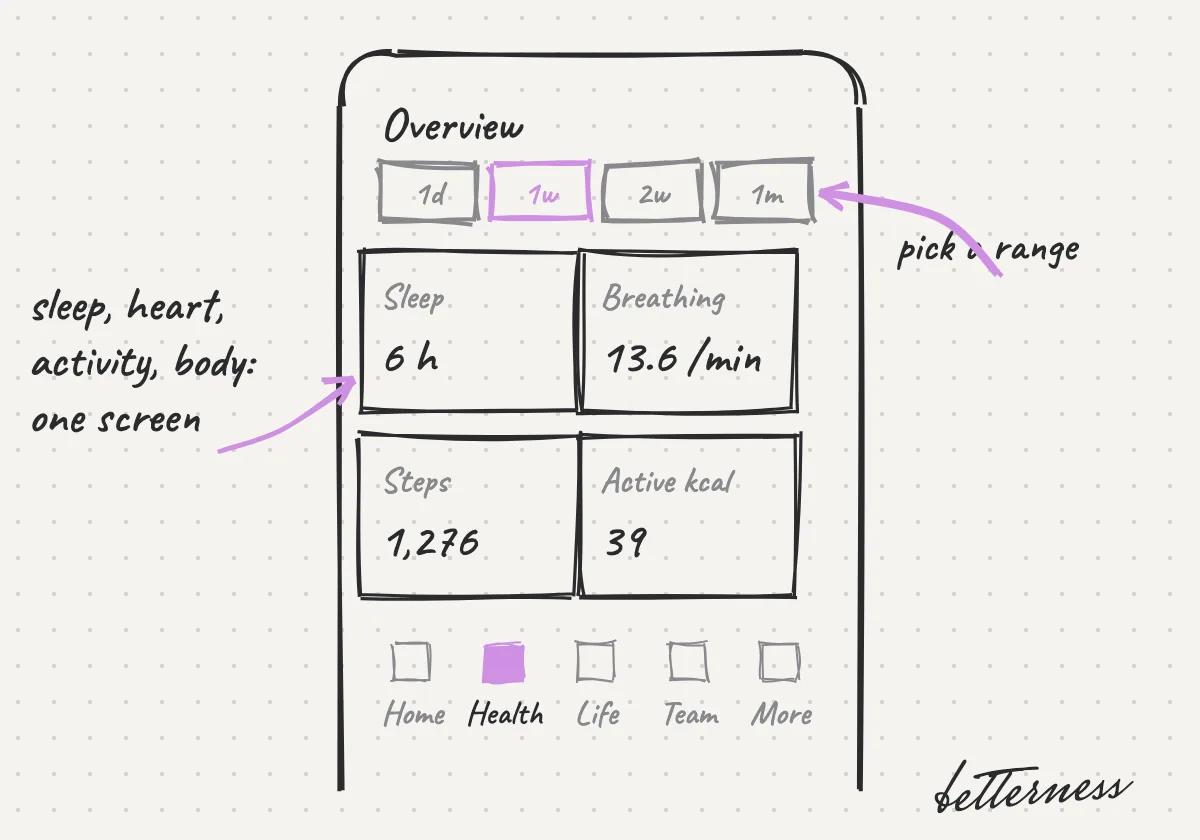
  2. Sketch: Health Overview with Sleep 6 h, Breathing 13.6 per minute, Steps 1,276 and Active kcal 39.

    2Open Health. Overview shows your sleep, heart, activity and body.
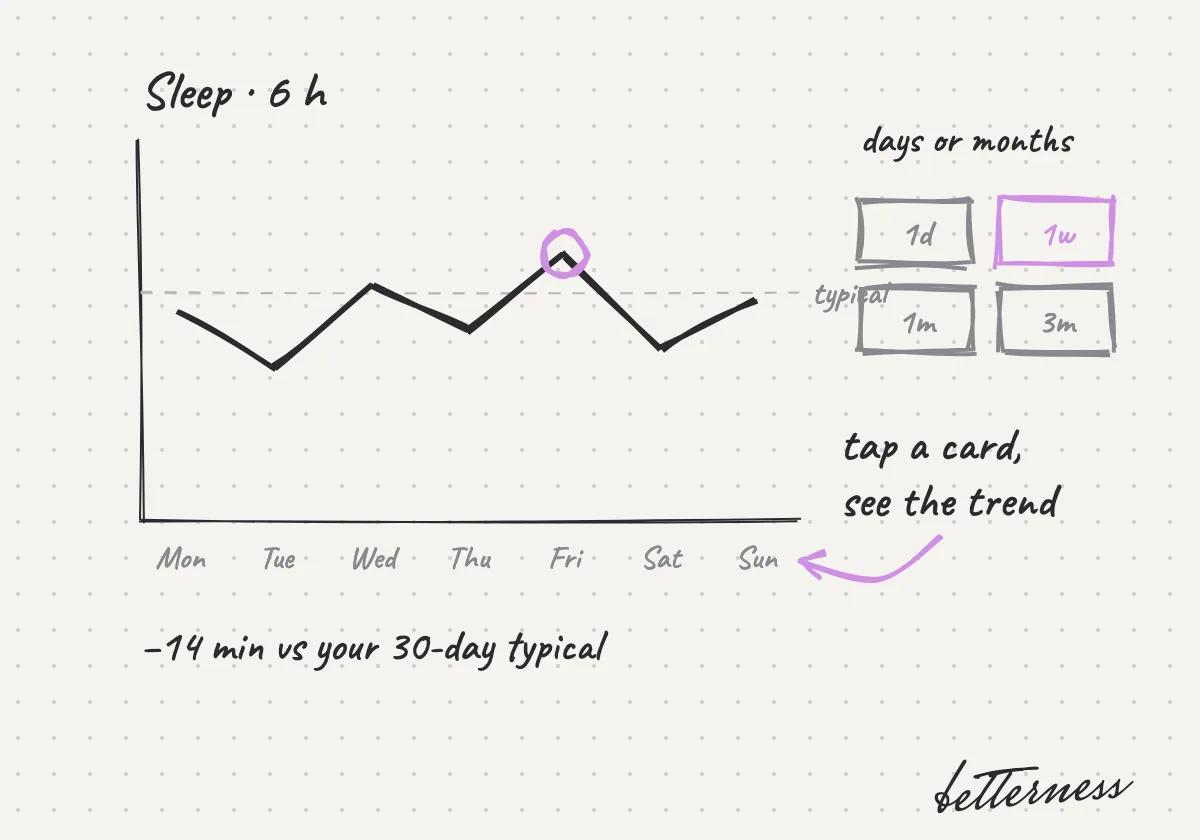
  3. Sketch: the sleep trend over a week, with range buttons from one day to three months.

    3Tap a card to see its trend over days or months.
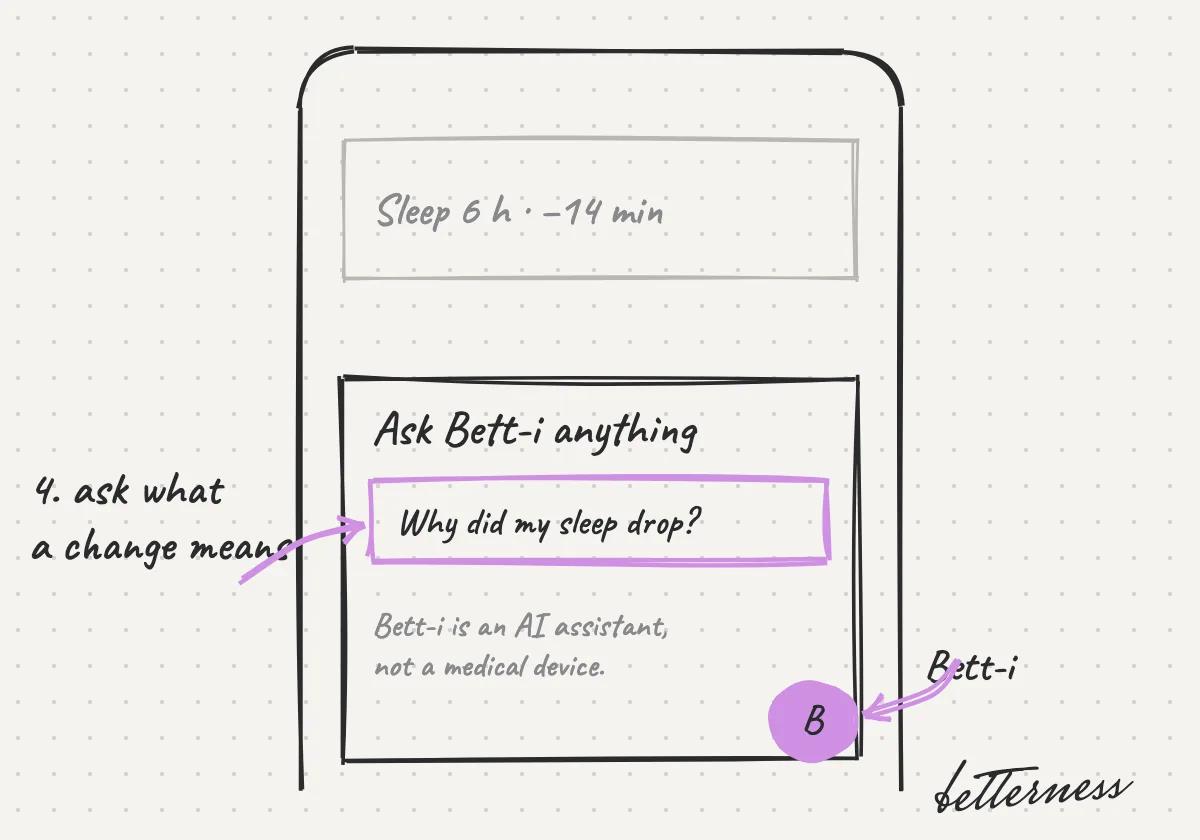
  4. Sketch: asking Bett-i "Why did my sleep drop?".

    4Ask Bett-i what a change means for you.

Better Health · 5 steps

Relive a workout, beat by beat

Betterness records your heart rate and the songs in class. Replay any minute later. Zones show how hard you worked.
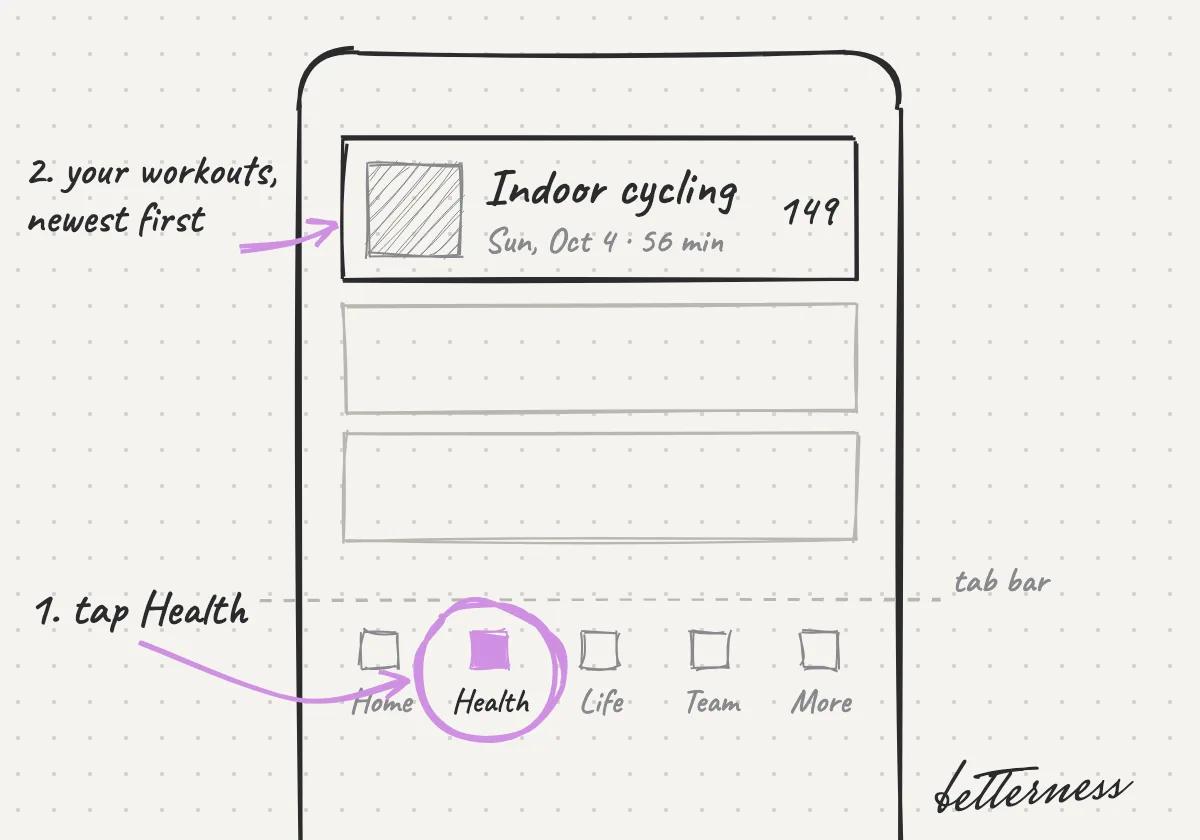
  1. Sketch: the Health tab and the newest activity, Indoor cycling on Sun, Oct 4.

    1Open Health, then Activities.

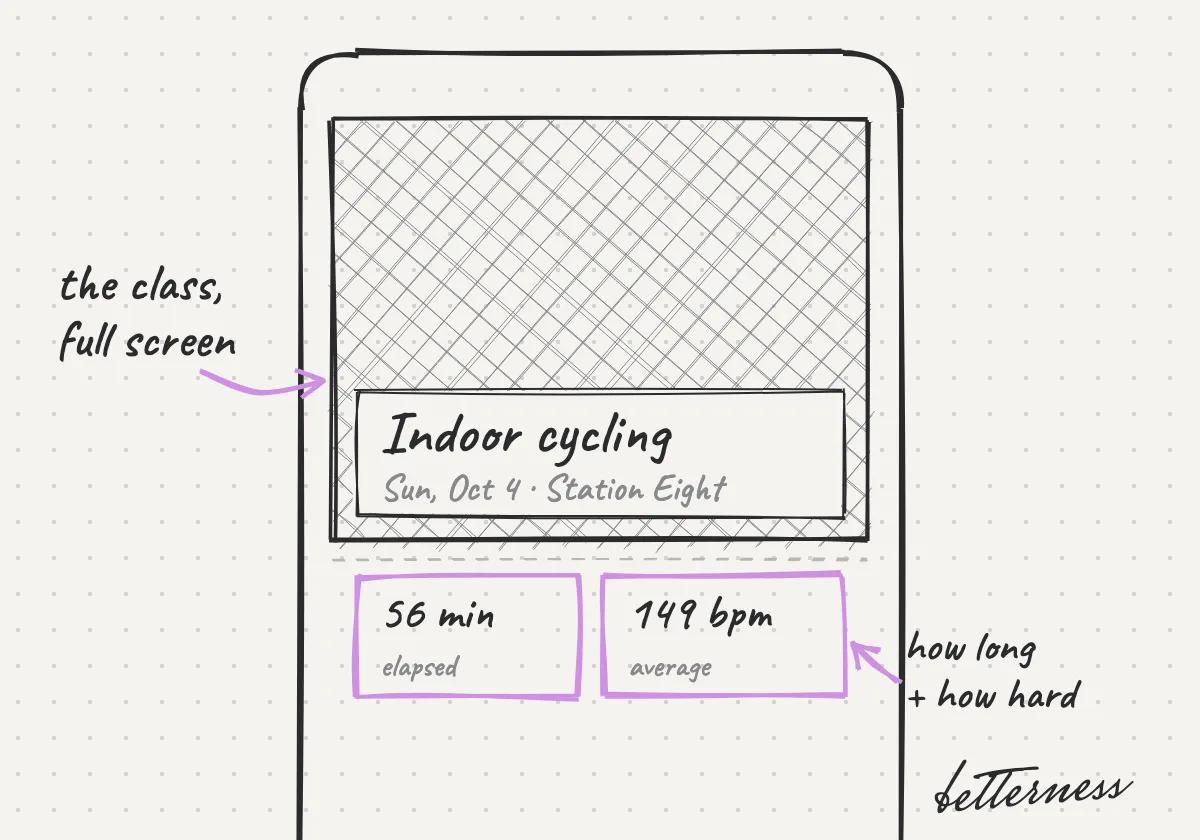
  2. Sketch: the class full screen, 56 minutes and 149 bpm average.

    2Tap an activity to open it.

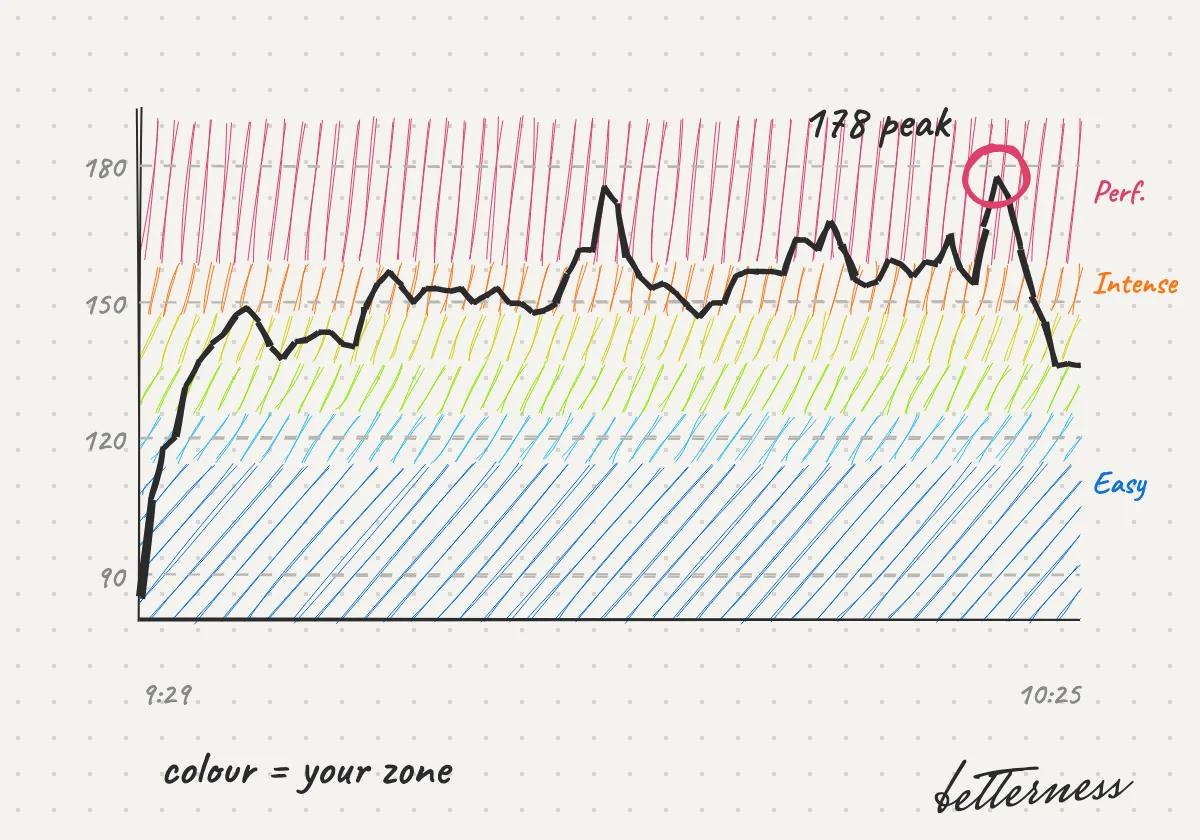
  3. Sketch: the heart-rate line over coloured zones, peaking at 178.

    3See your heart rate by zone, minute by minute.
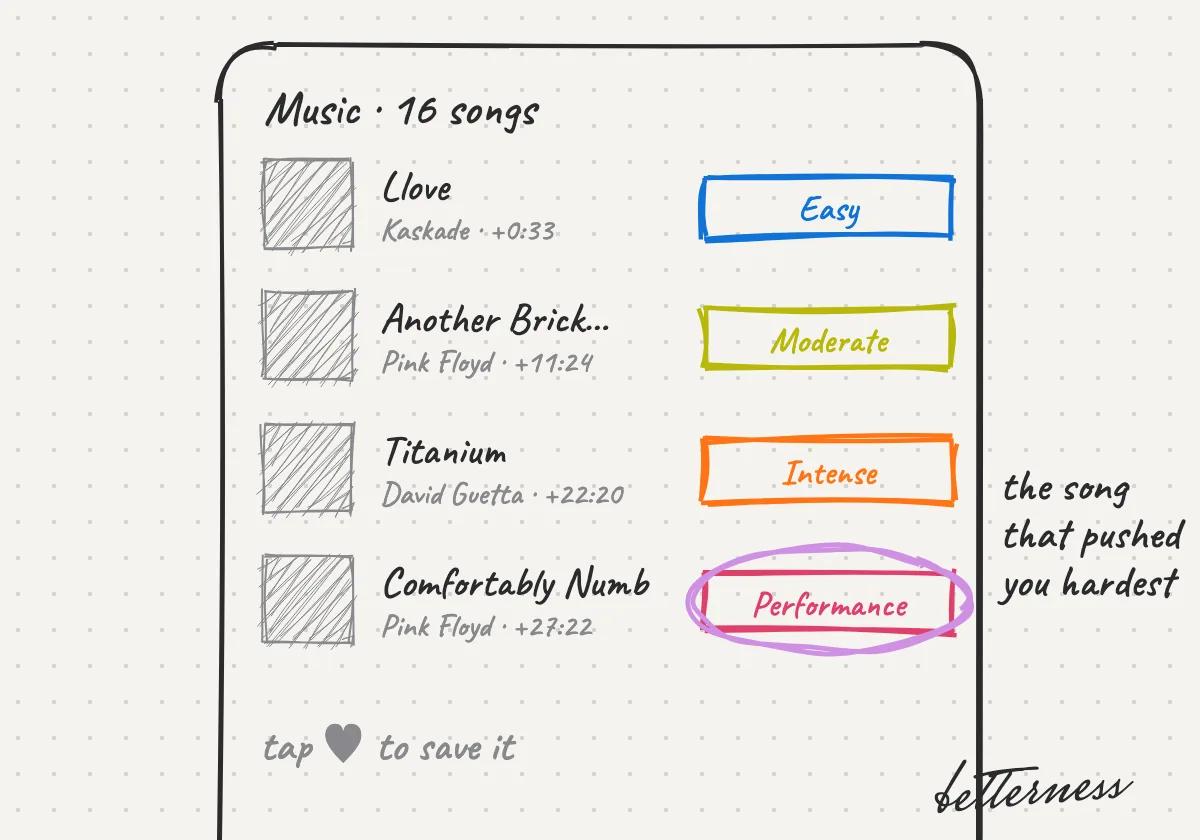
  4. Sketch: four songs, each tagged with its zone, the hardest one circled.

    4See the songs you heard, colored by zone.
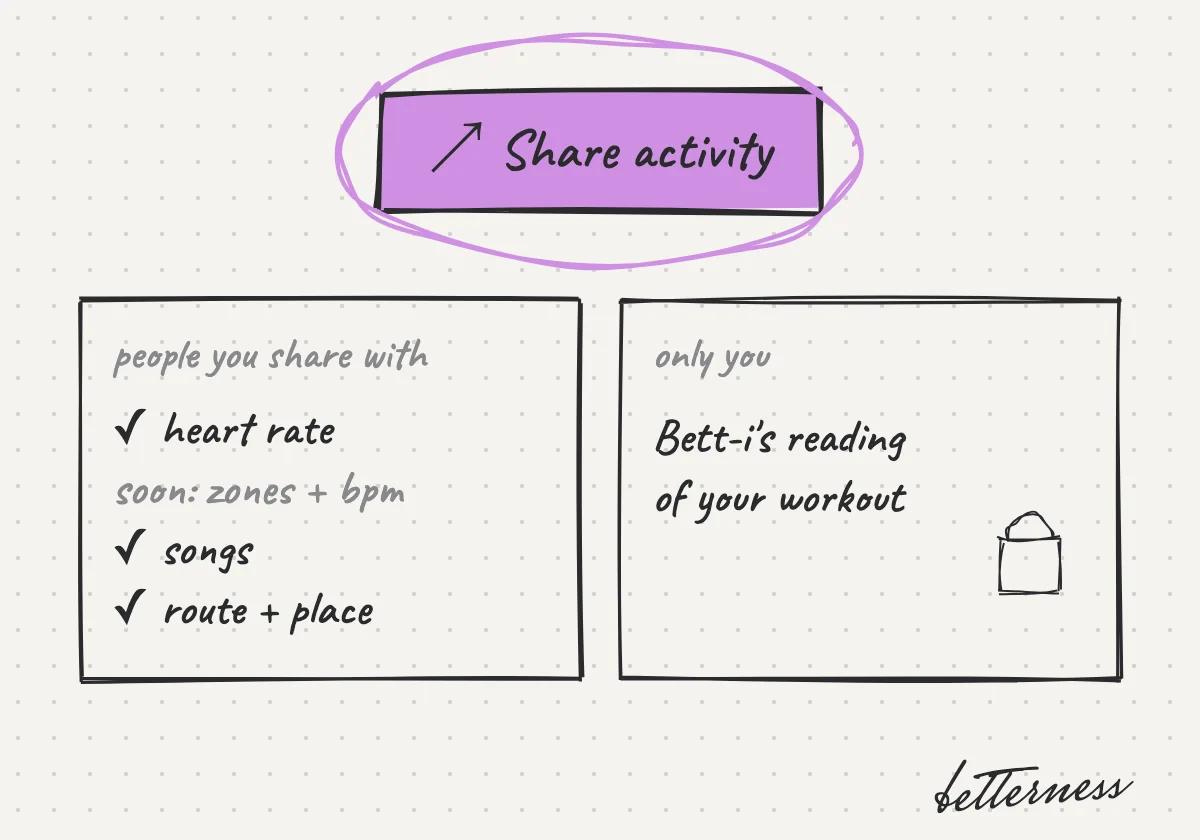
  5. Sketch: Share activity. People you share with see heart rate, songs and route; Bett-i's reading stays with you.

    5Share it to Community. Soon, people you share with will see everything you tracked, including your zones. Bett-i's insights stay yours.

Better Health · 4 steps

Know your lab results

Labs measure what your watch can't. Order anywhere in the US through Quest Diagnostics or BioReference, at a lab or at home, or upload reports you already have.
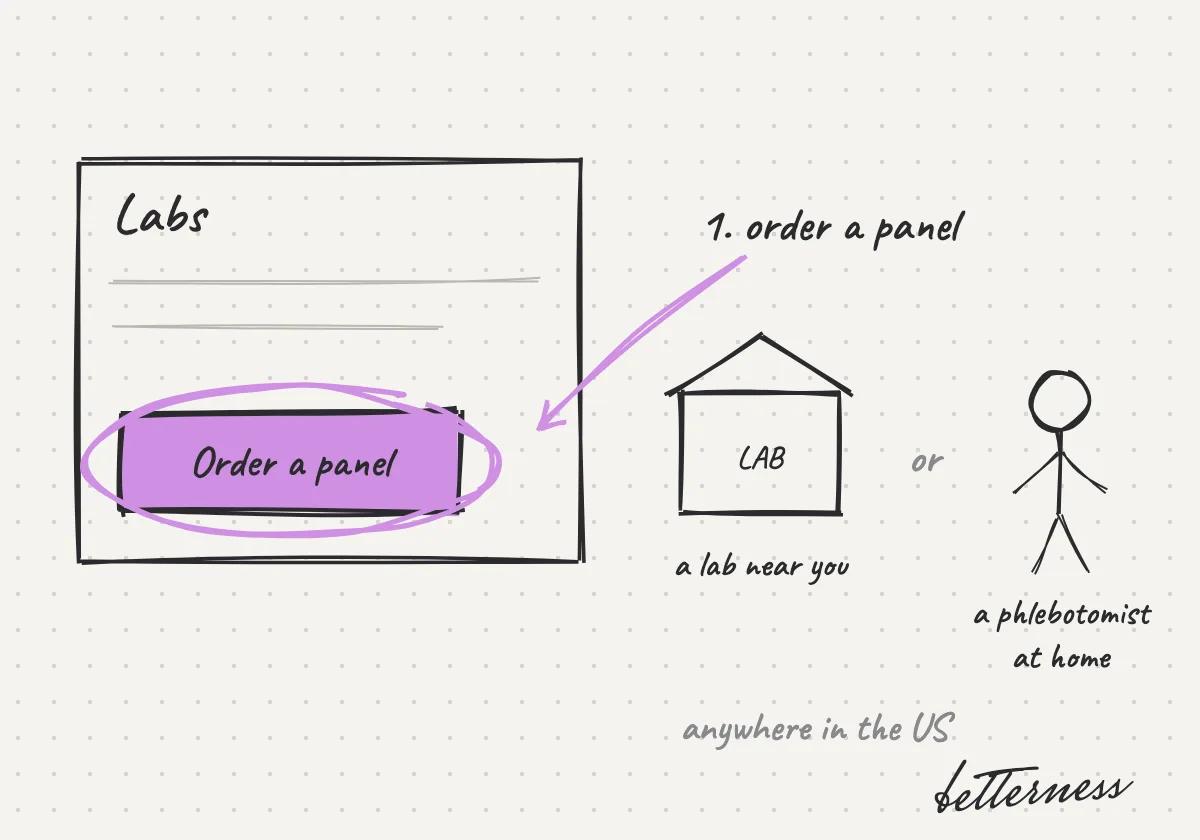
  1. Sketch: the Order a panel button, then a lab near you or a phlebotomist at home, anywhere in the US.

    1Order a panel in Labs, anywhere in the US. Visit a lab near you, or have a phlebotomist come to your home.
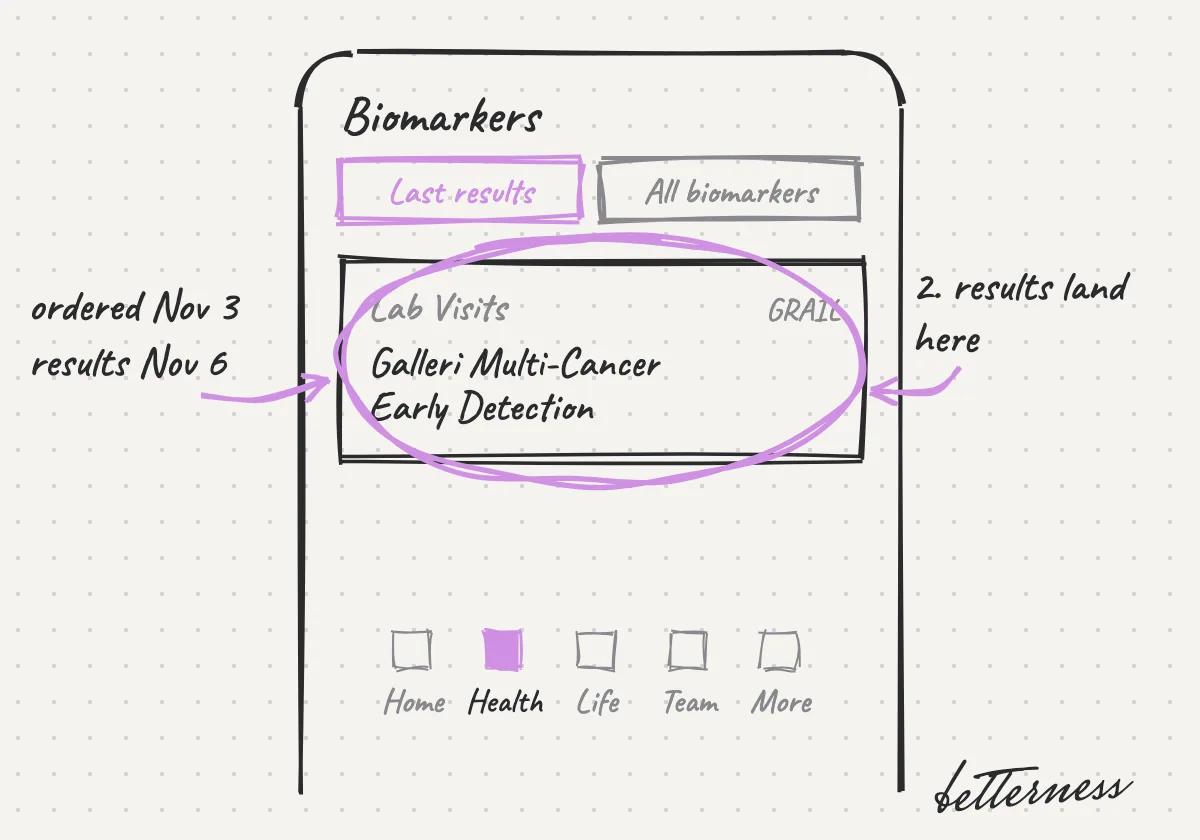
  2. Sketch: Biomarkers, Lab Visits: Galleri Multi-Cancer Early Detection, ordered Nov 3, results Nov 6.

    2Results appear in Health, Biomarkers.
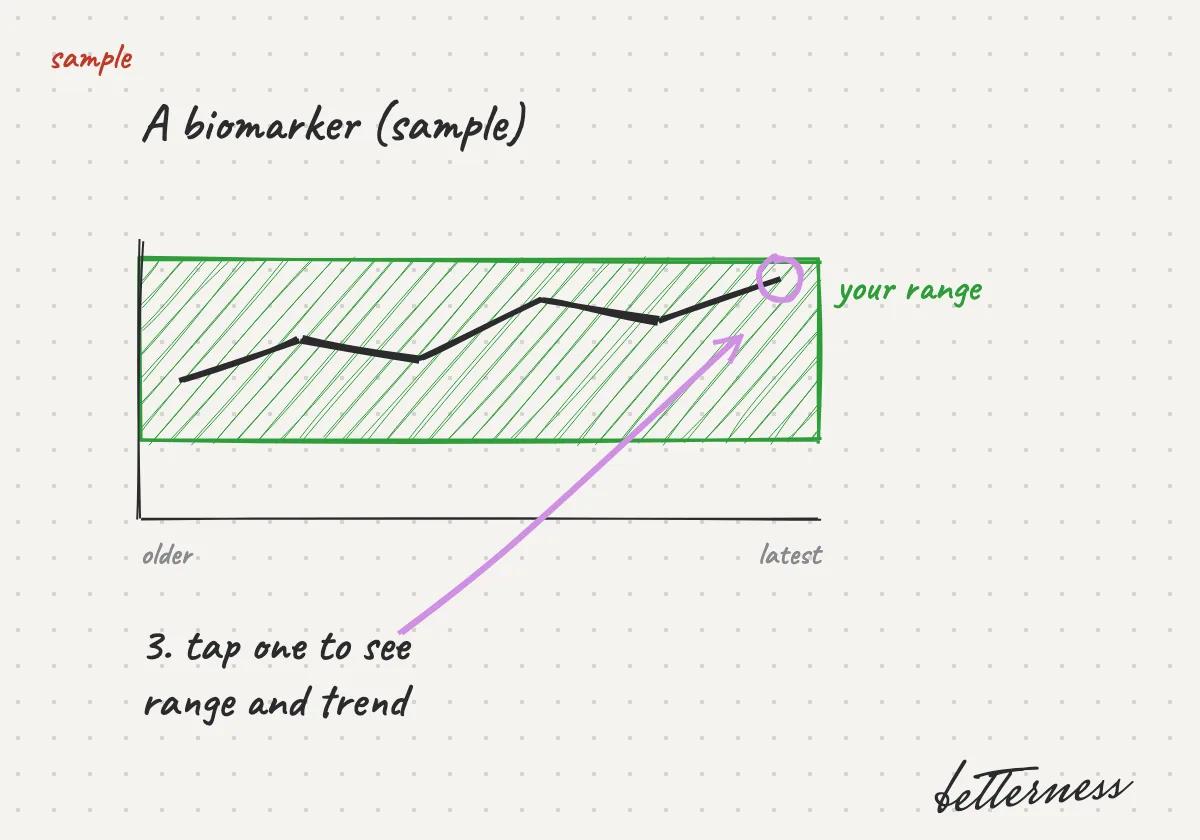
  3. Sketch: a sample biomarker trend inside its range band.

    3Open a biomarker to see your range and trend.
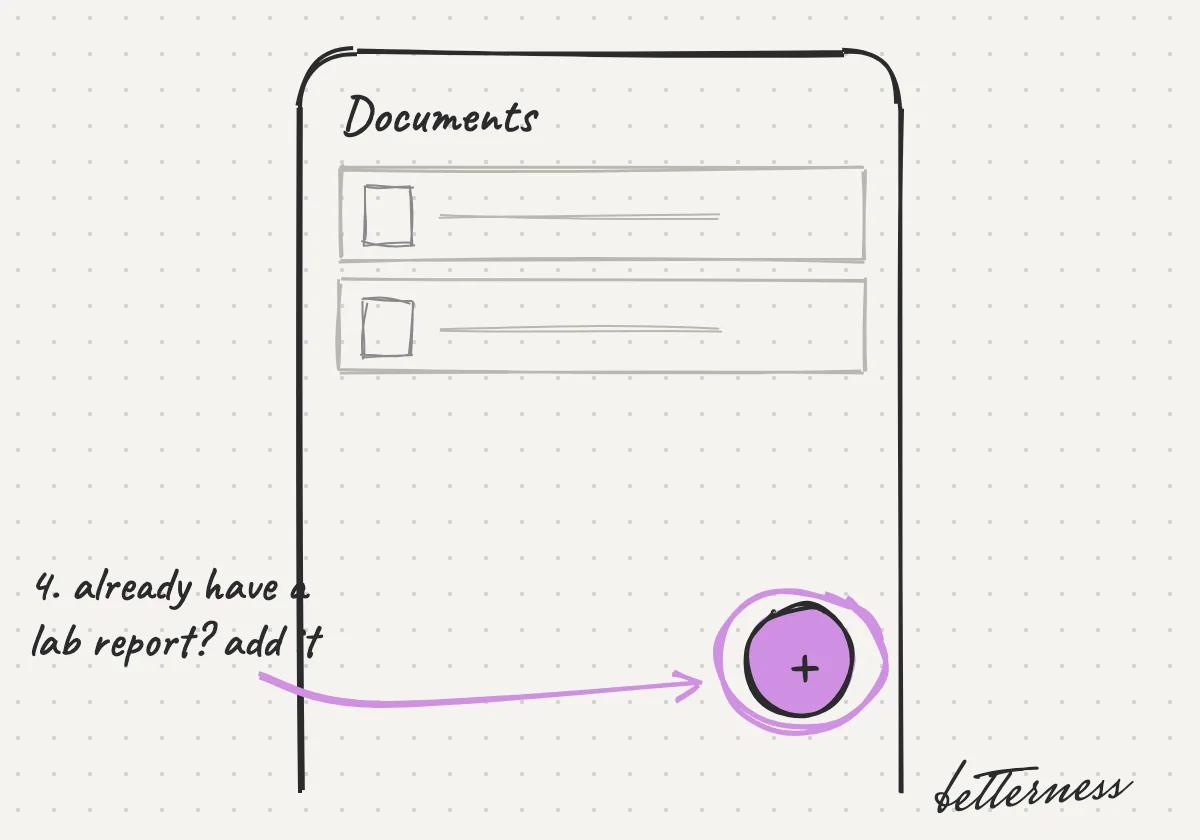
  4. Sketch: Documents with the add button circled.

    4Upload your own lab reports in Documents.

Better Health · 4 steps

Log a meal with one photo

Food is the part most people stop logging. One photo is fast enough to keep doing it.
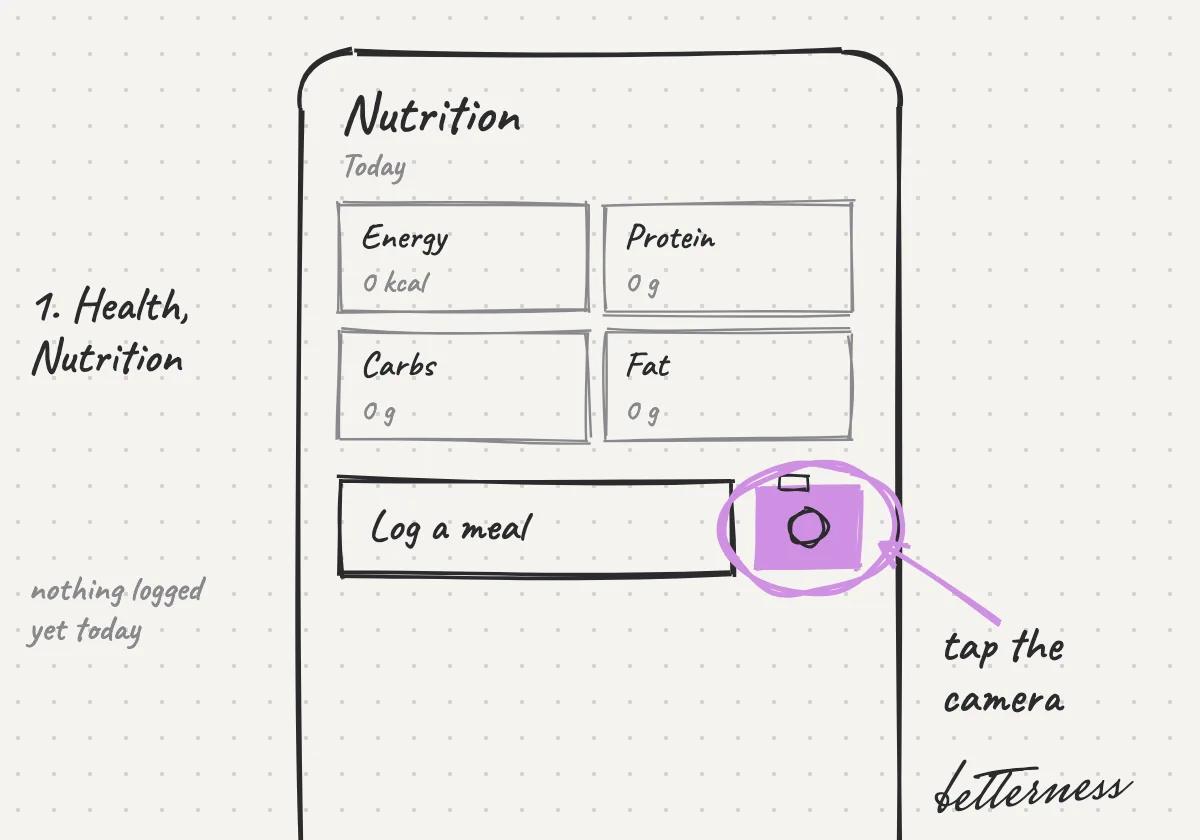
  1. Sketch: Open Health, Nutrition, and tap the camera.
    1Open Health, Nutrition, and tap the camera.

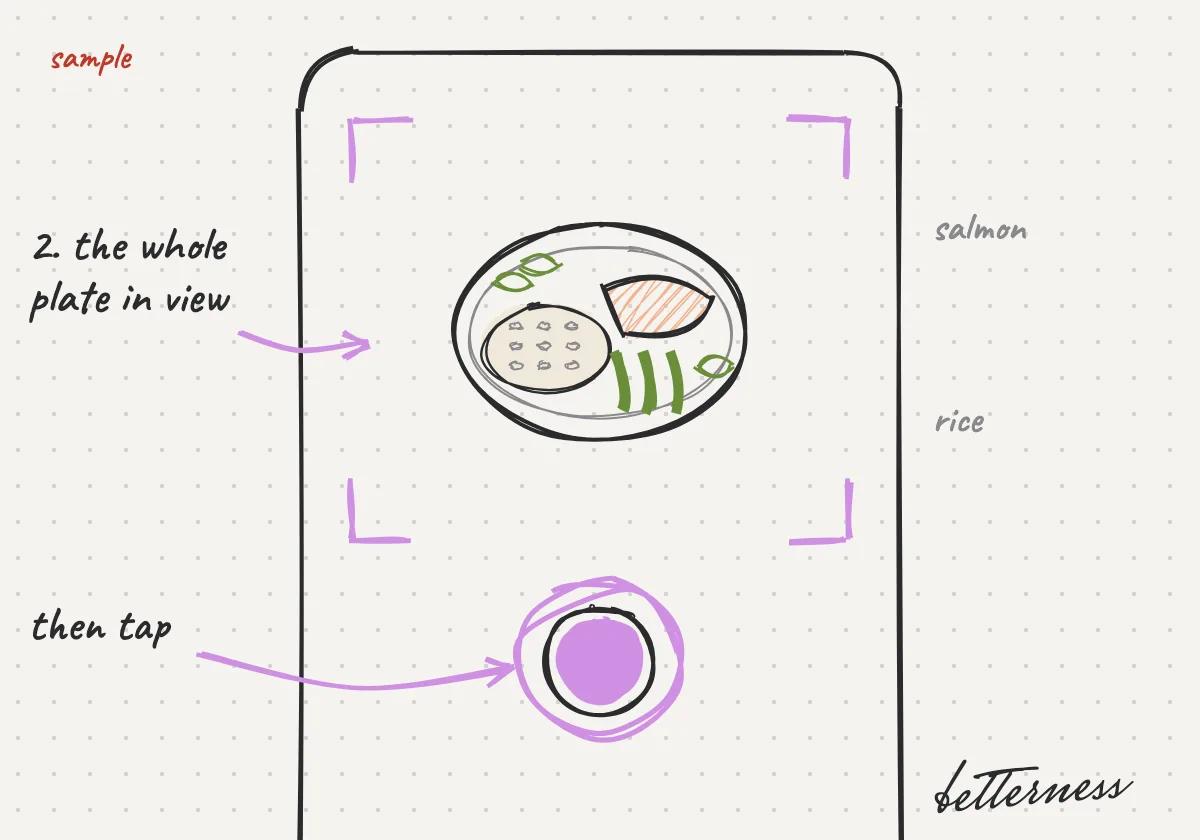
  2. Sketch: Take a photo of your plate.

    2Take a photo of your plate.

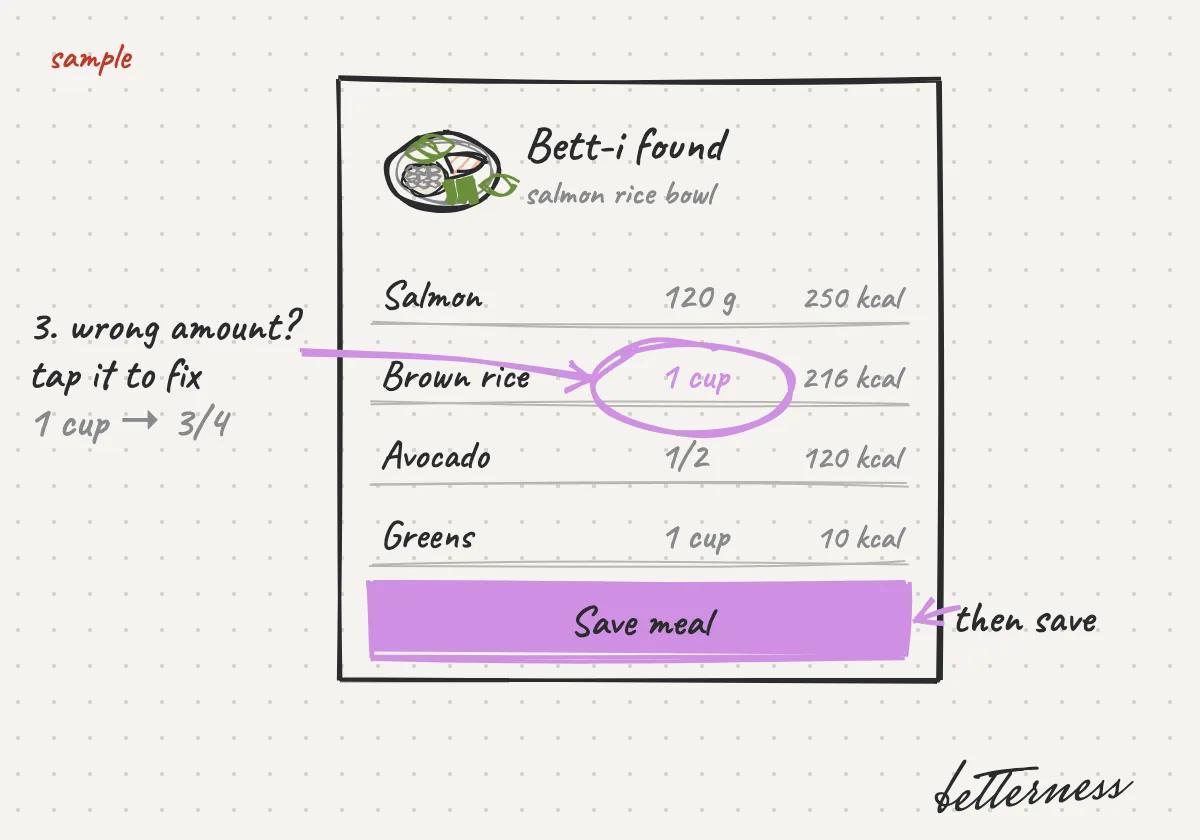
  3. Sketch: Check what Bett-i found and fix anything wrong.
    3Check what Bett-i found and fix anything wrong.

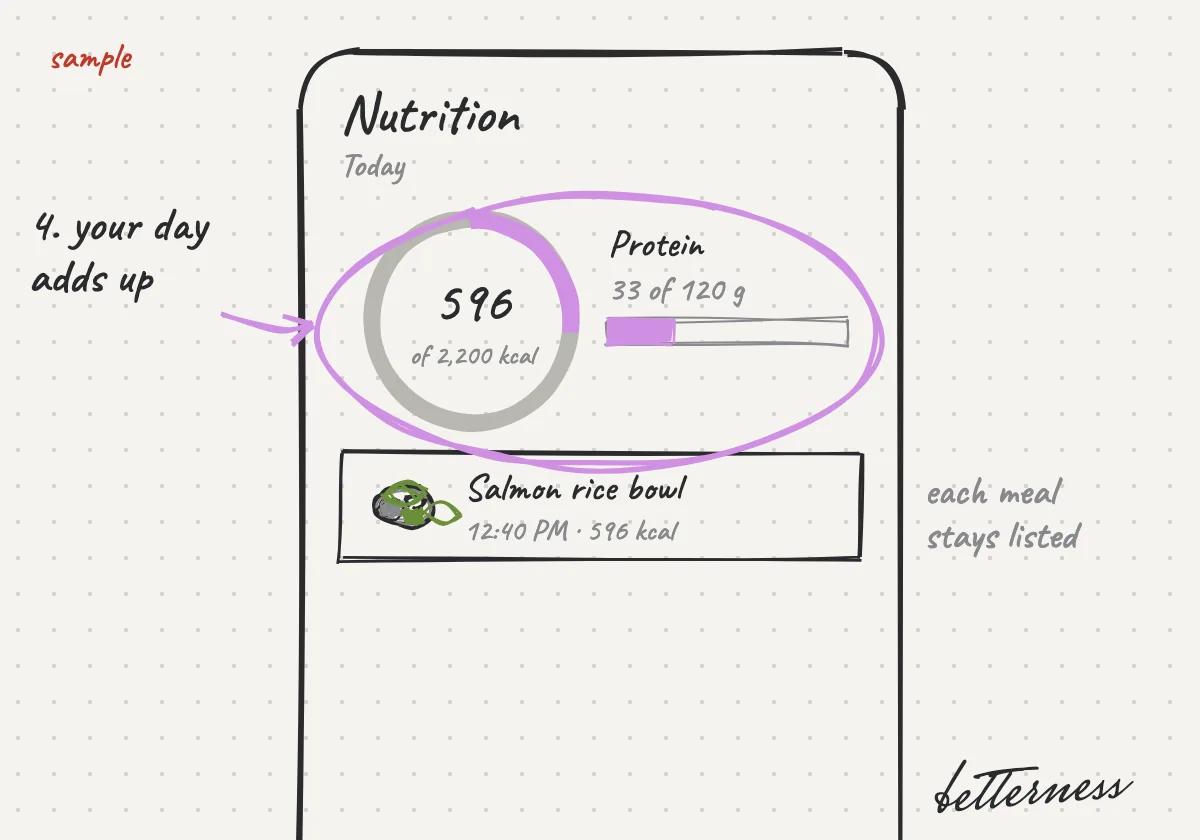
  4. Sketch: See your energy and protein for the day.

    4See your energy and protein for the day.

Better Life · 4 steps

Start your day with Today

Today suggests a few things that fit your day, and says why.
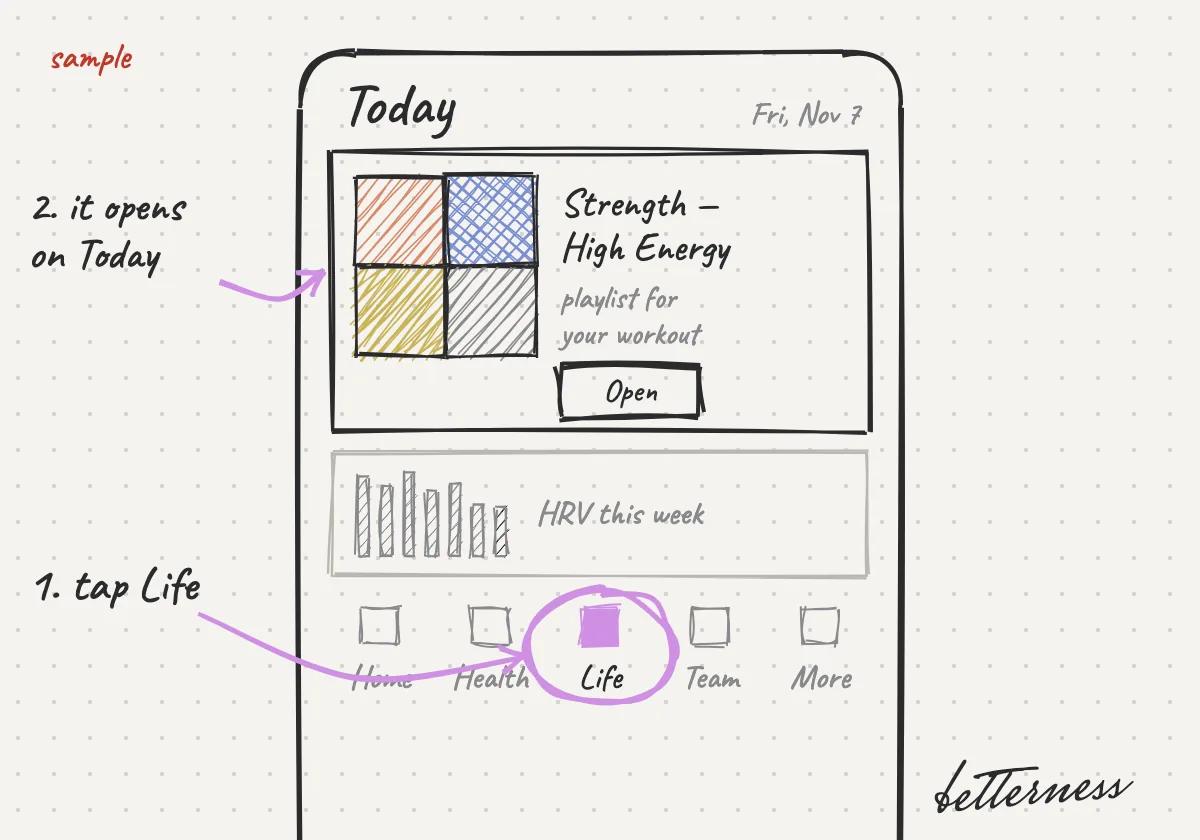
  1. Sketch: Open Life. It opens on Today.

    1Open Life. It opens on Today.

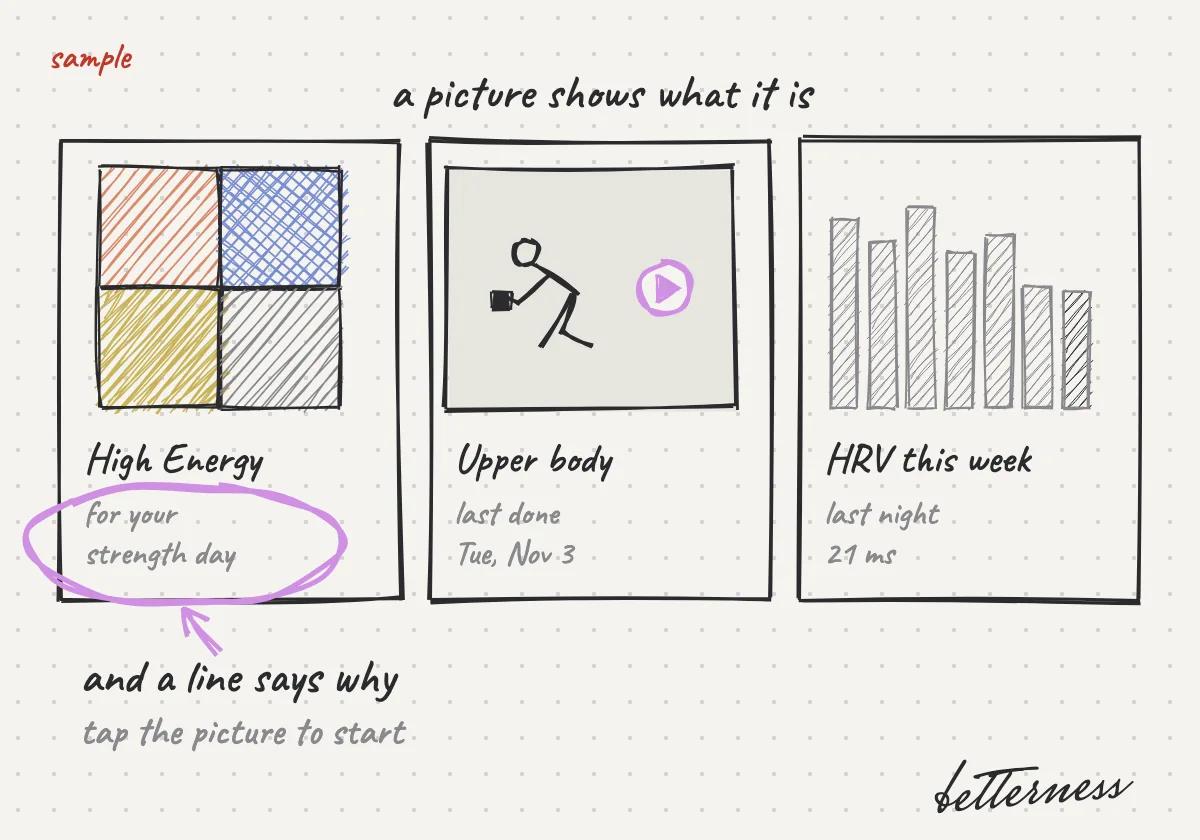
  2. Sketch: Read the few things Bett-i suggests for today, and why.
    2Read the few things Bett-i suggests for today, and why.

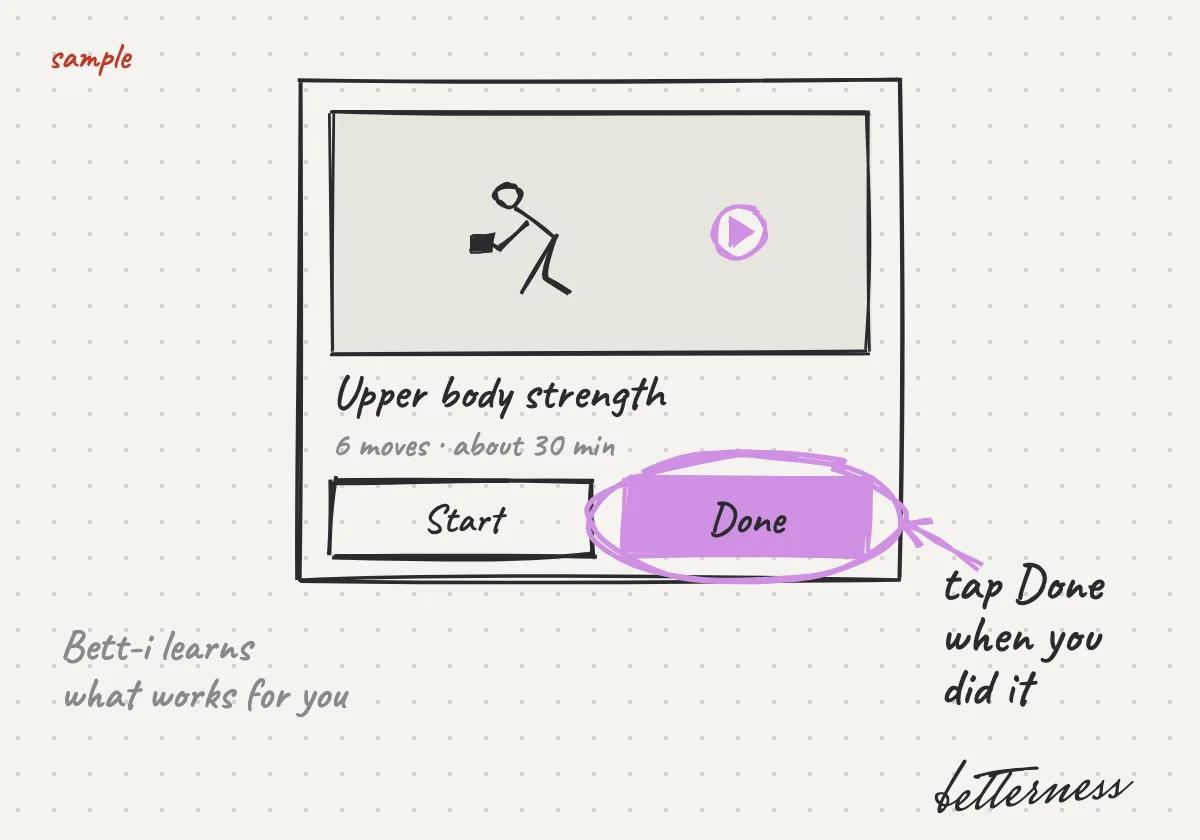
  3. Sketch: Tap Done when you do one. Bett-i learns what works for you.
    3Tap Done when you do one. Bett-i learns what works for you.

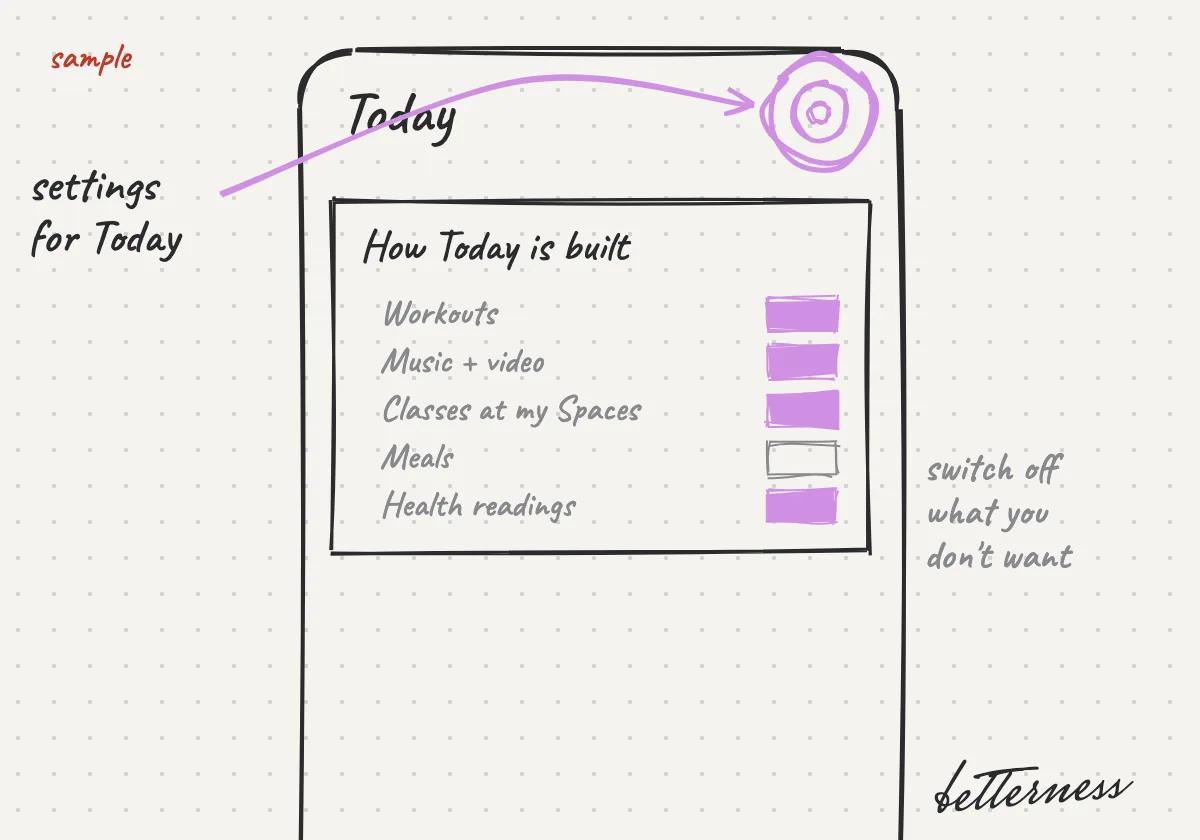
  4. Sketch: Change how Today is built in its settings.

    4Change Today's suggestions in its settings.

Better Life · 5 steps

Cheer your people in Community

Community shows what the people you follow and your Spaces are doing, and lets them cheer you on.
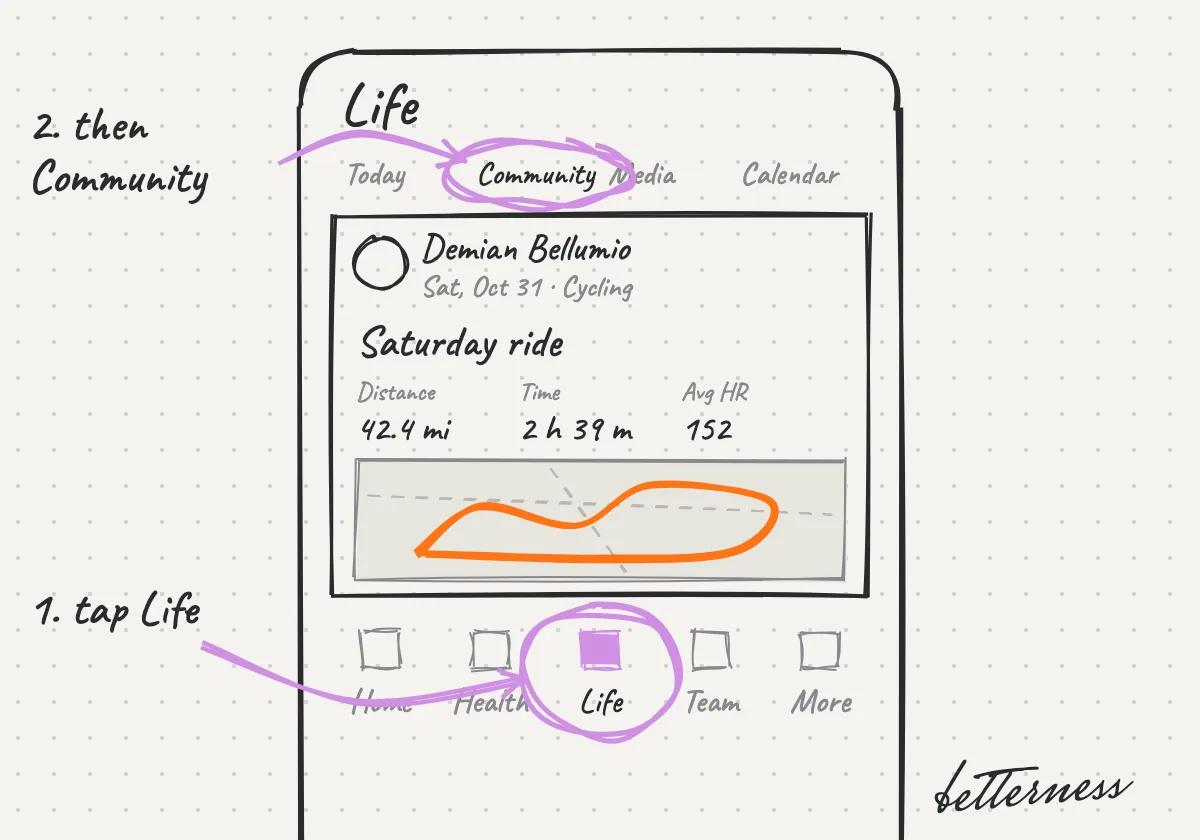
  1. Sketch: Open Life, then Community.

    1Open Life, then Community.

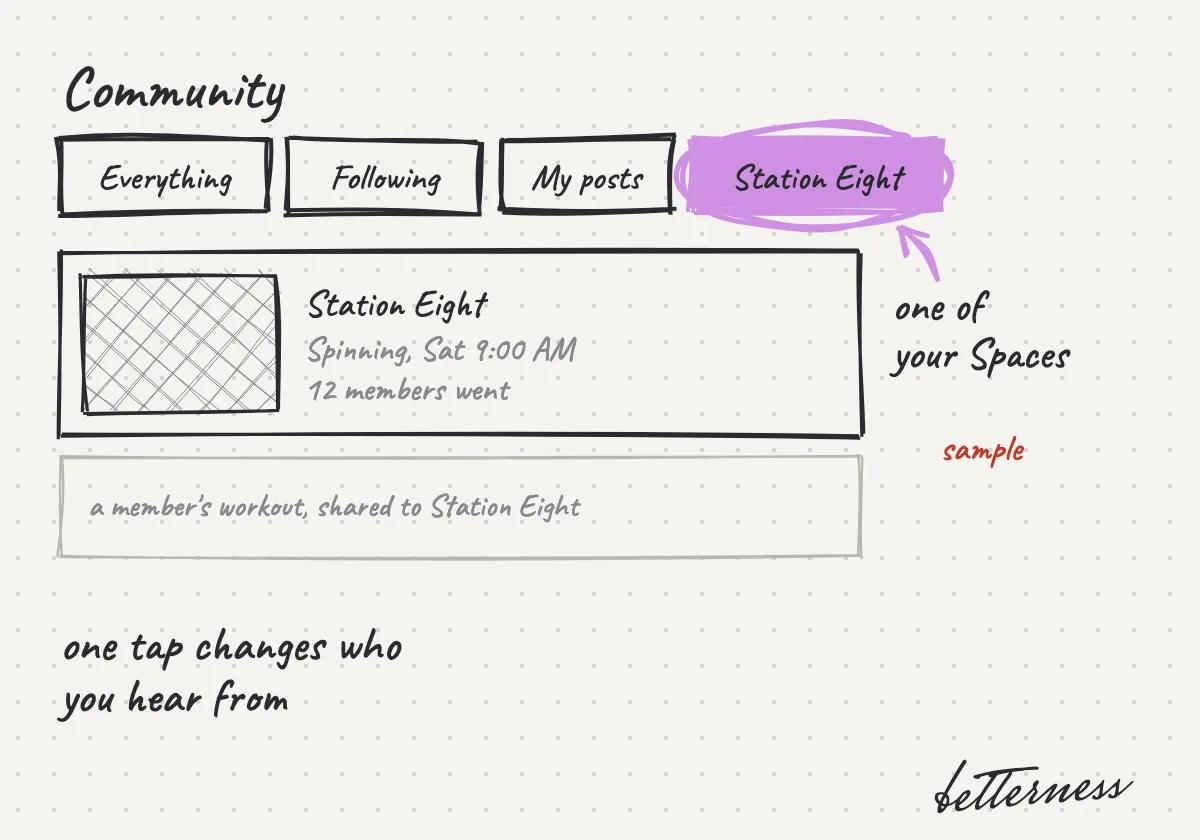
  2. Sketch: Pick a view: Everything, Following, My posts, or one of your Spaces.
    2Pick a view: Everything, Following, My posts, or one of your Spaces.

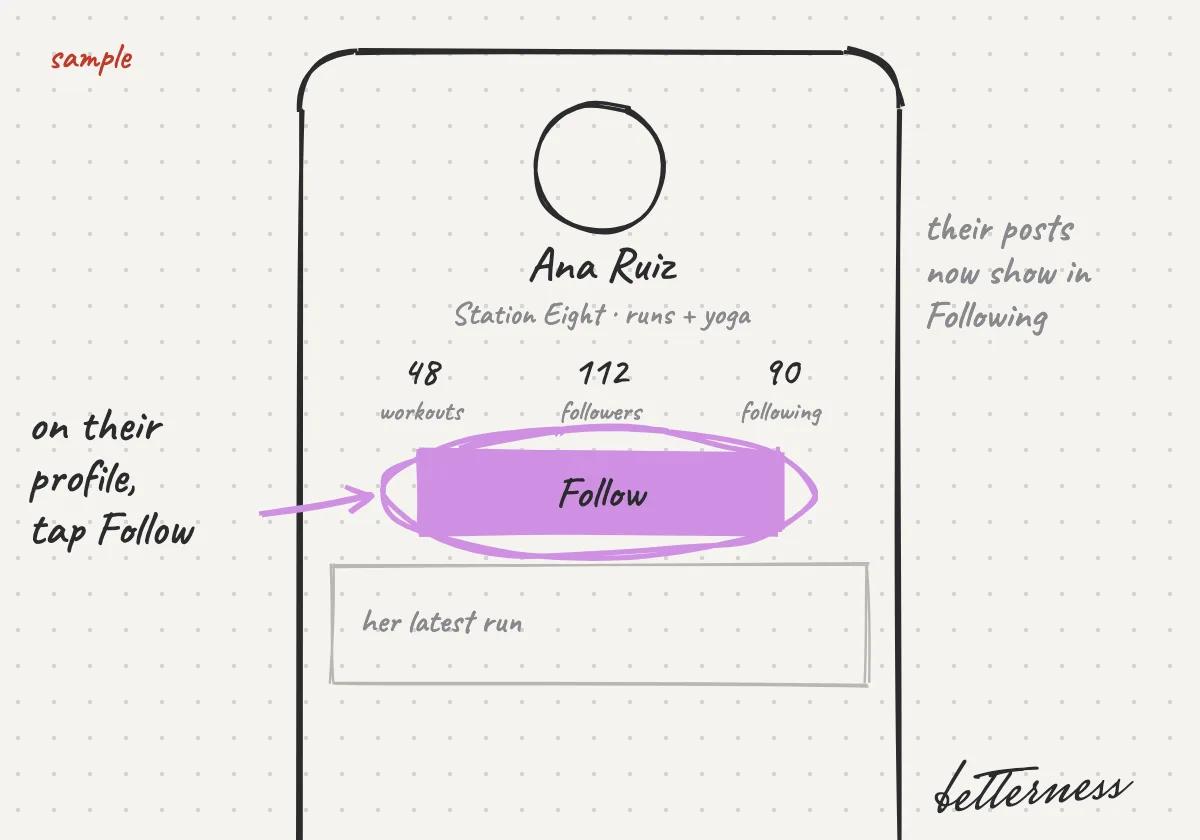
  3. Sketch: Follow someone from their profile.

    3Follow someone from their profile.

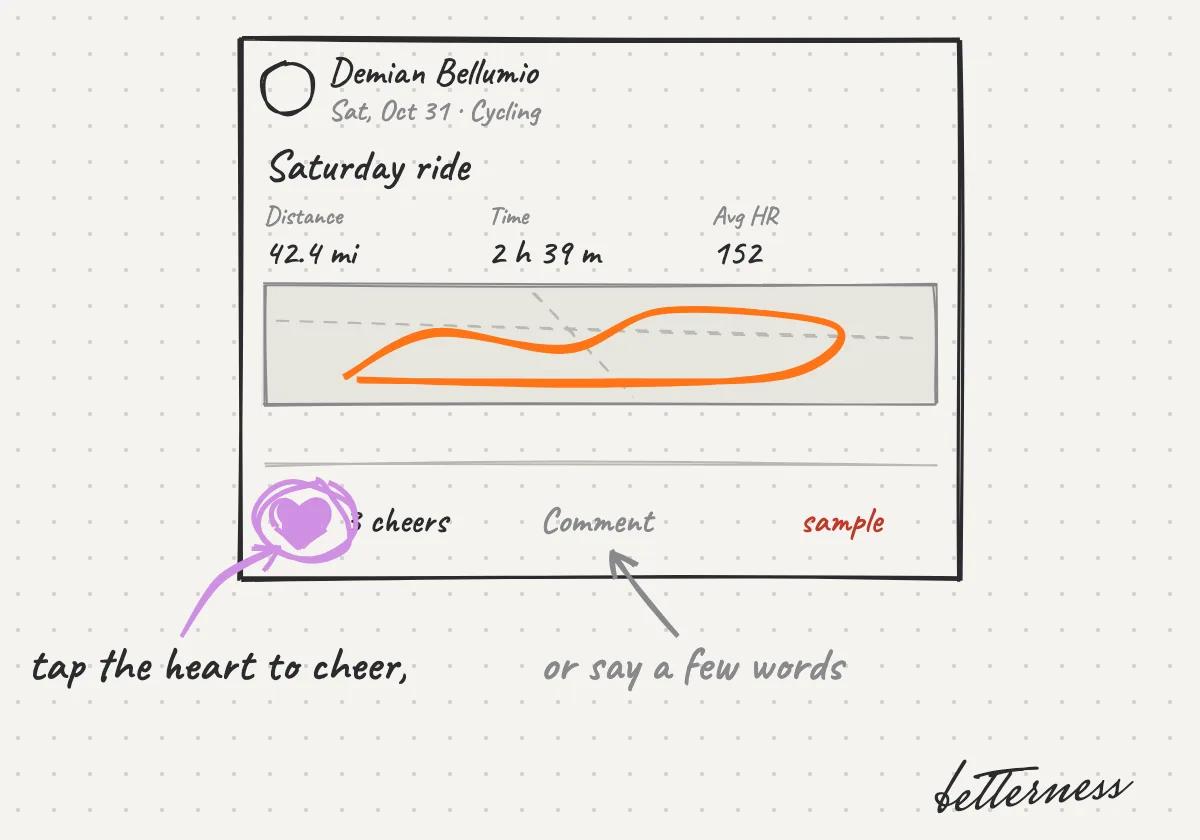
  4. Sketch: Cheer or comment on a post.

    4Cheer or comment on a post.

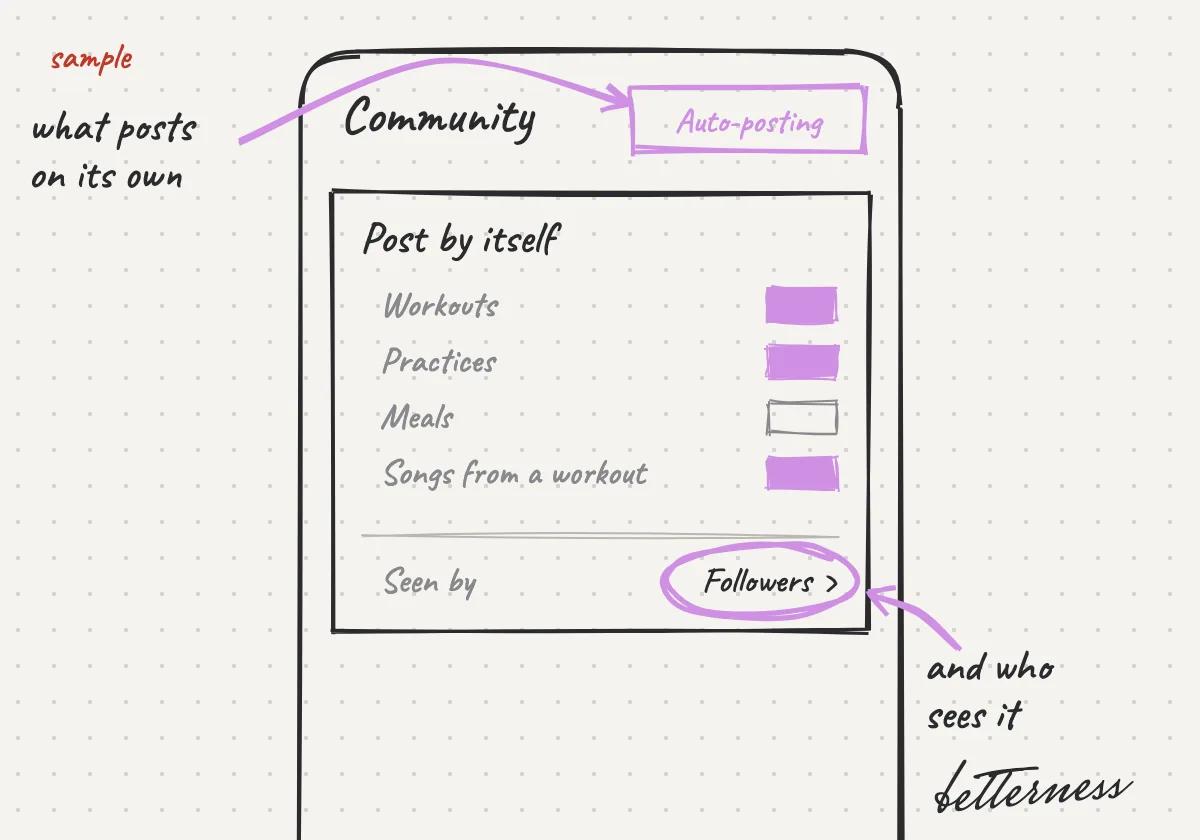
  5. Sketch: Choose what posts by itself and who sees it.

    5Choose what posts automatically, and who sees it.

Better Life · 4 steps

Learn, relax or get moving with Media

Media picks music, podcasts and classes for you, from YouTube and Spotify.
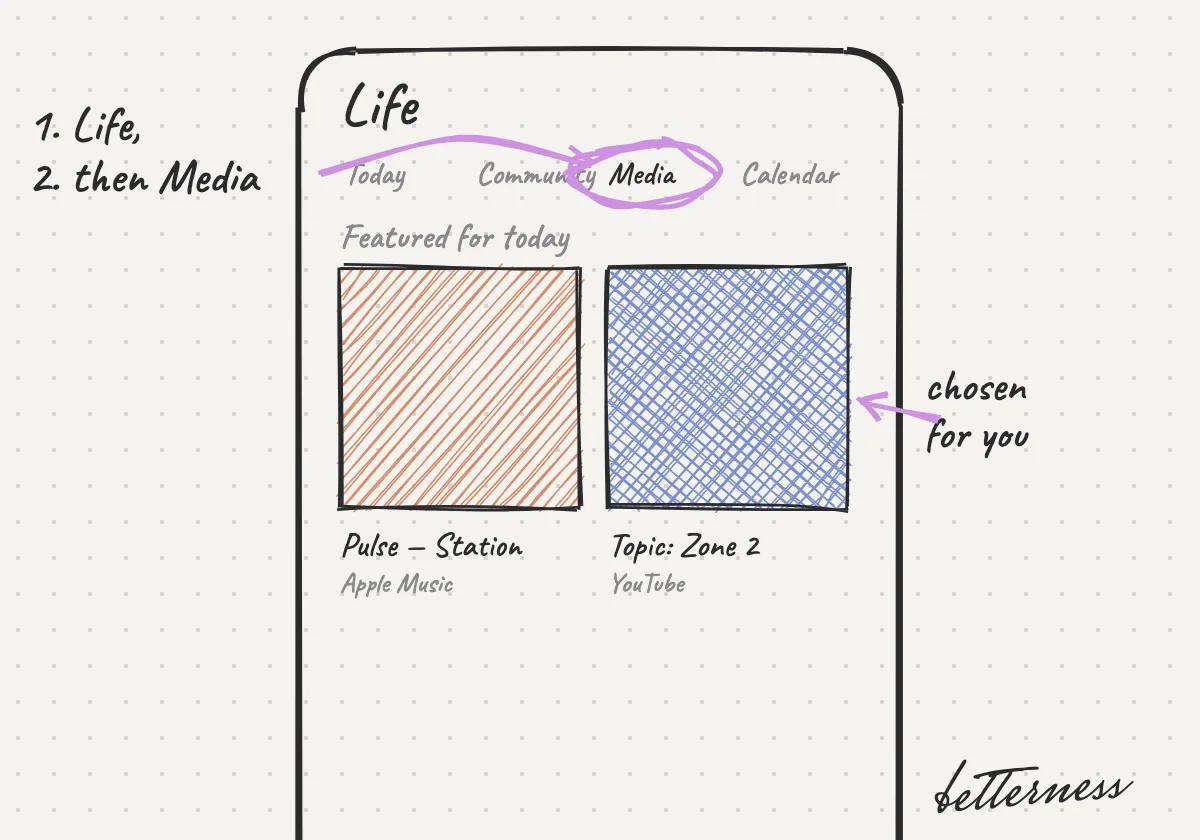
  1. Sketch: Open Life, then Media.

    1Open Life, then Media.

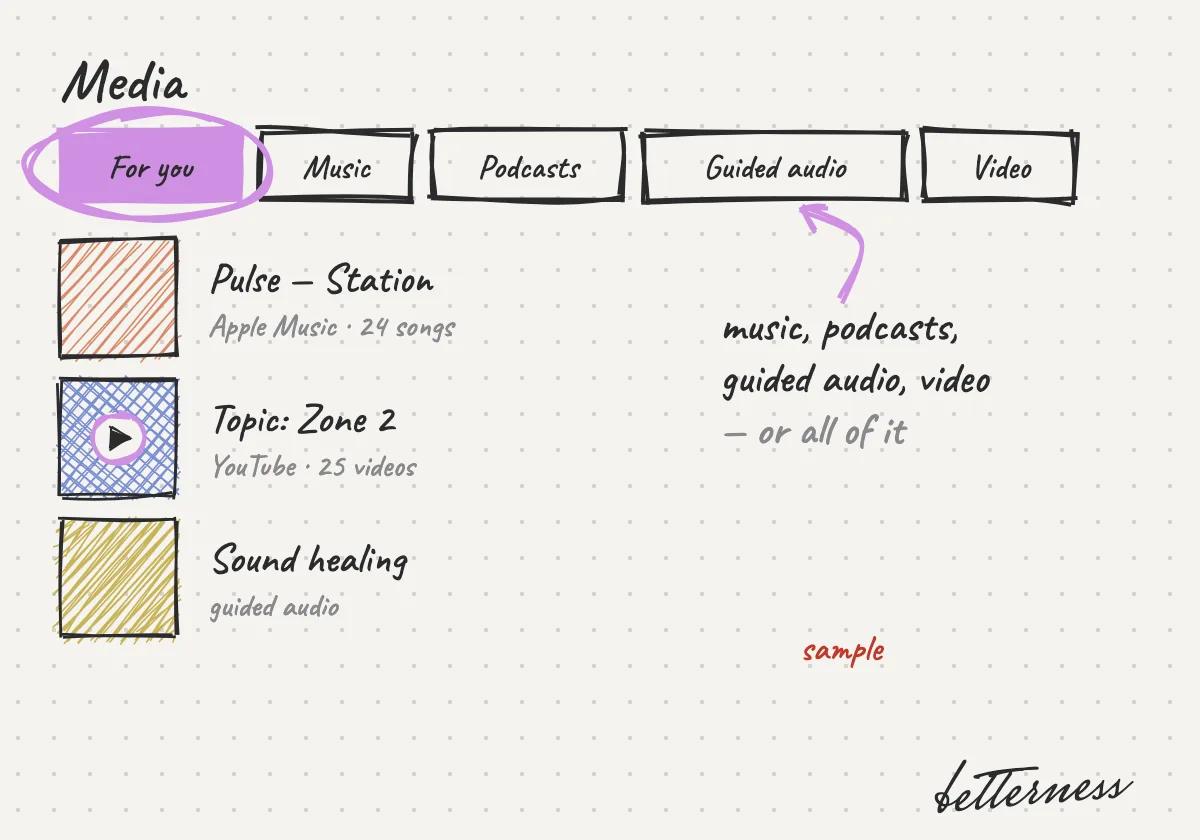
  2. Sketch: Pick For you, music, podcasts, guided audio or video.
    2Pick For you, music, podcasts, guided audio or video.

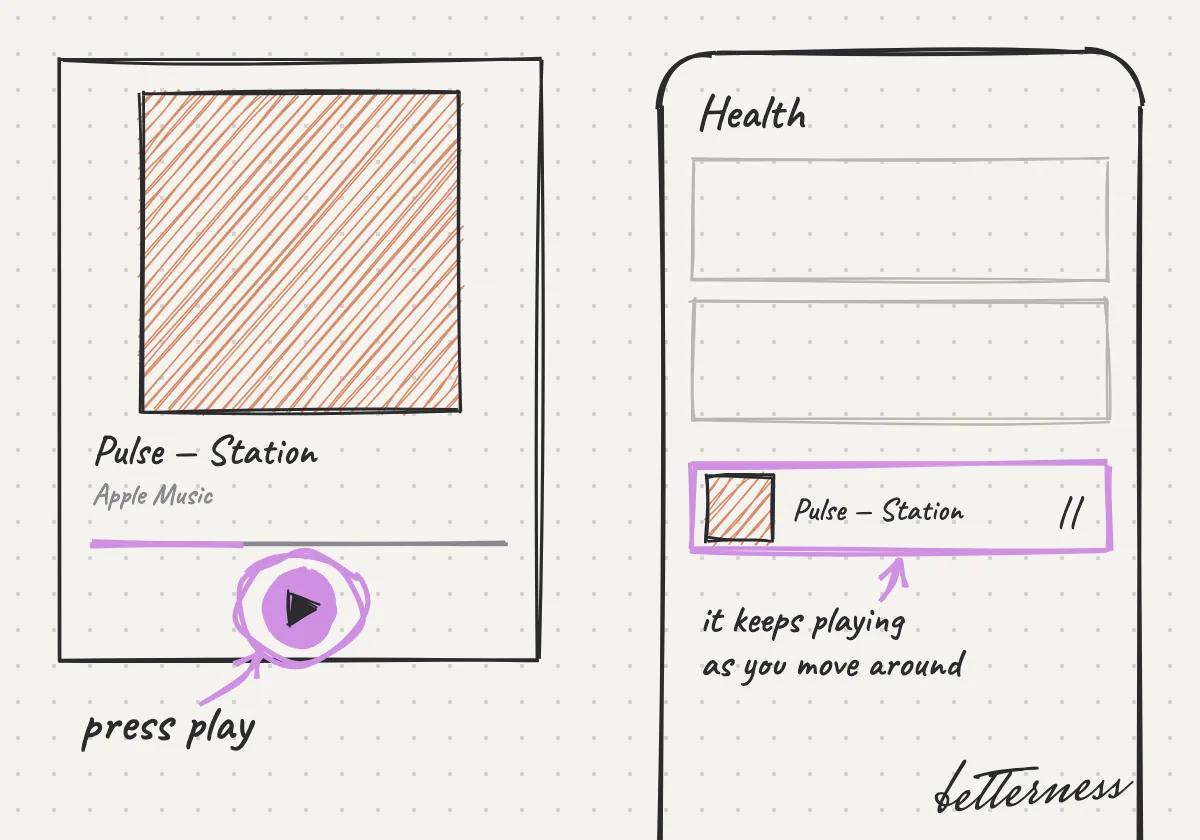
  3. Sketch: Press play. It plays from YouTube or Spotify, and the player stays with you across the app.
    3Press play. It plays from YouTube or Spotify, and the player stays with you across the app.

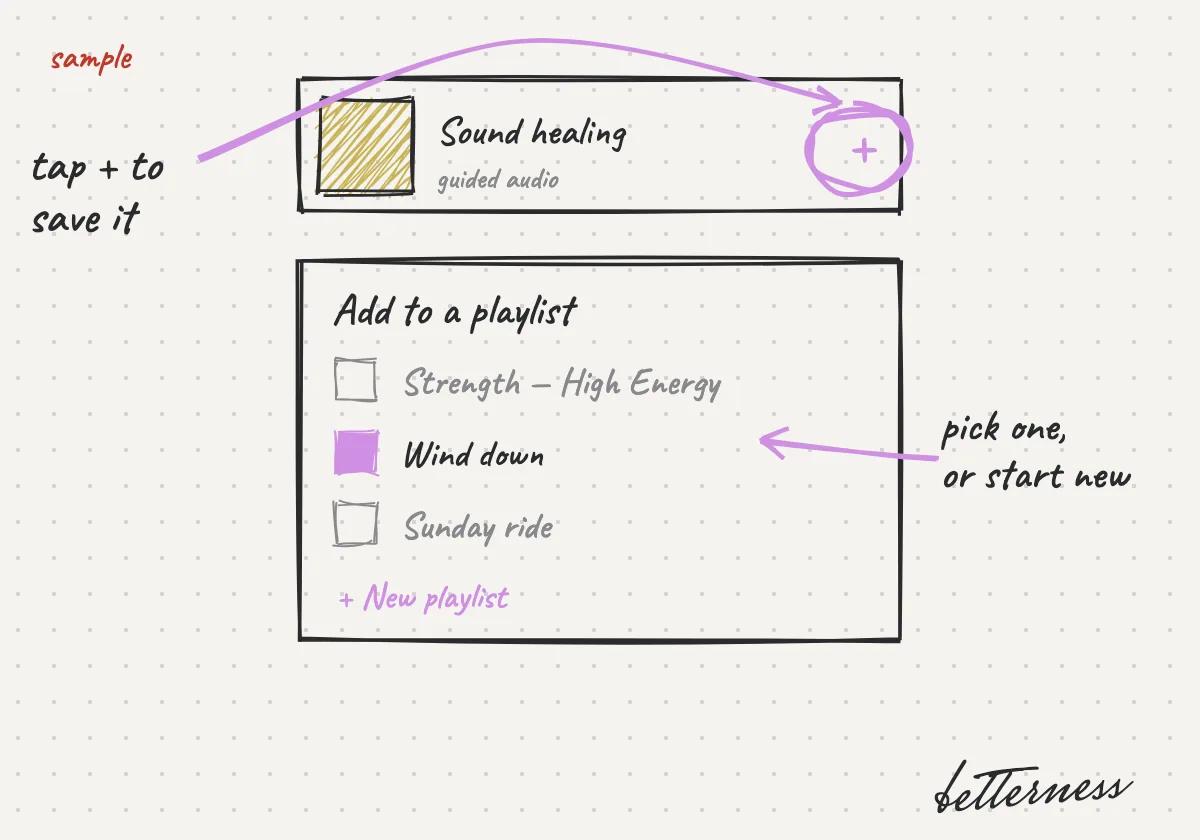
  4. Sketch: Save what you like to a playlist.

    4Save what you like to a playlist.

Better Life · 4 steps

See where things fit in Calendar

Calendar shows your plans and your Betterness time together.

Coming soon: the classes and markets of the Spaces in your Team.
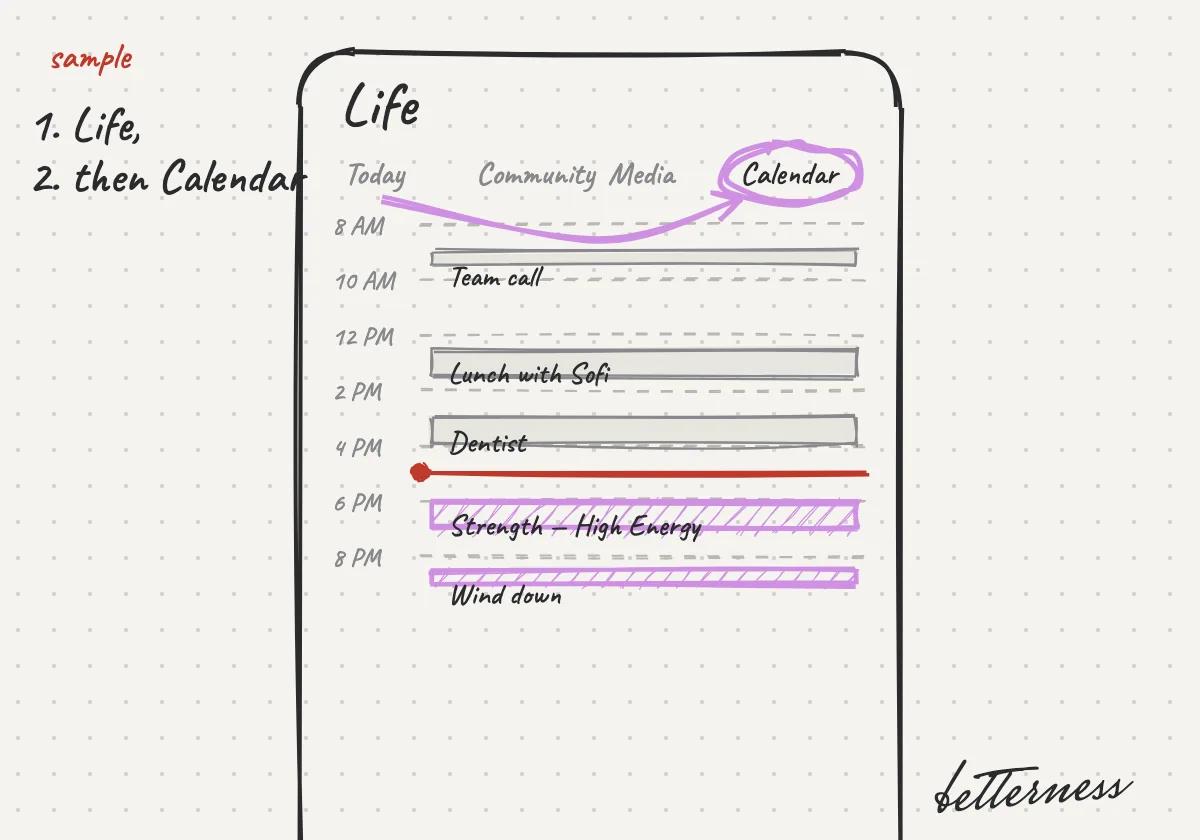
  1. Sketch: Open Life, then Calendar.

    1Open Life, then Calendar.

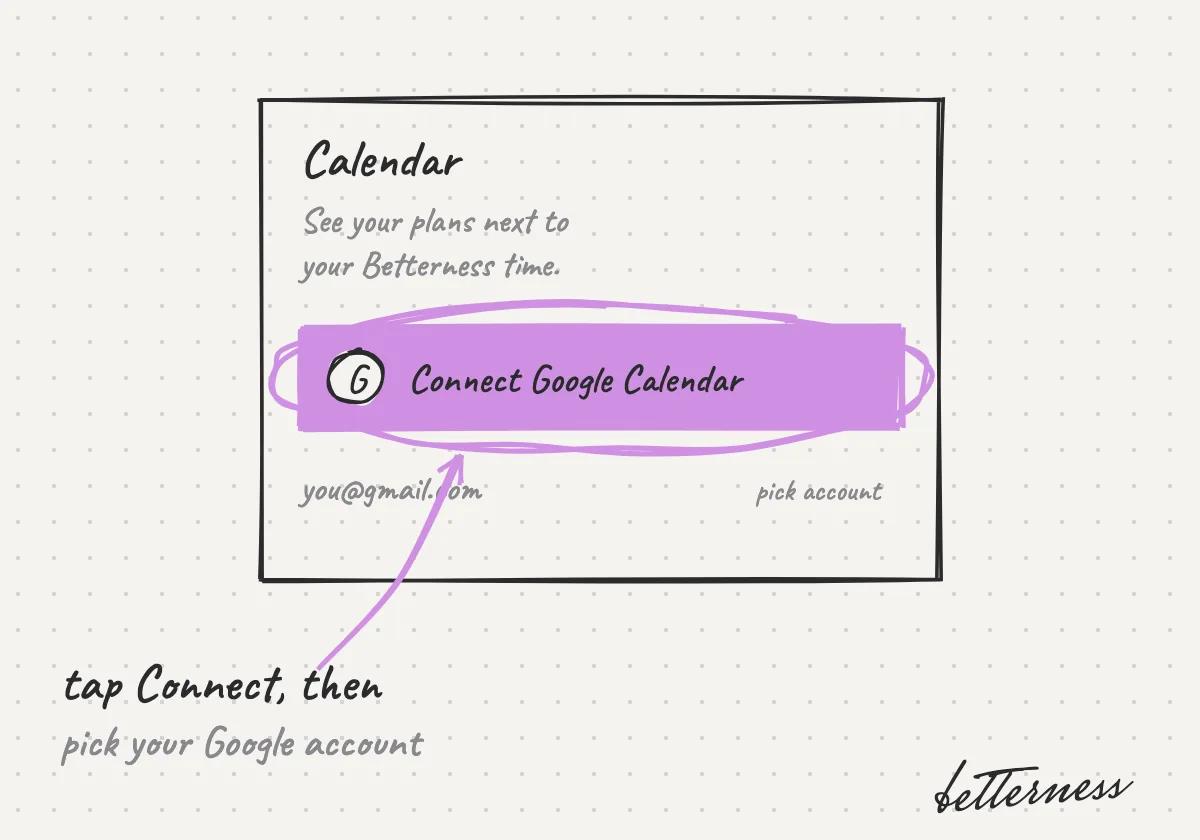
  2. Sketch: Connect your Google Calendar.

    2Connect your Google Calendar.
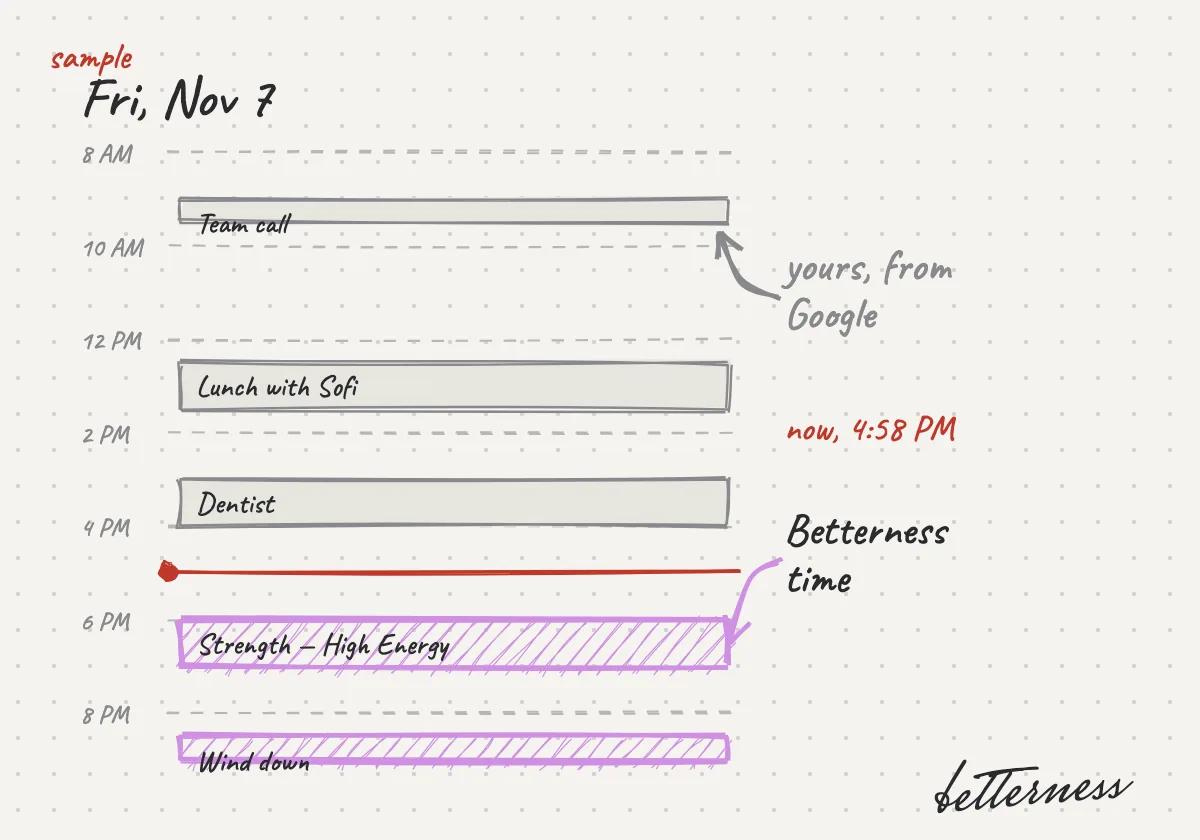
  3. Sketch: See your day with your plans and your Betterness time together.
    3See your day with your plans and your Betterness time together.

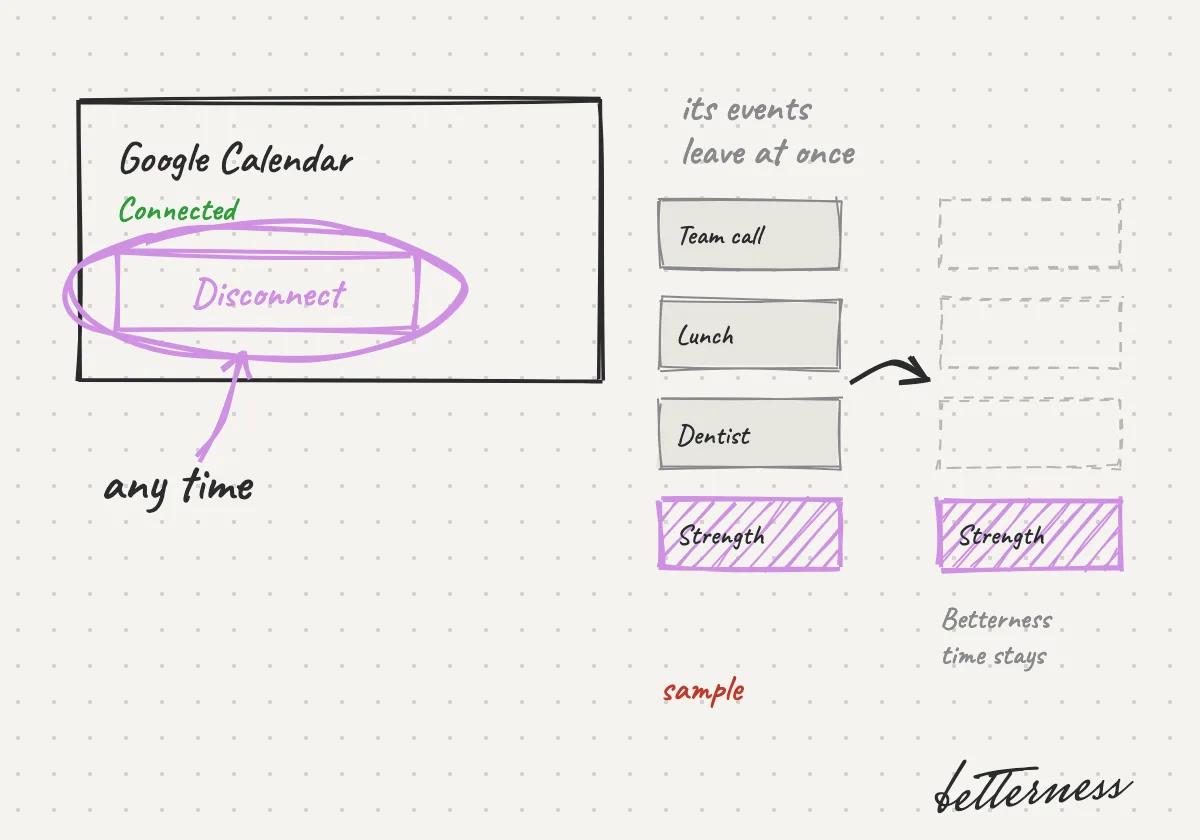
  4. Sketch: Disconnect at any time. Its events leave the calendar at once.

    4Disconnect any time. Your Google events leave right away.

Together · 4 steps

Tap in at your gym

One tap on the tag at your gym, studio or clinic adds their Space to your Team. No forms.
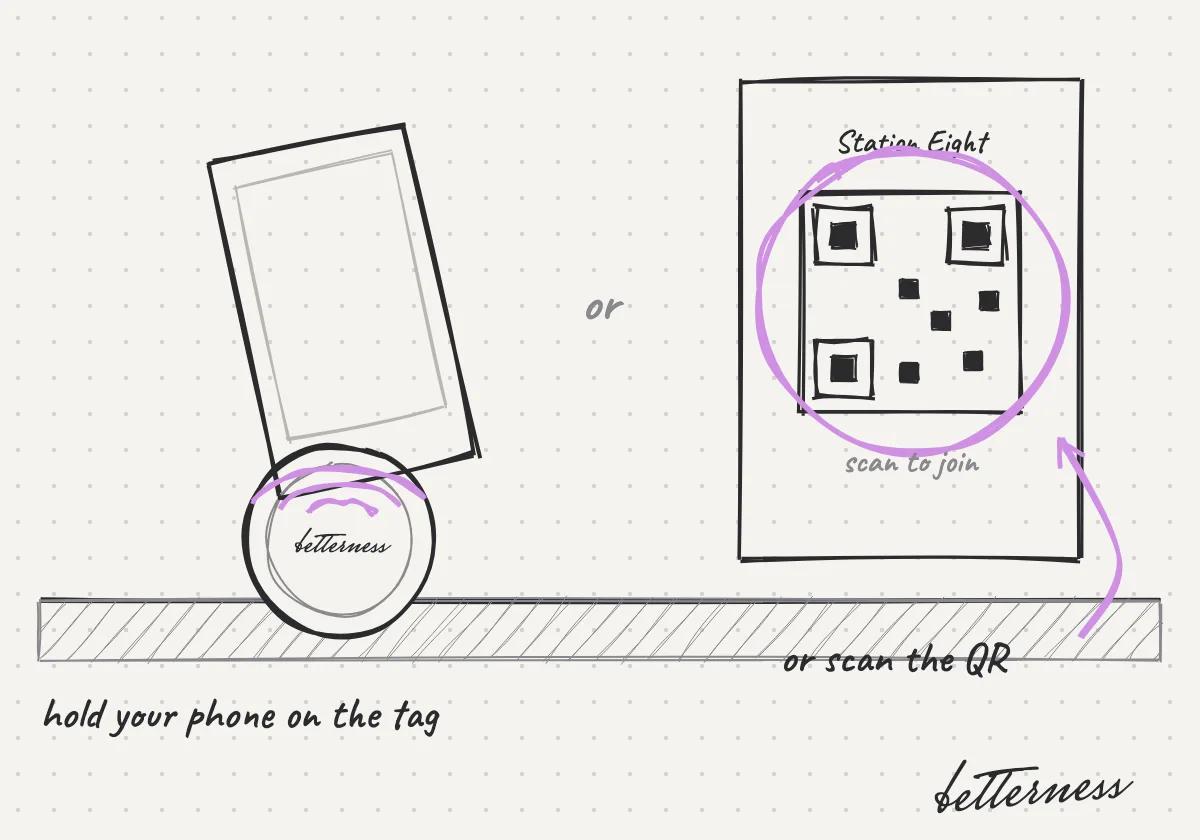
  1. Sketch: Tap your phone on the Betterness tag, or scan its QR code.
    1Tap your phone on the Betterness tag, or scan its QR code.

  2. Sketch: Add the Space of your coach, gym or doctor to your Team.
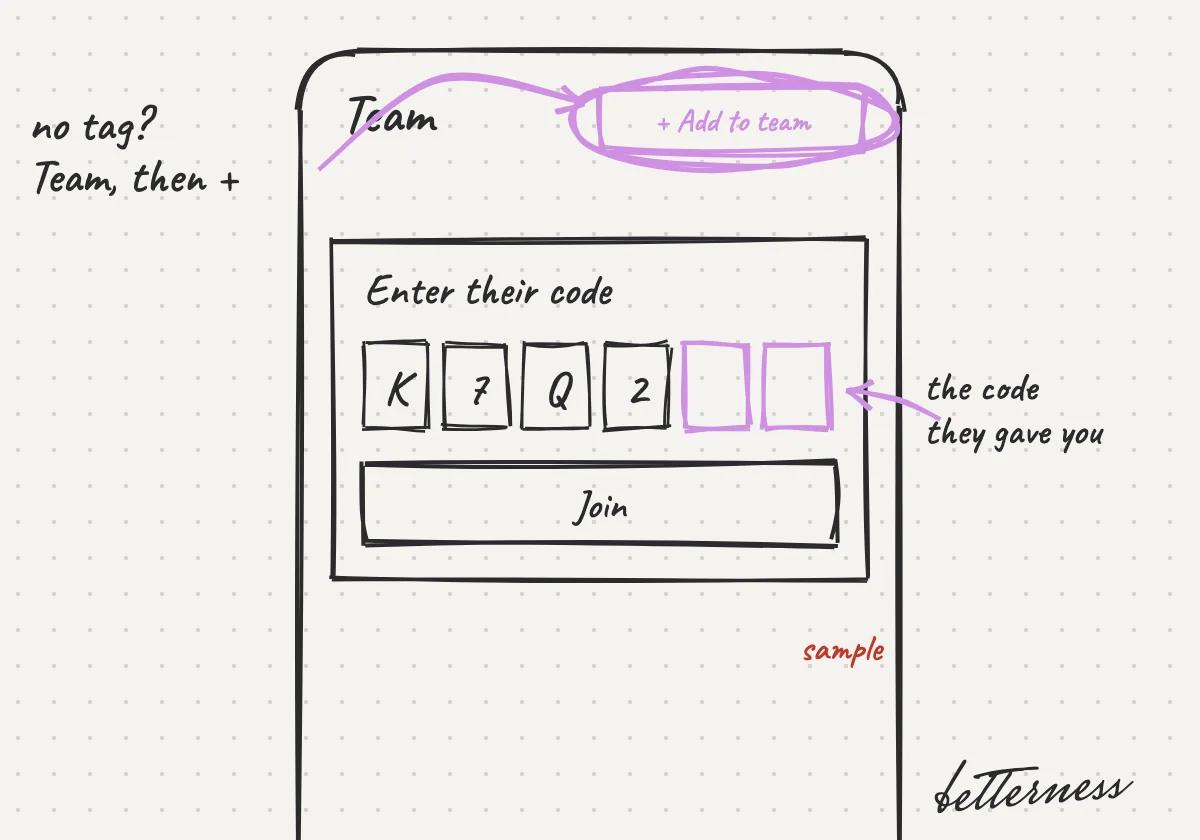
    2Add the Space of your coach, gym or doctor to your Team.

  3. Sketch: Or open Team and enter the code they gave you.
    3Or open Team and enter the code they gave you.

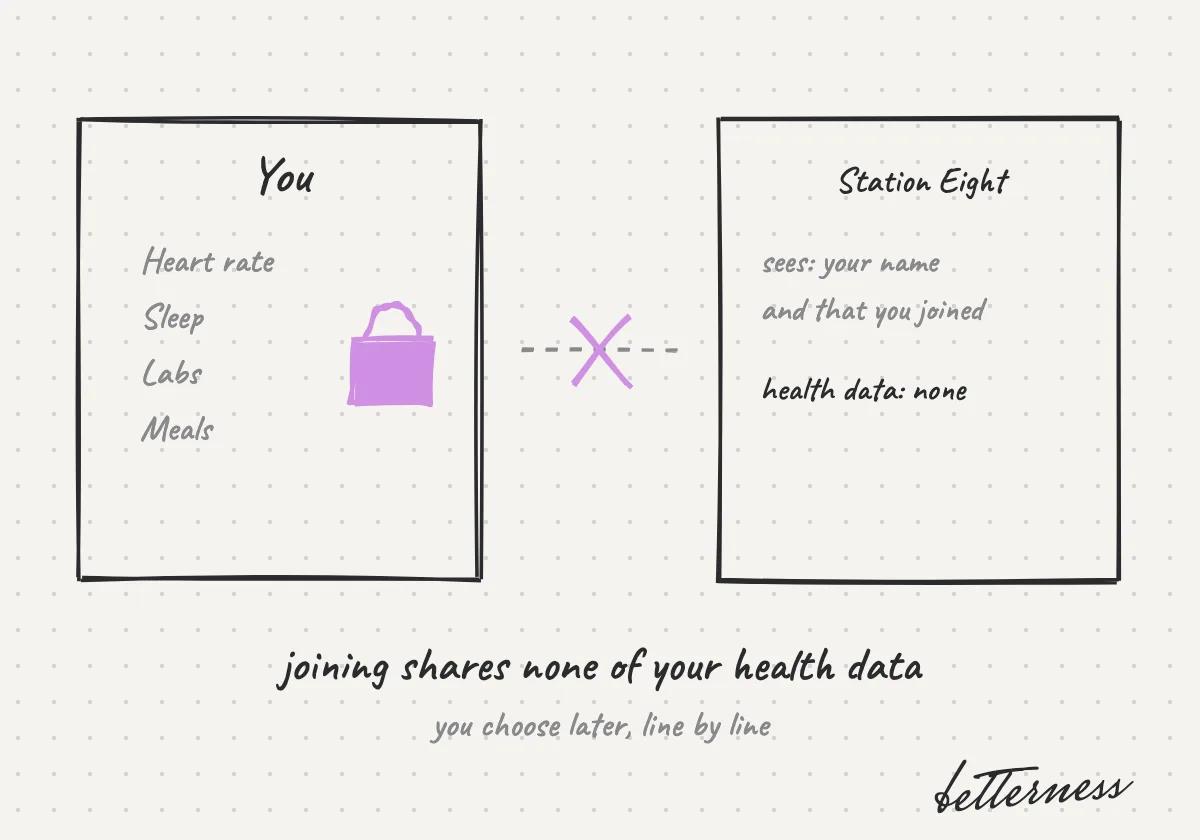
  4. Sketch: Joining shares none of your health data.

    4Joining shares none of your health data.

Together · 4 steps

Invite your coach or gym, free for them

You probably already train with someone. Inviting them is free for them.
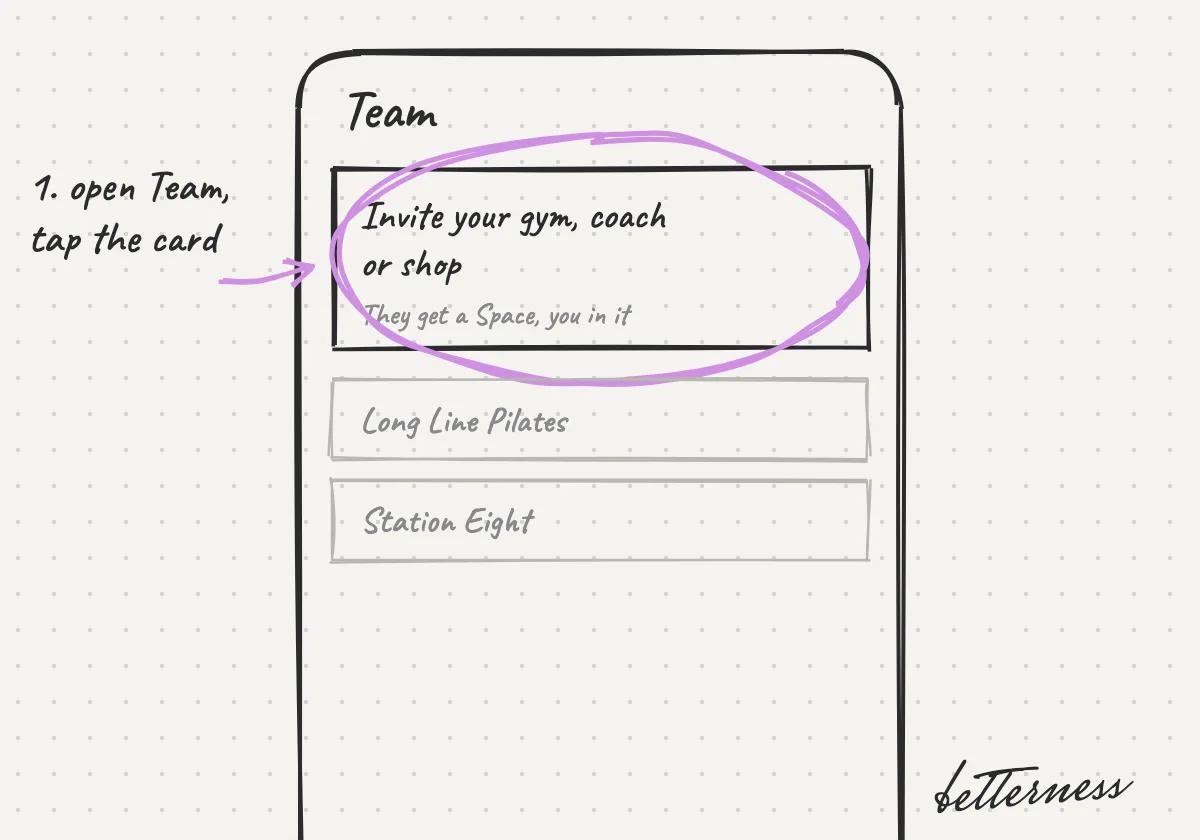
  1. Sketch: the Team tab with the invite card circled, above Long Line Pilates and Station Eight.

    1Open Team and tap Invite your gym, coach or shop.
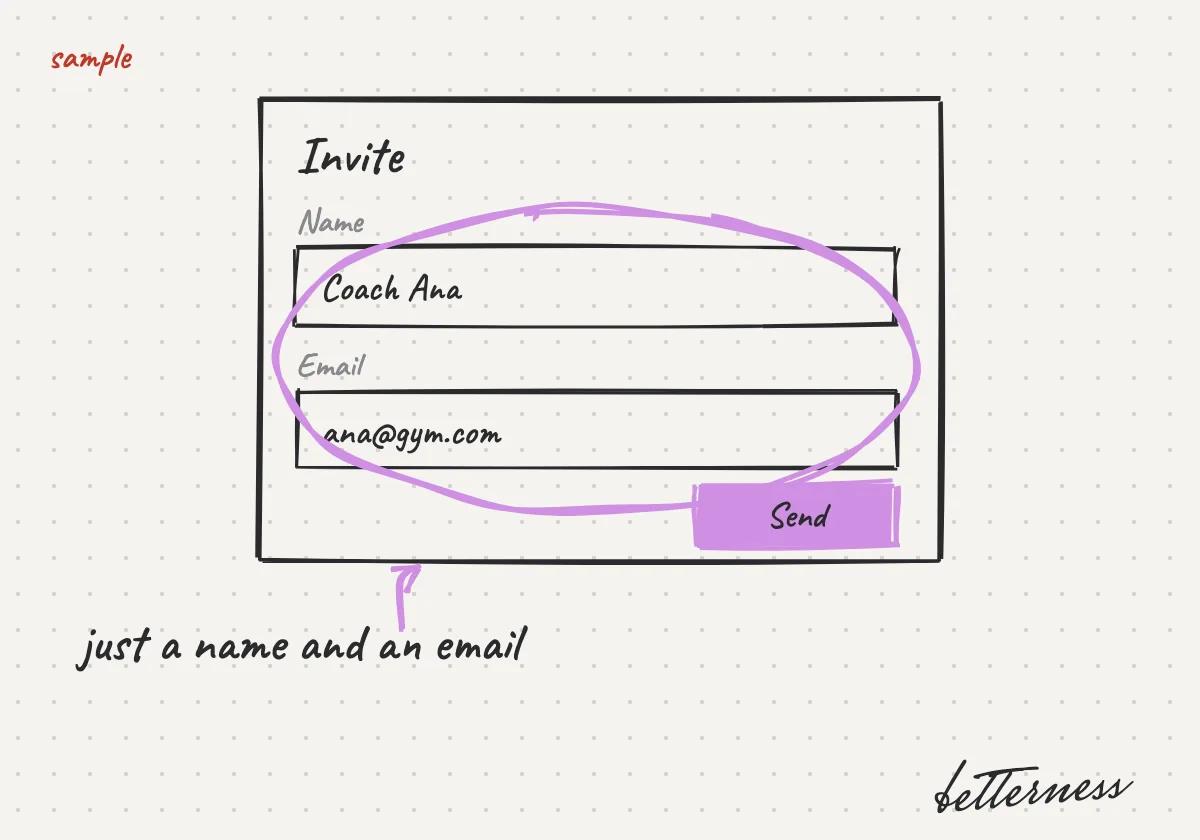
  2. Sketch: the invite form with a sample name and email, and Send.

    2Add their name and email.

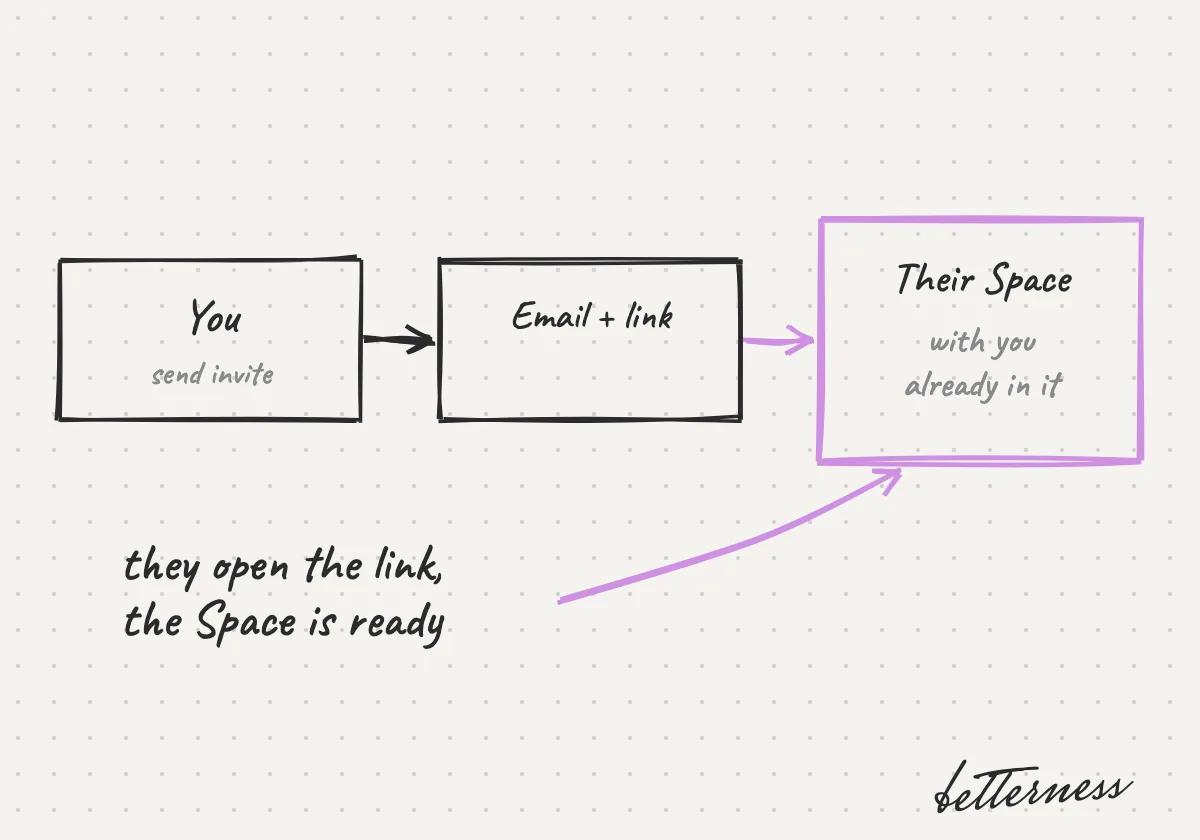
  3. Sketch: you send the invite, they get an email with a link, their Space opens with you in it.

    3We email them a link to their own Space, with you already in it.
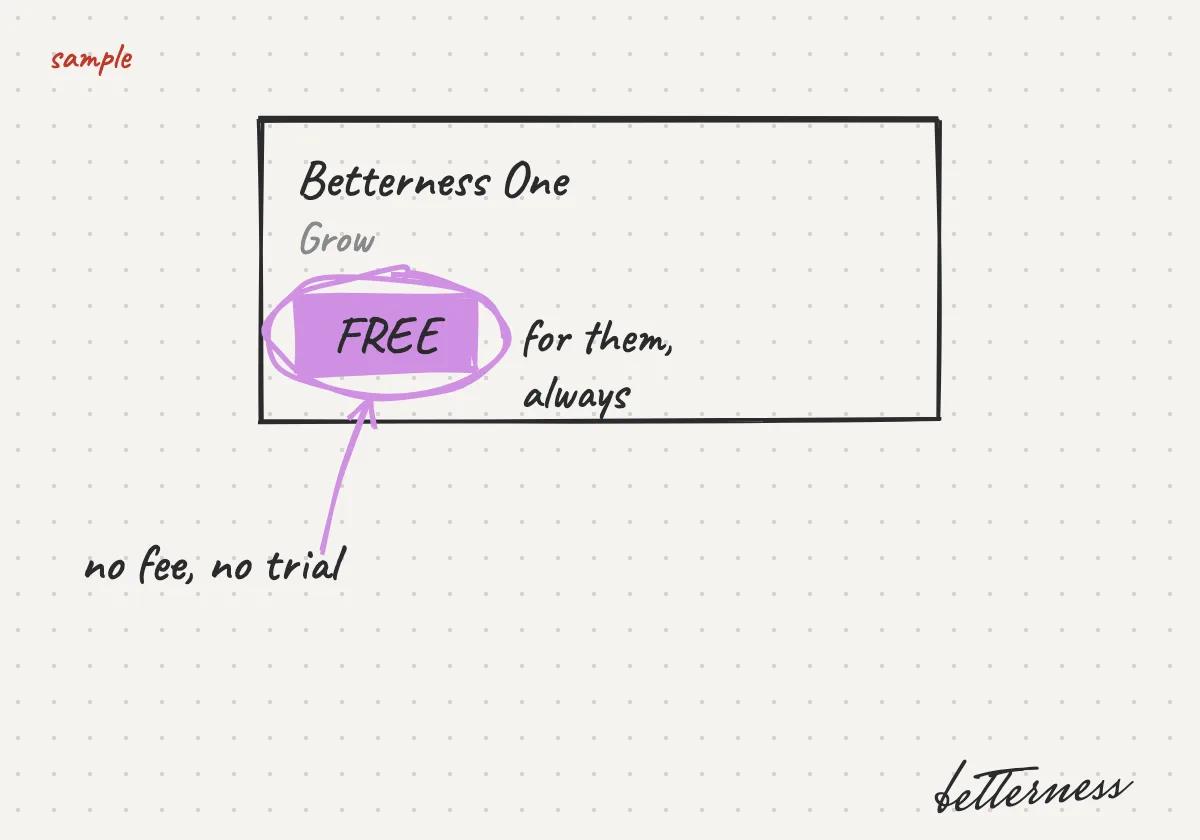
  4. Sketch: Betterness One Grow marked FREE, with no fee and no trial.

    4Grow, their Betterness One module, is free.

Together · 4 steps

Choose what you share

Your trainer or doctor helps more when they see your data. You choose what each one sees.

Coming soon: share line by line. Today each kind of data has one switch.
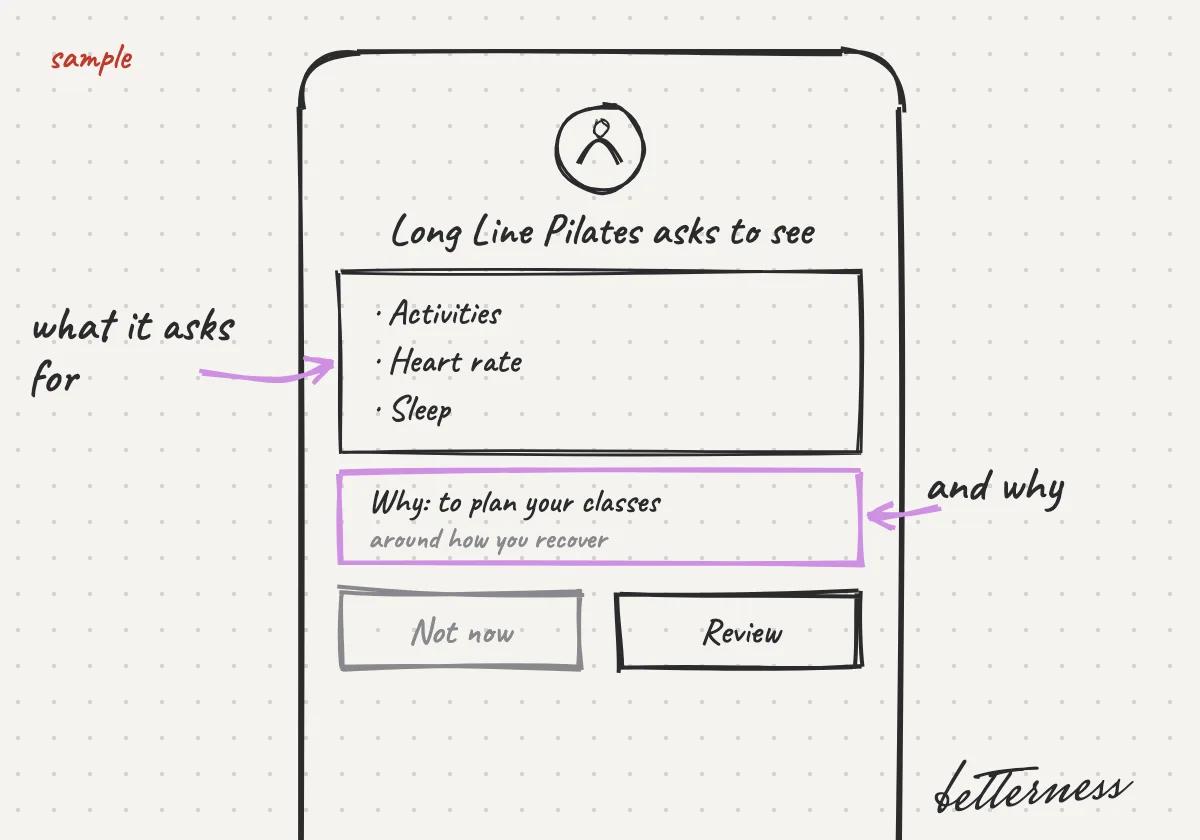
  1. Sketch: Your coach, gym or doctor will ask for some of your data, and say why.
    1Your coach, gym or doctor will ask for some of your data, and say why.

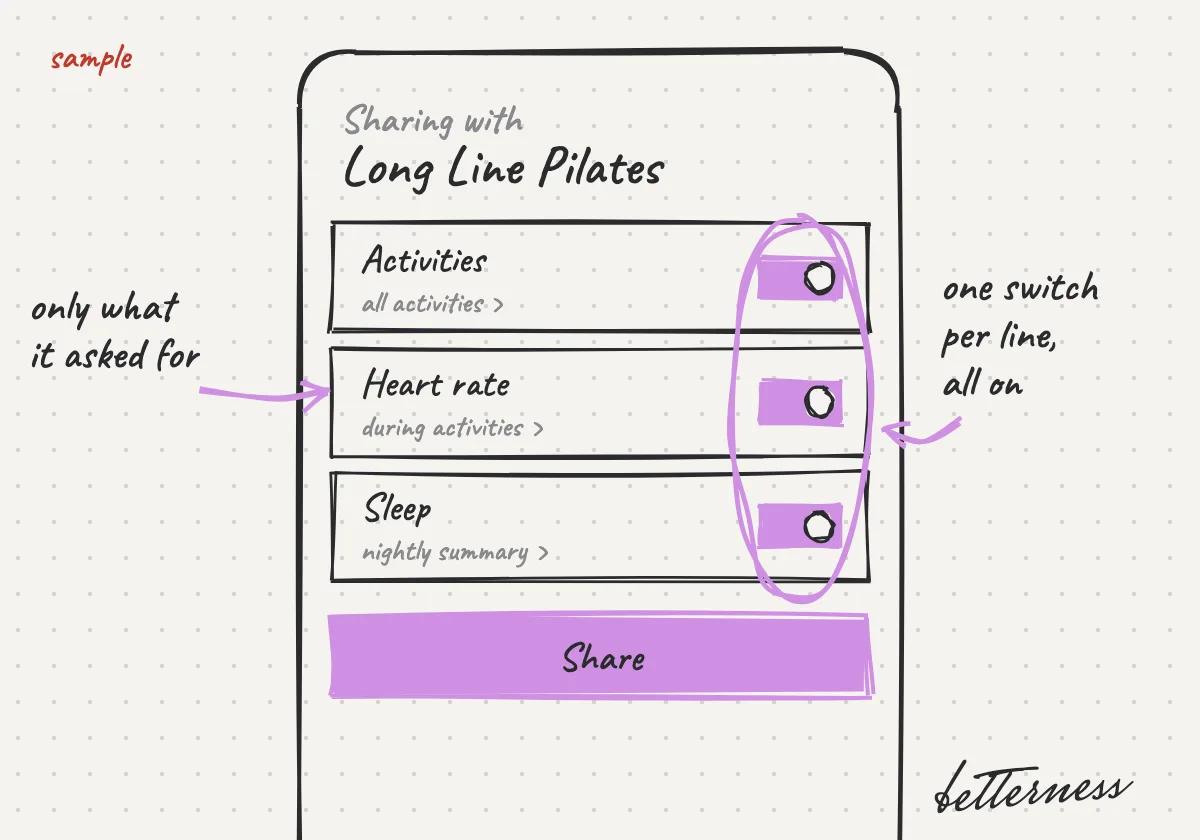
  2. Sketch: You will see only the lines it asked for. Each will have a switch, all on.
    2You will see only the lines it asked for. Each will have a switch, all on.

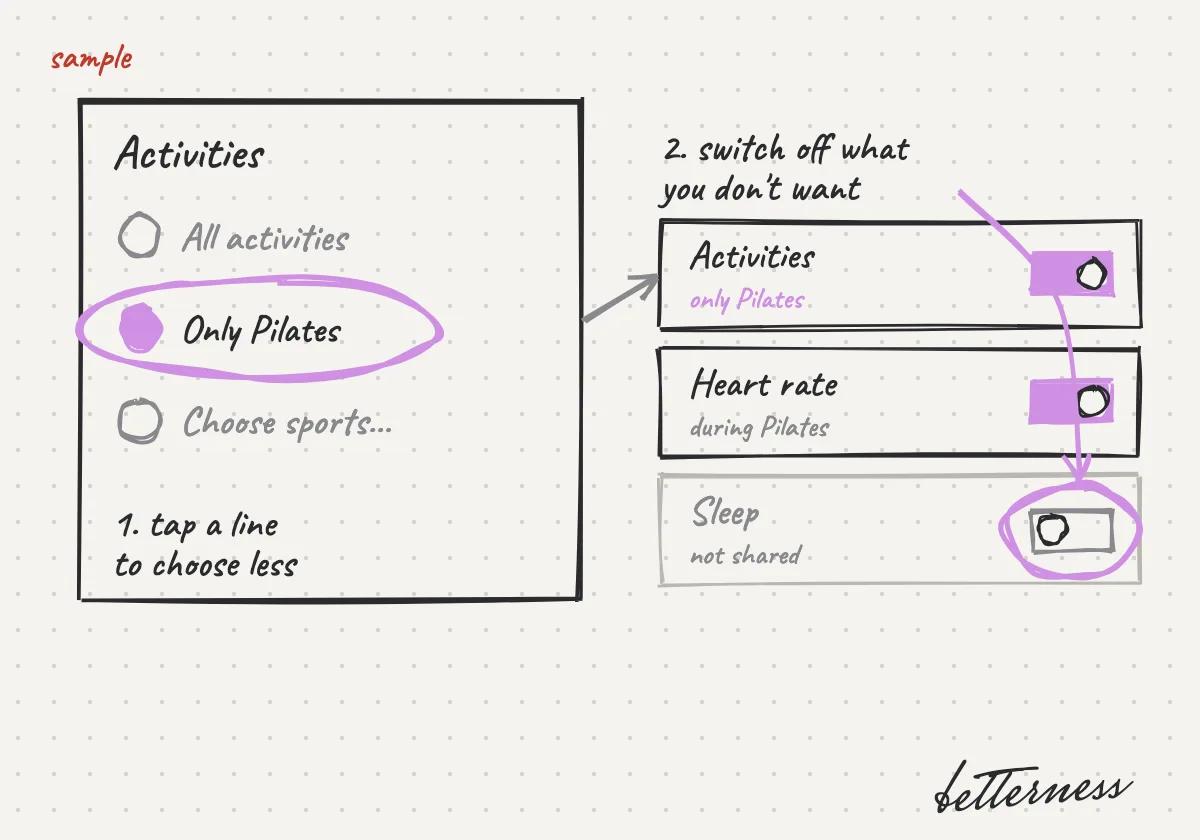
  3. Sketch: You will tap a line to choose less, for example only Pilates, and turn off anything you don't want to share.
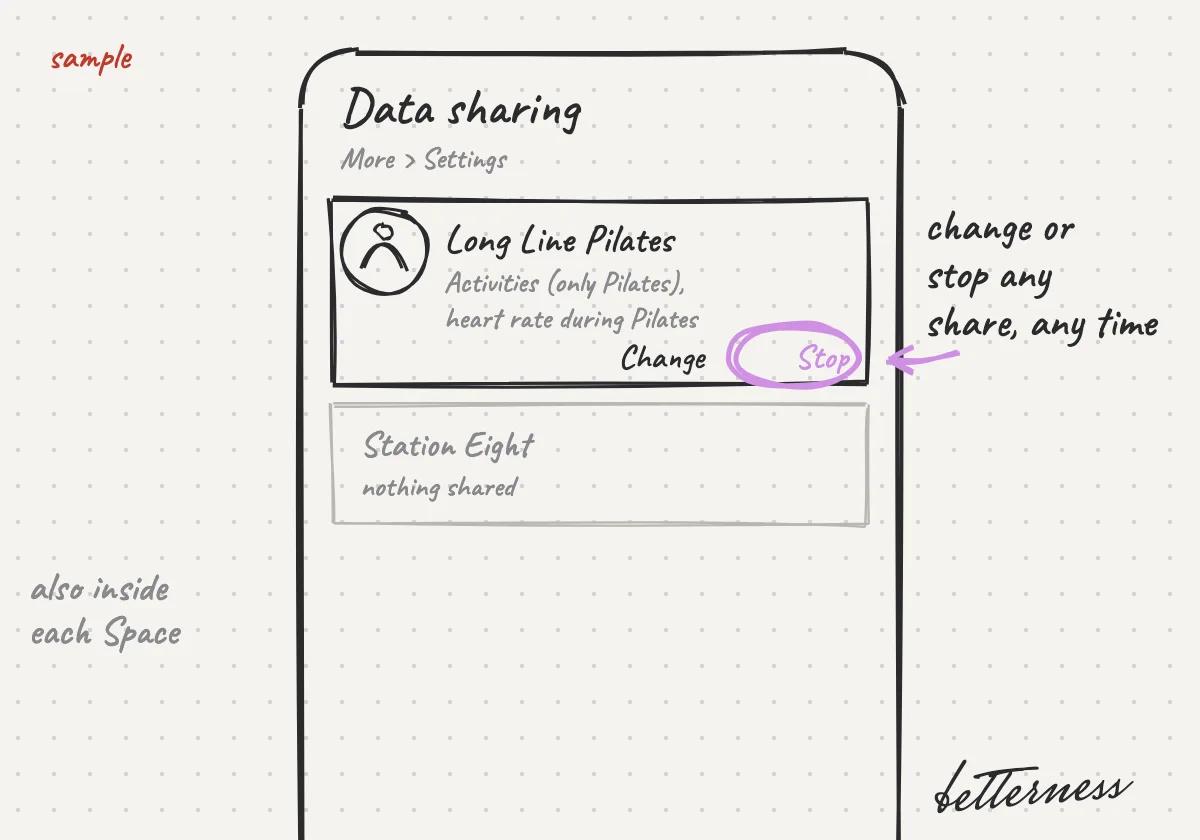
    3You will tap a line to choose less, for example only Pilates, and turn off anything you don't want to share.

  4. Sketch: You will change or stop any share later, in the Space or in Settings, Data sharing.

    4You will change or stop any share later, in the Space or in Settings, Data sharing.

Together · 4 steps

What your coach, gym or doctor asks for, and why

Your trainer, gym or doctor asks only for the data their work needs, and says why.

Coming soon: requests suggested by the kind of Space.
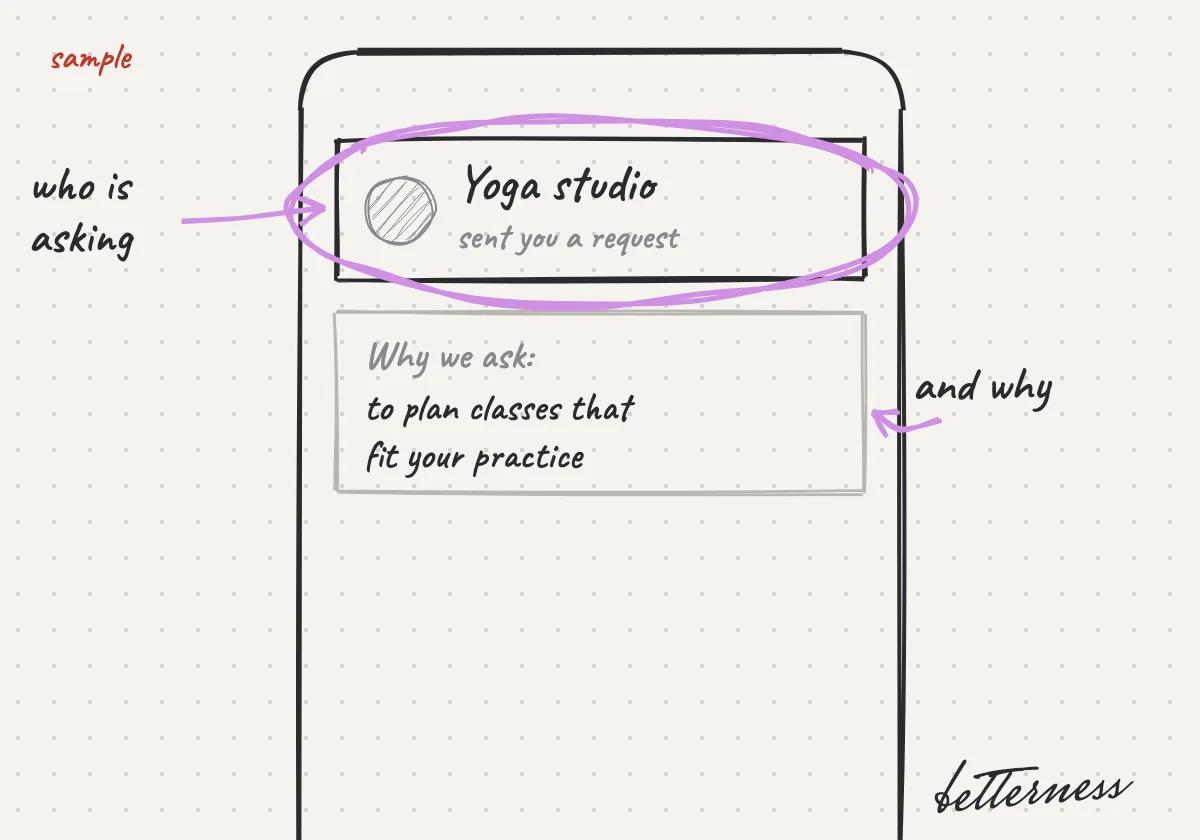
  1. Sketch: You will open the request and read who is asking and why.
    1You will open the request and read who is asking and why.

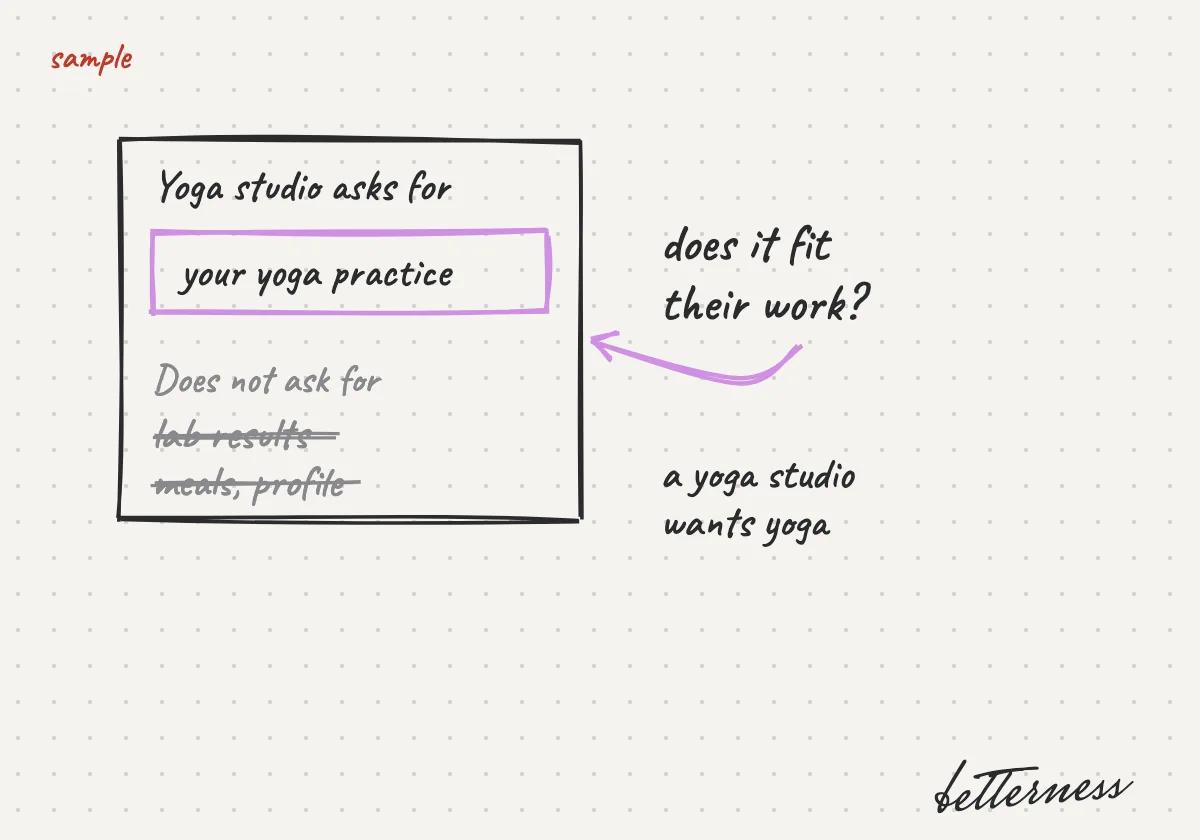
  2. Sketch: You will check that it fits: a yoga studio asks for your yoga practice, not your lab results.
    2You will check that it fits: a yoga studio asks for your yoga practice, not your lab results.

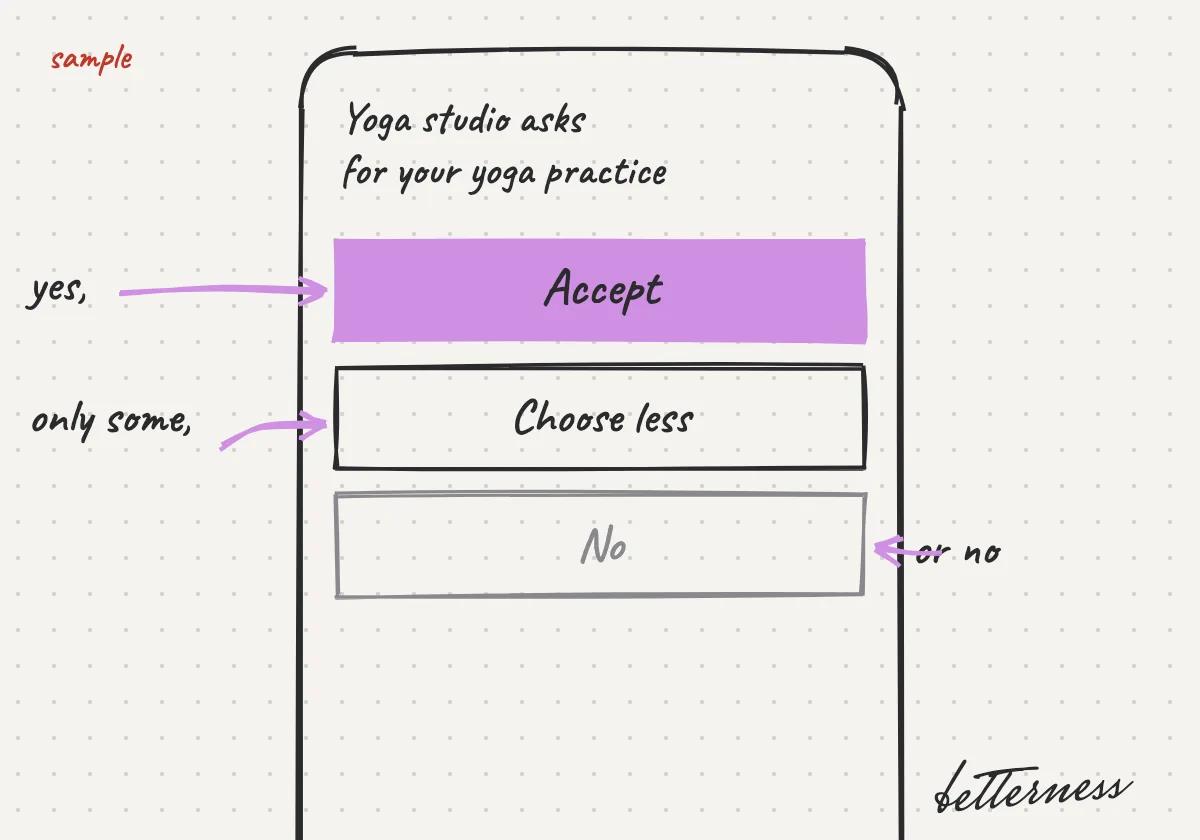
  3. Sketch: You will accept, choose less, or say no.
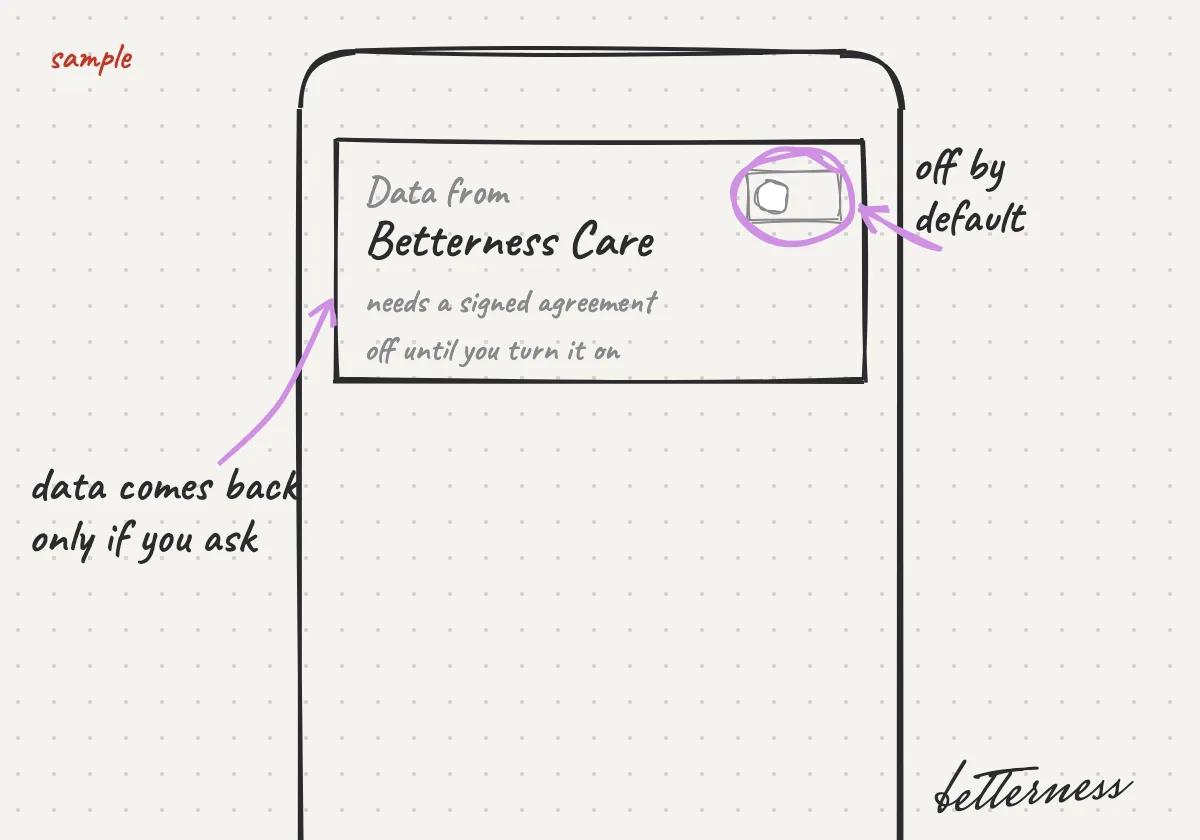
    3You will accept, choose less, or say no.

  4. Sketch: You will turn on data from Betterness Care only if you want it back. It will need a signed agreement and stay off until you turn it on.

    4Results back from a clinical partner, through Betterness Care, stay off until you sign an agreement and turn them on.

Together · 3 steps

Your class pass on Home

Your next class and your credits sit on Home, so booking, checking in and finding the place each take one tap.
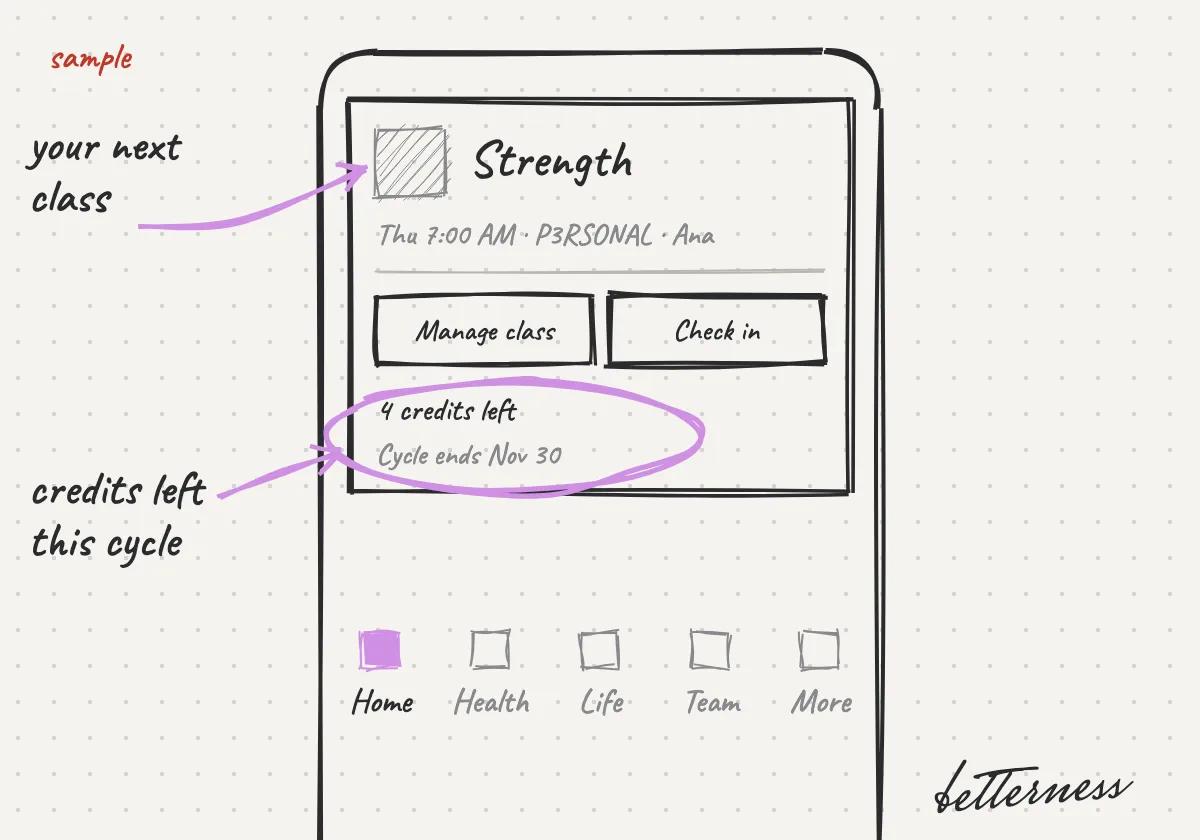
  1. Sketch: Your class pass is the first card on Home: your next class, and the credits you have left.
    1Your class pass is the first card on Home: your next class, and the credits you have left.

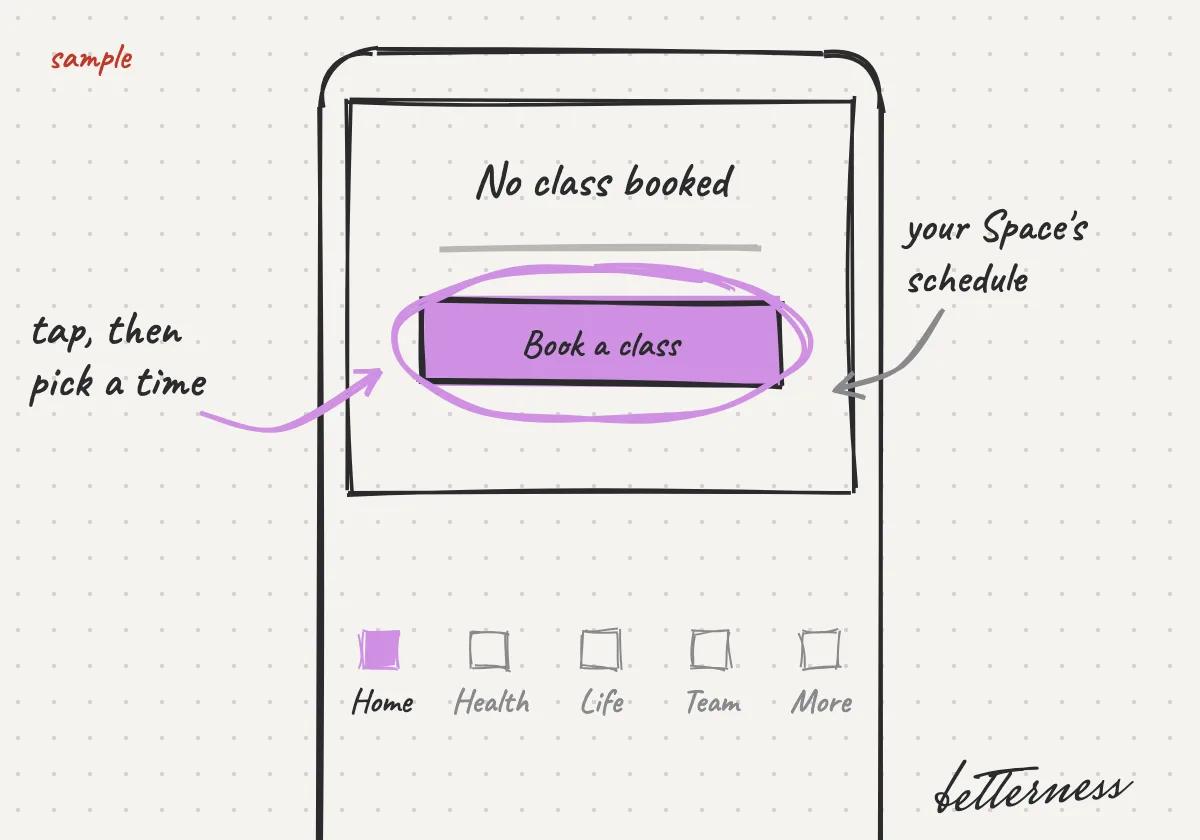
  2. Sketch: No class booked? Tap Book a class and pick a time in your Space's schedule.
    2No class booked? Tap Book a class and pick a time in your Space's schedule.

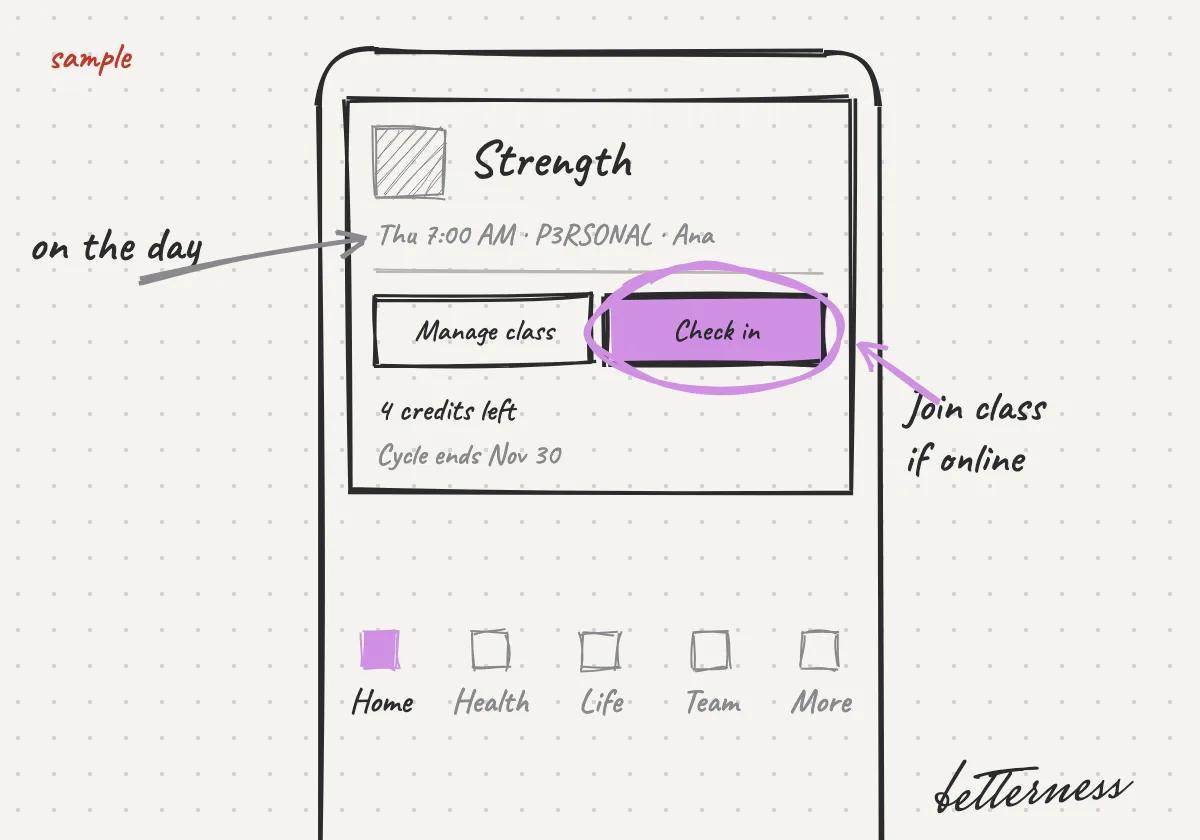
  3. Sketch: On the day, tap Check in, or Join class if it is online.

    3On the day, tap Check in, or Join class if it is online.

Together · 4 steps

Move your class to another time

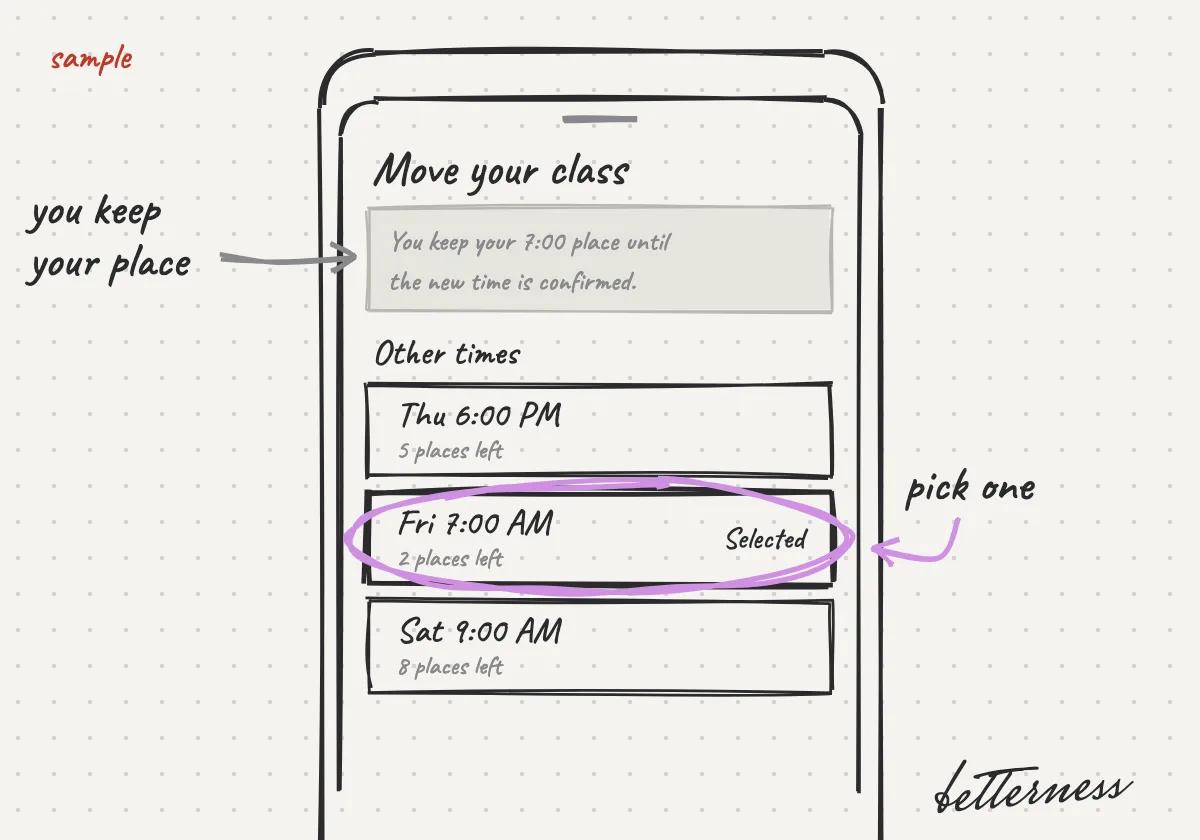
Plans change. Moving your own class keeps your place and your credit, without writing to the studio.

You can move a class until its free cancellation ends. After that, Move to another time is turned off, unless the studio changed the class.
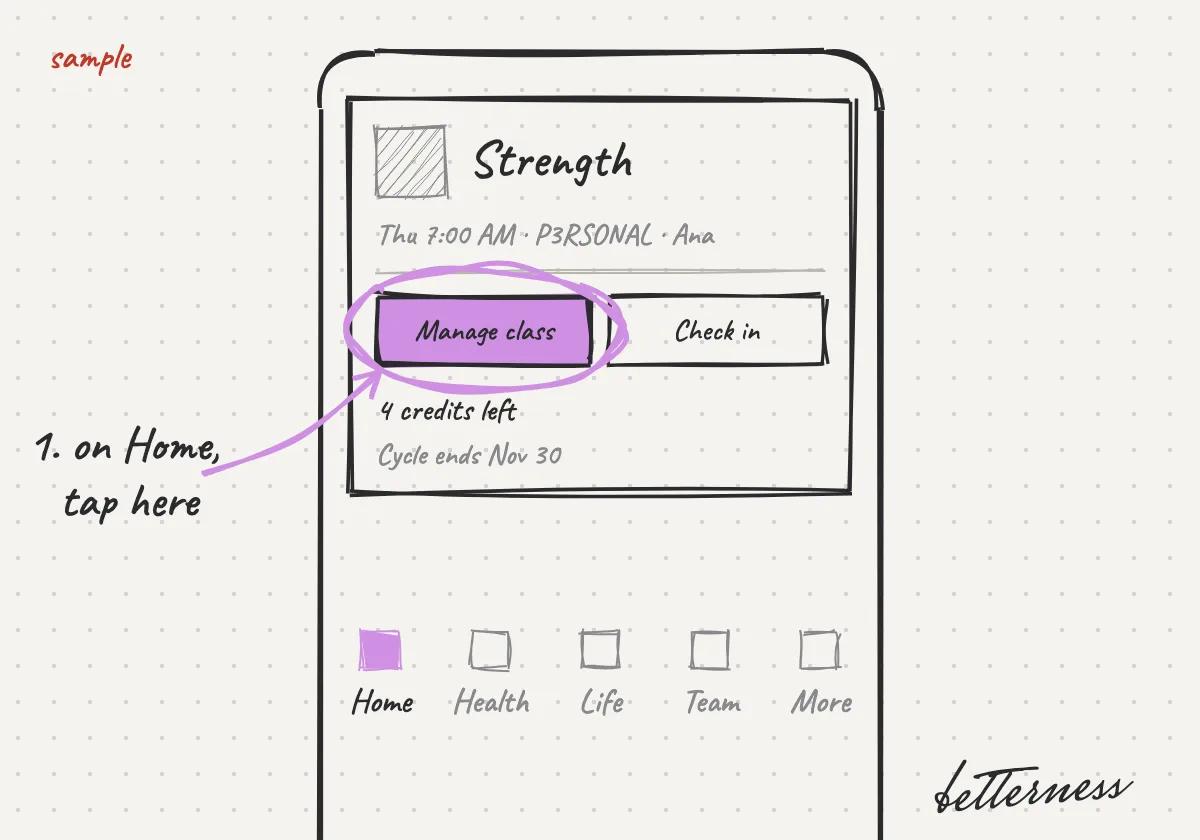
  1. Sketch: On Home, tap Manage class on your class pass.
    1On Home, tap Manage class on your class pass.

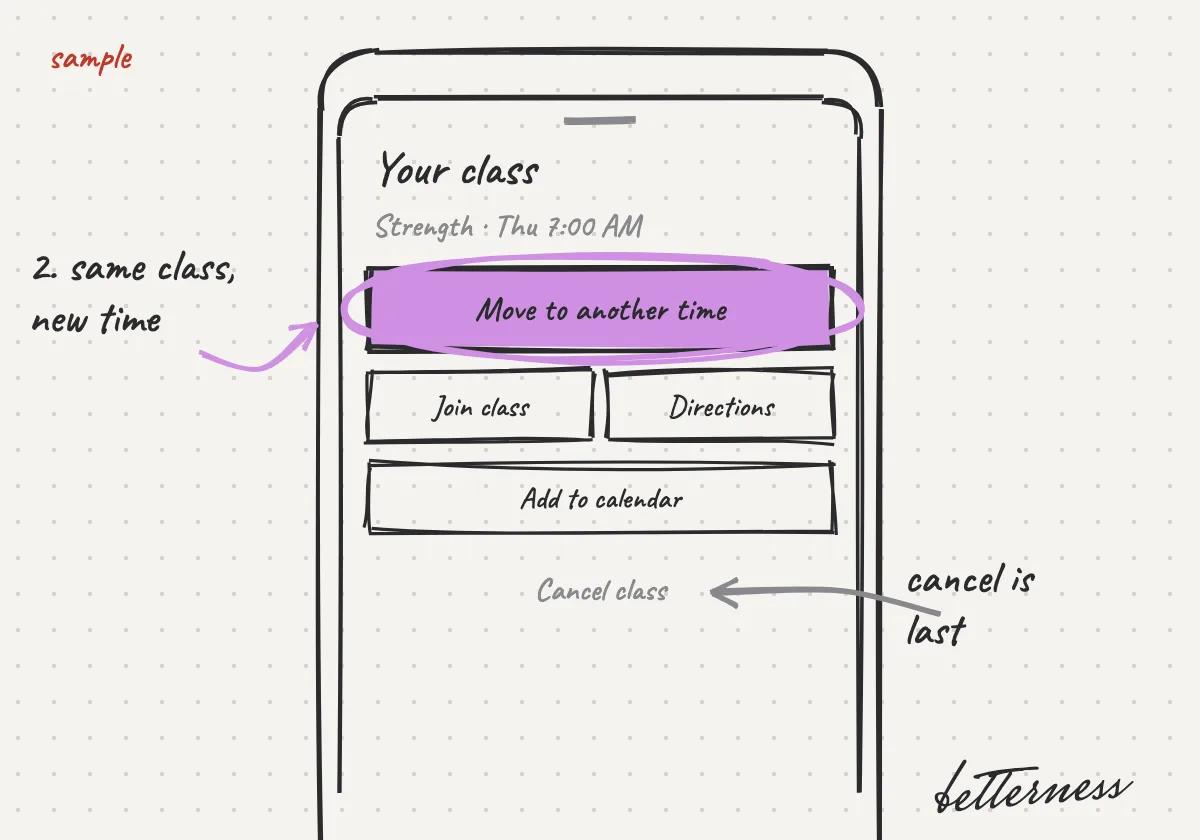
  2. Sketch: Tap Move to another time.

    2Tap Move to another time.

  3. Sketch: Pick a time under Other times. You keep your place until the new time is confirmed.
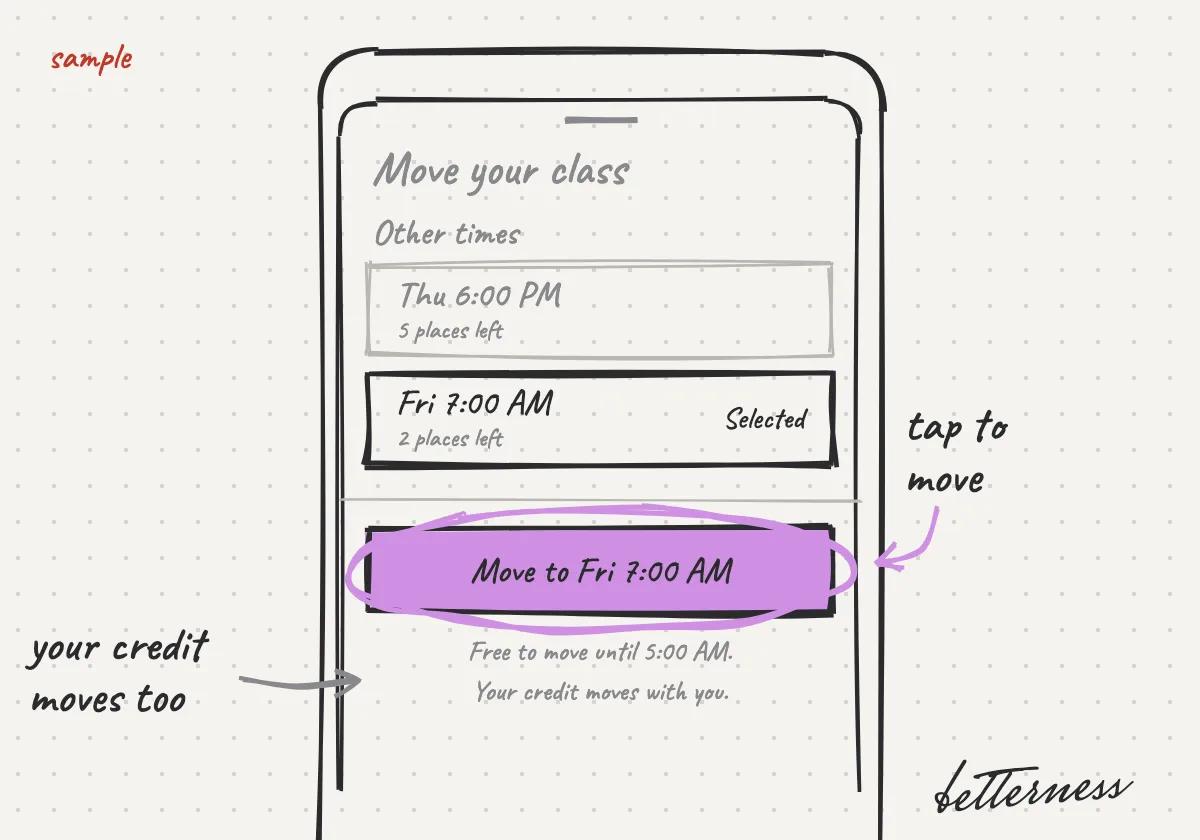
    3Pick a time under Other times. You keep your place until the new time is confirmed.

  4. Sketch: Tap Move to and the time. Your credit moves with you, and the card shows the new time.

    4Tap Move to and the time. Your credit moves with you, and the card shows the new time.

Together · 3 steps

Find perks by category

A Space can offer many perks. Categories take you straight to the ones you came for.
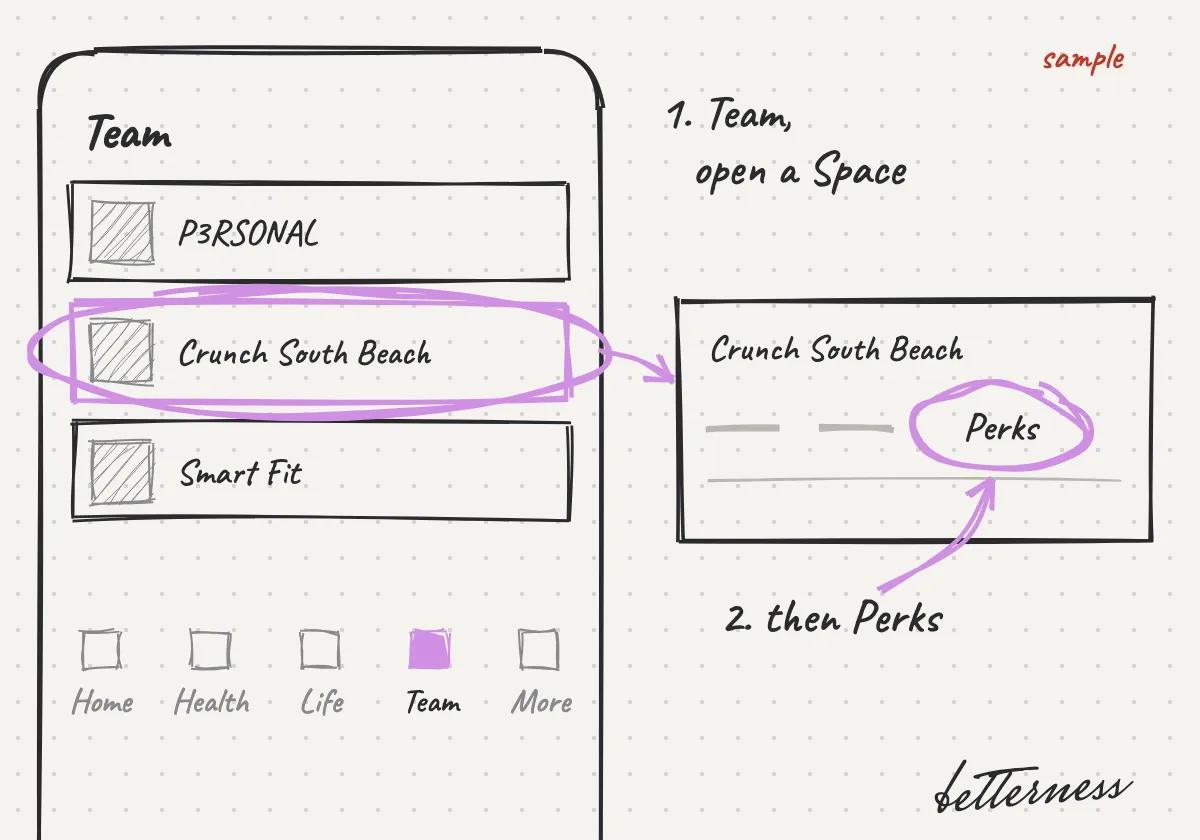
  1. Sketch: On Team, open a Space, then Perks.

    1On Team, open a Space, then Perks.

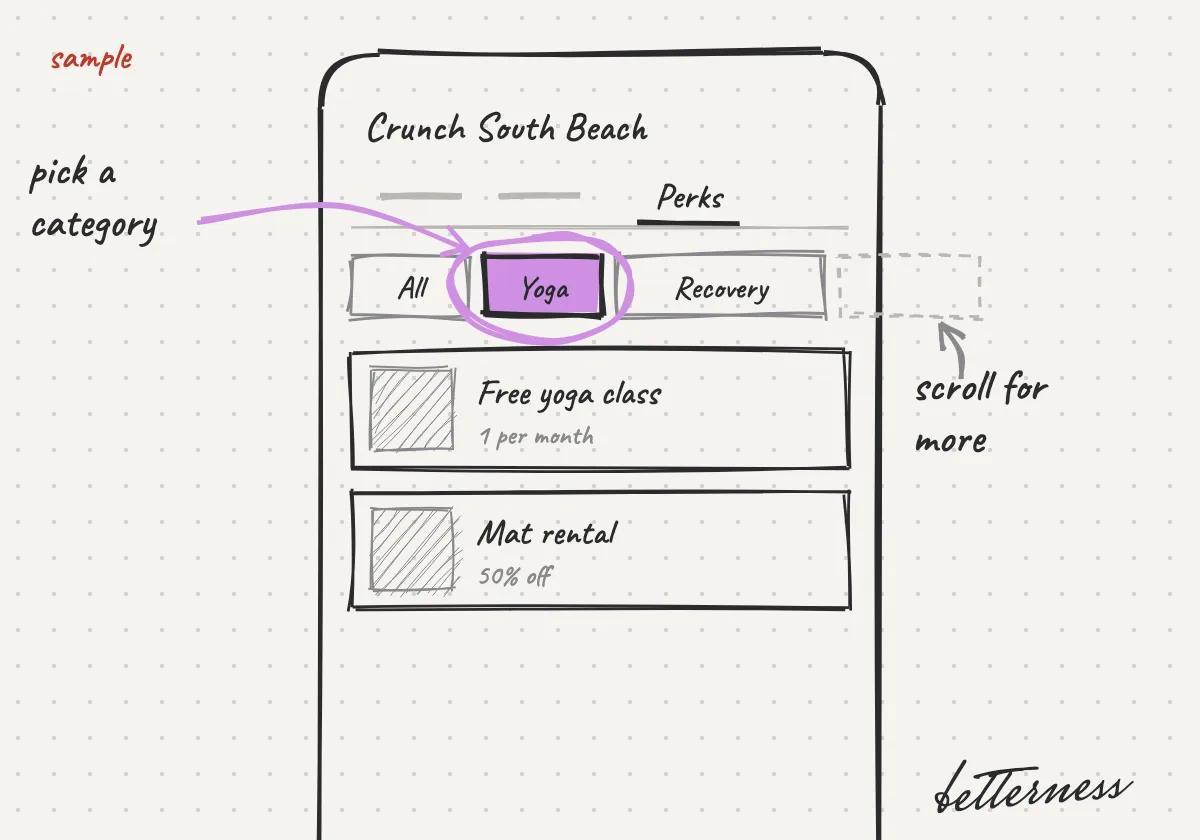
  2. Sketch: Tap a category: Yoga, Recovery, Food & drink and more.
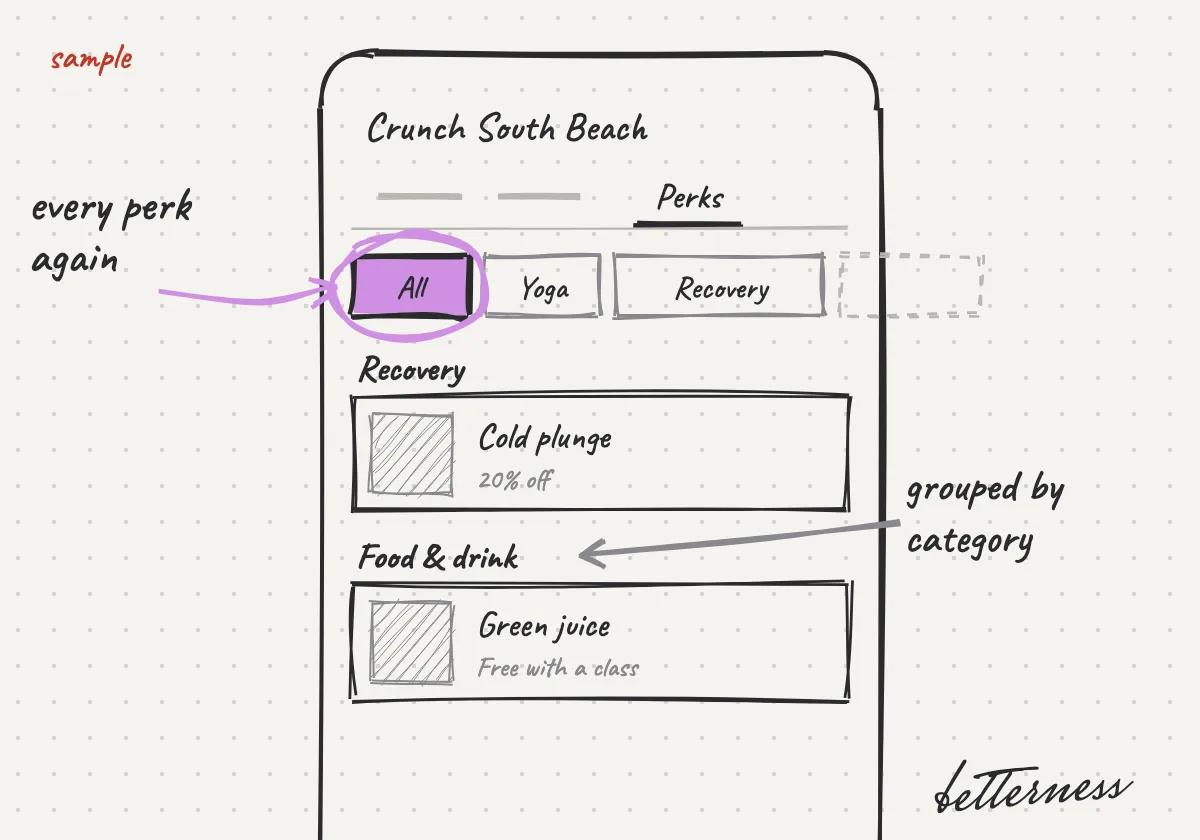
    2Tap a category: Yoga, Recovery, Food & drink and more.

  3. Sketch: Tap All to see every perk again, grouped by category.

    3Tap All to see every perk again, grouped by category.

Bett-i and settings · 3 steps

Ask Bett-i from any screen

Bett-i is on every tab. Everyone gets Claude Sonnet. Elite, $10 a month, adds Claude Opus, GPT Terra or GPT Sol.
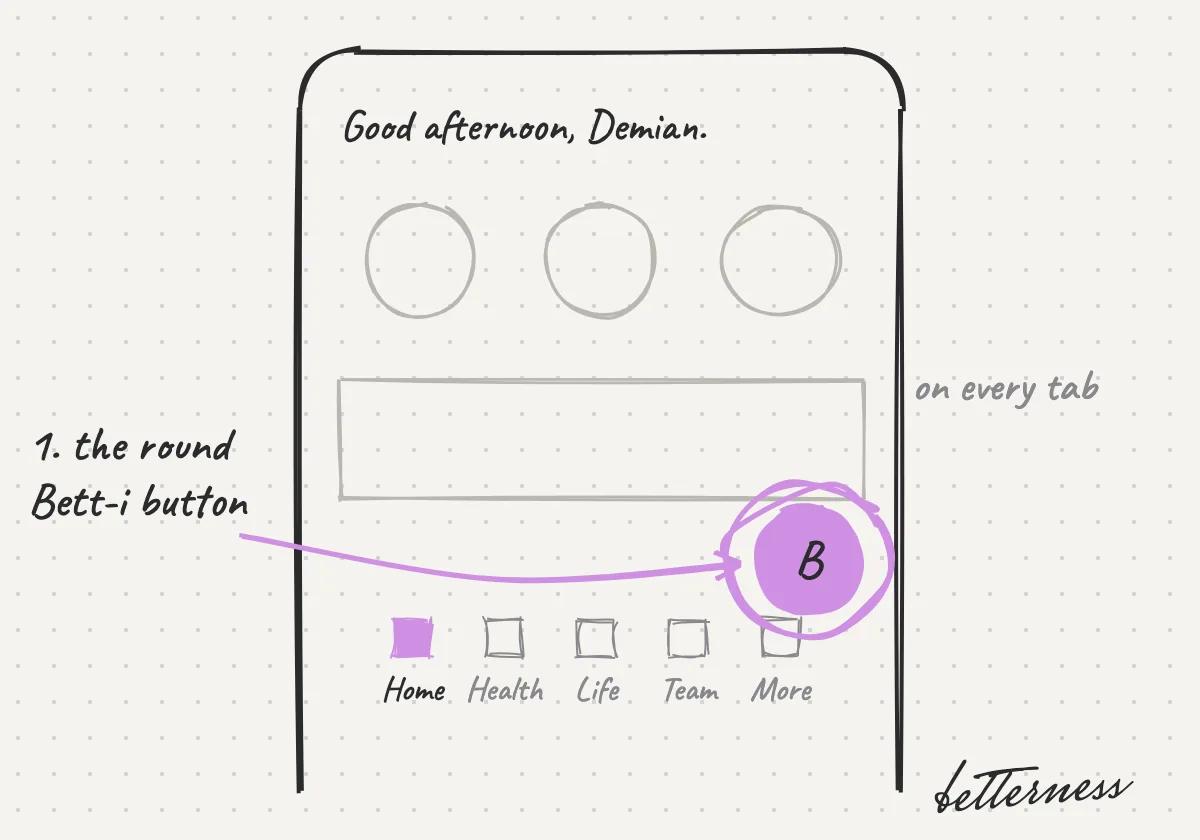
  1. Sketch: Tap the Bett-i button at the bottom of any screen.
    1Tap the Bett-i button at the bottom of any screen.

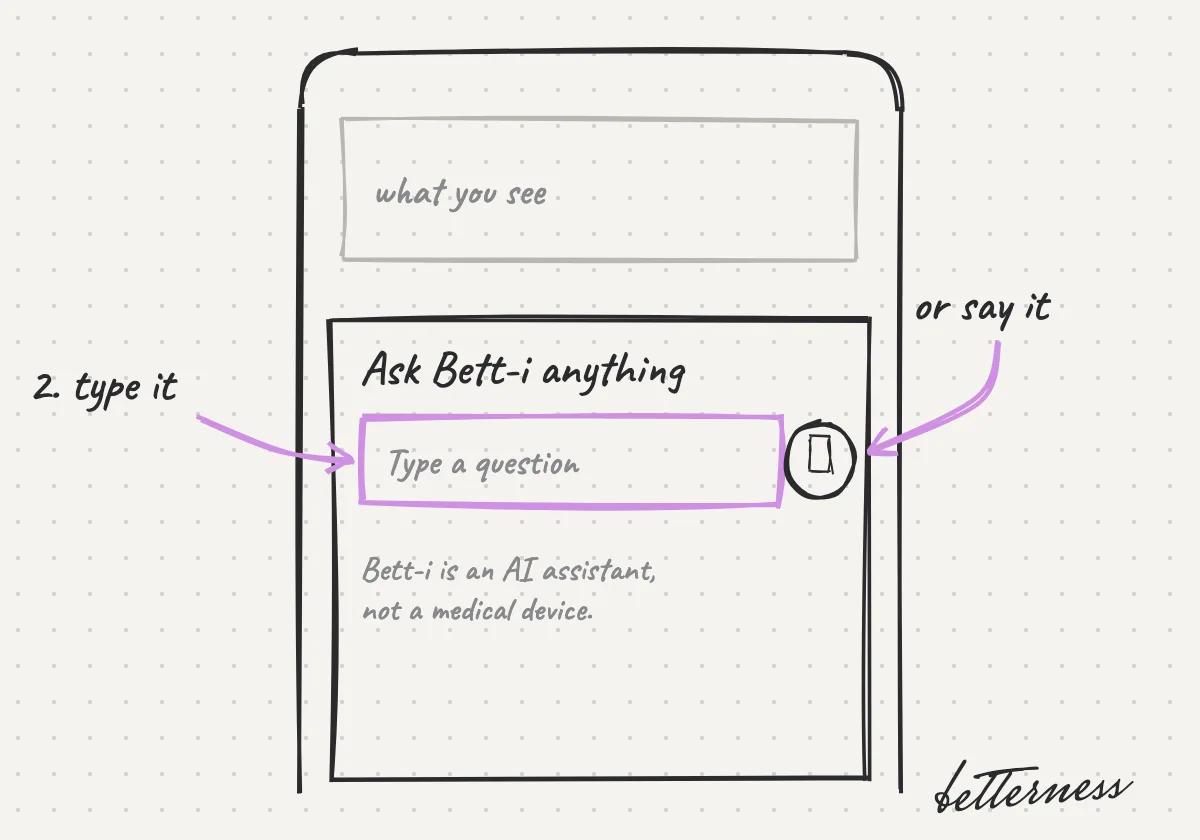
  2. Sketch: Ask about what you see, by voice or text.
    2Ask about what you see, by voice or text.

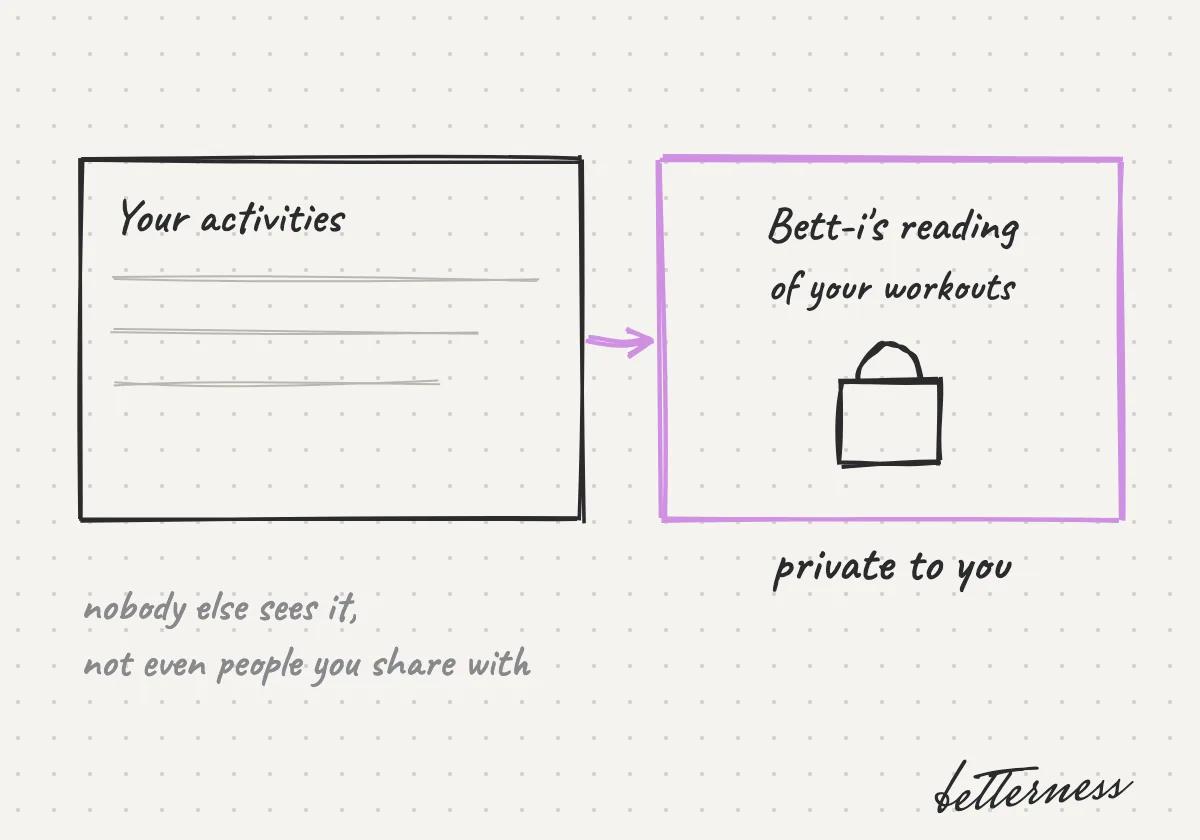
  3. Sketch: Bett-i's reading of your activities stays private to you.

    3Bett-i's notes on your workouts stay private.

Bett-i and settings · 4 steps

Your handle and profile

A handle makes you easy to find and mention, without giving out your email or phone number.

Coming soon: your own @handle.
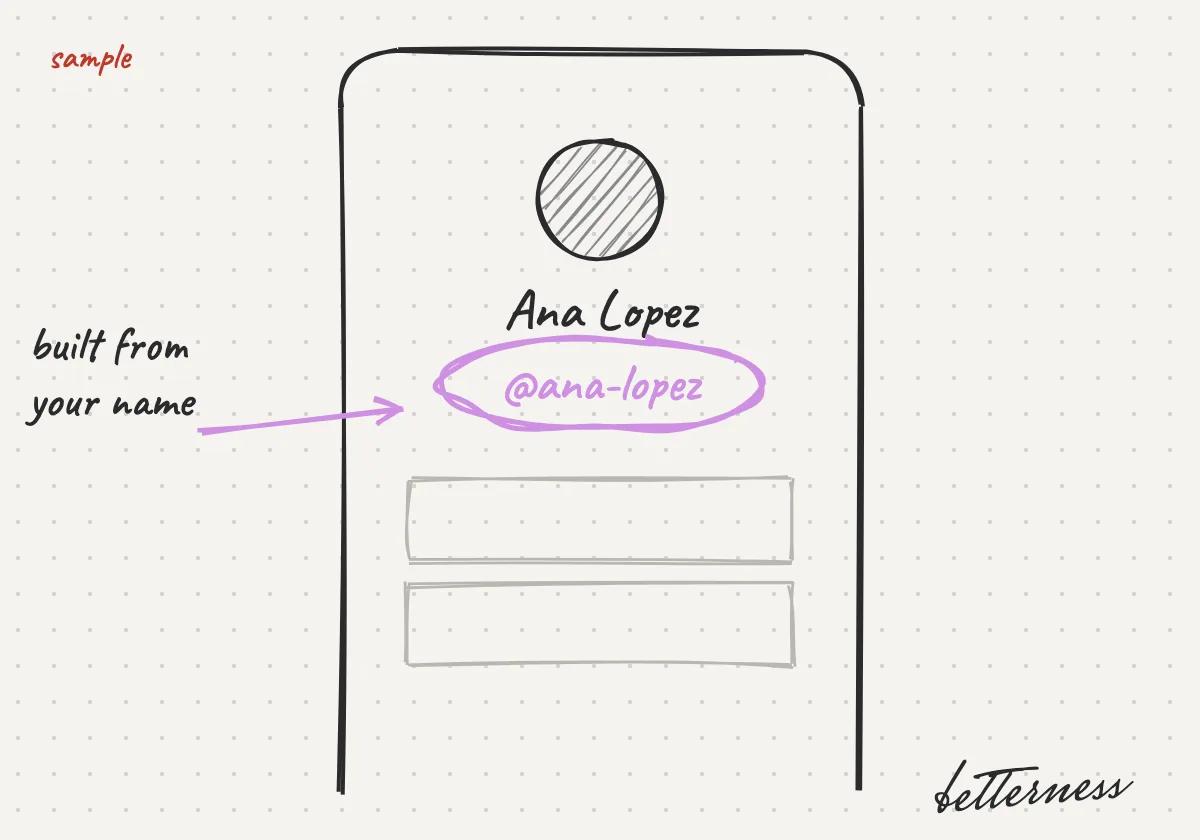
  1. Sketch: You will get a handle from your name, like @ana-lopez.
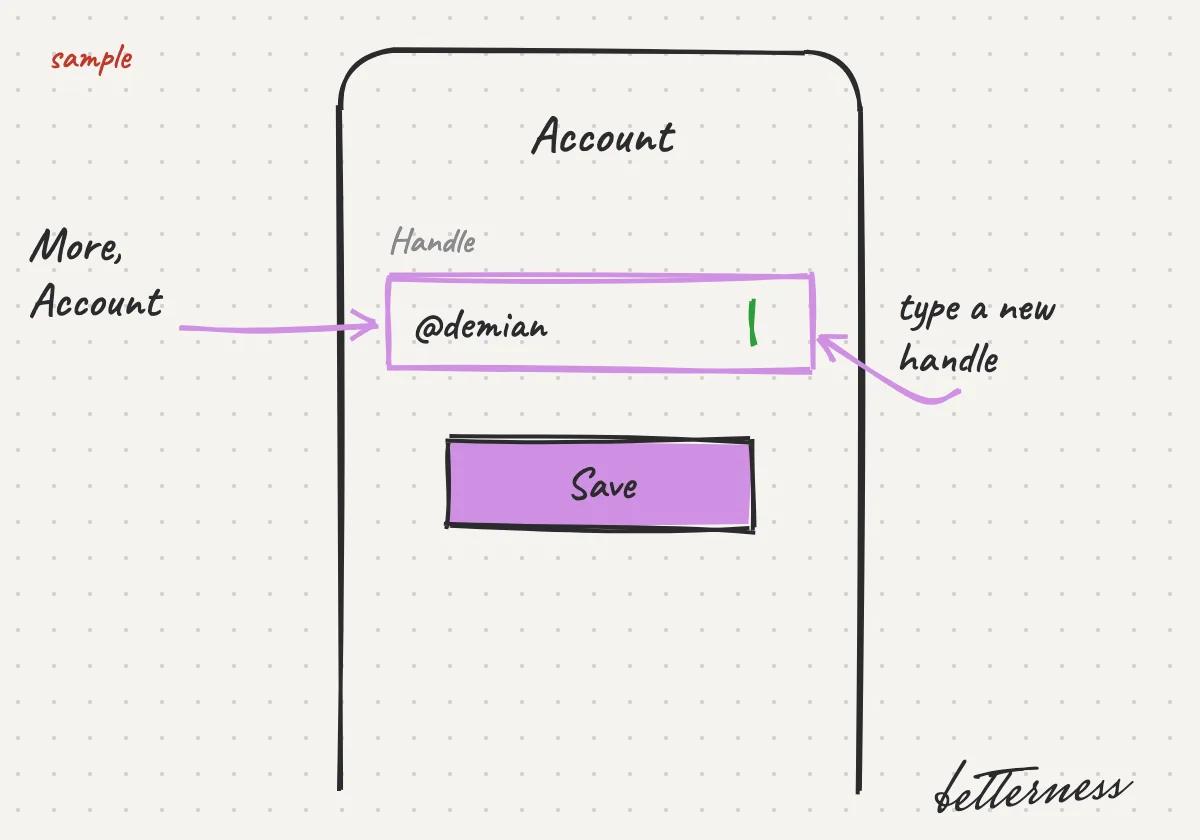
    1You will get a handle from your name, like @ana-lopez.

  2. Sketch: You will change it in More, Account.

    2You will change it in More, Account.
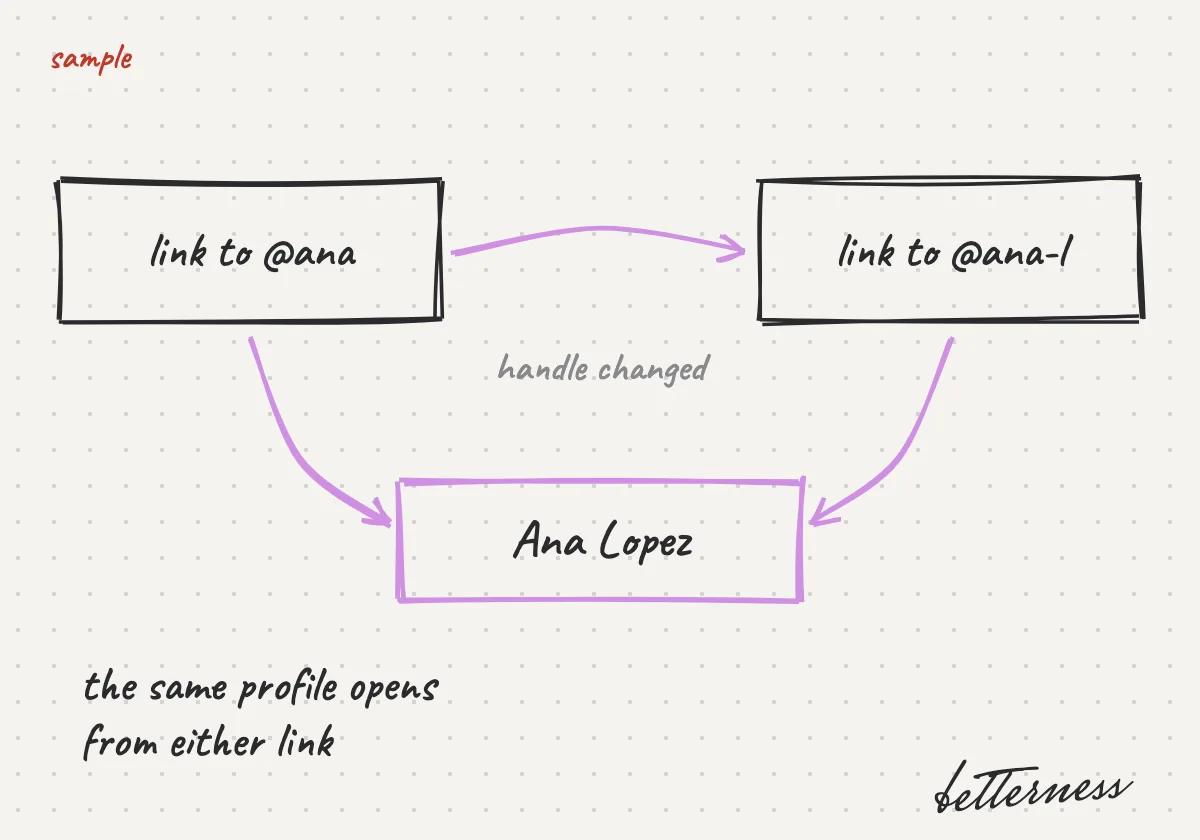
  3. Sketch: Links to your profile will keep working after a change.
    3Links to your profile will keep working after a change.

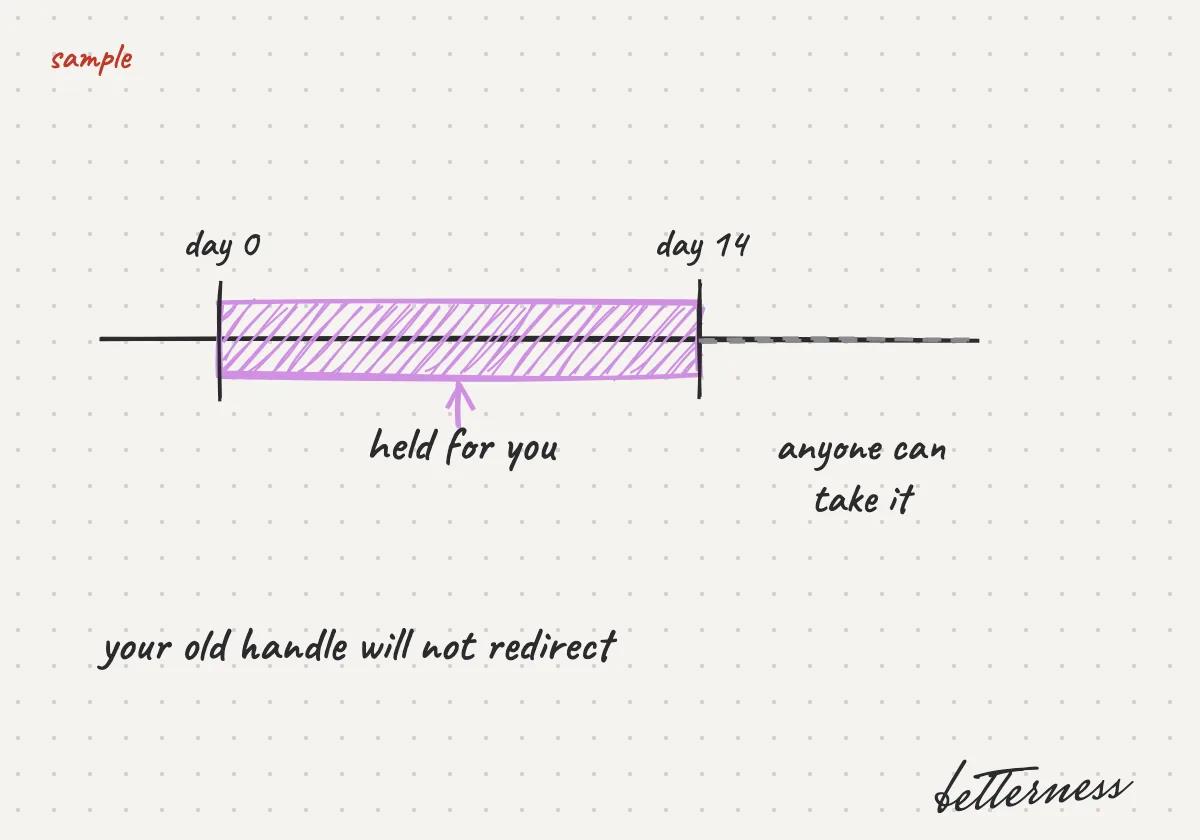
  4. Sketch: Your old handle will be held for 14 days, then anyone can take it. It will not redirect.

    4Your old handle will be held for 14 days, then anyone can take it. It will not redirect.

Bett-i and settings · 4 steps

Settings and privacy

Devices, sharing, language and units are in More, Settings.
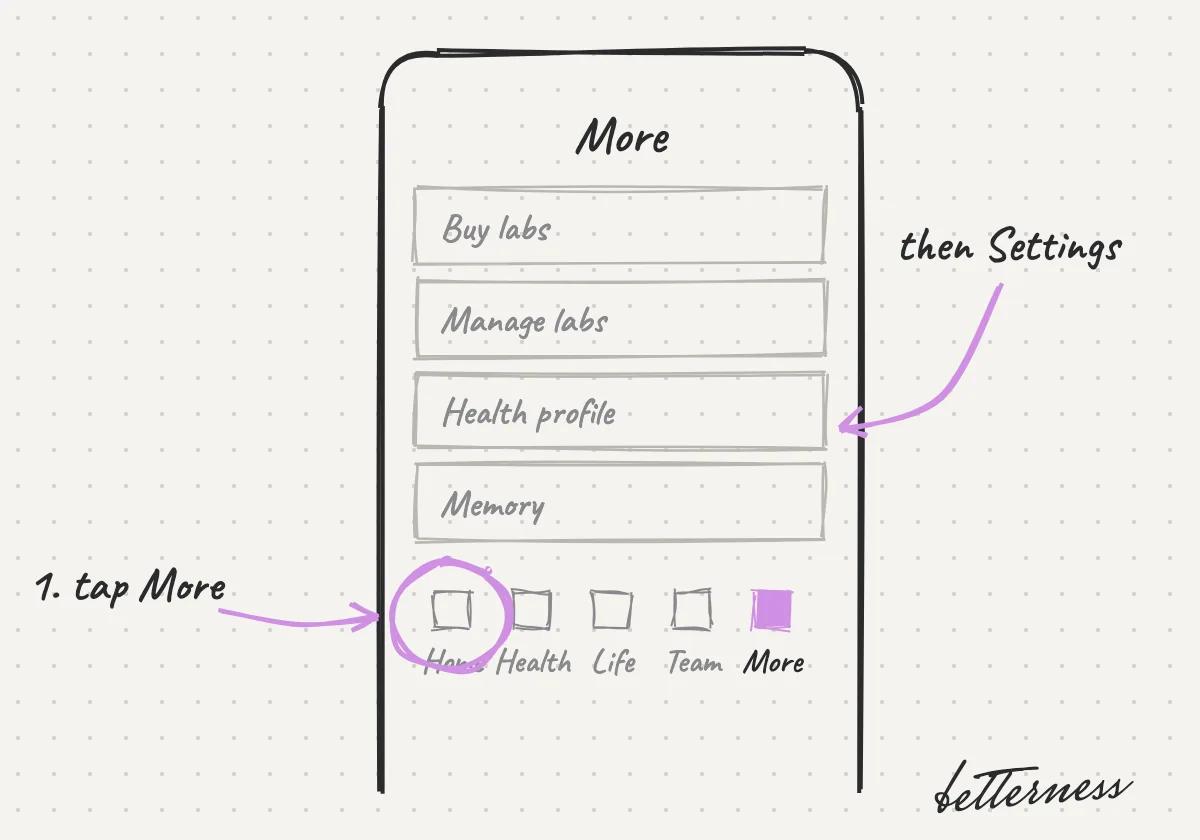
  1. Sketch: Open More, then Settings.

    1Open More, then Settings.

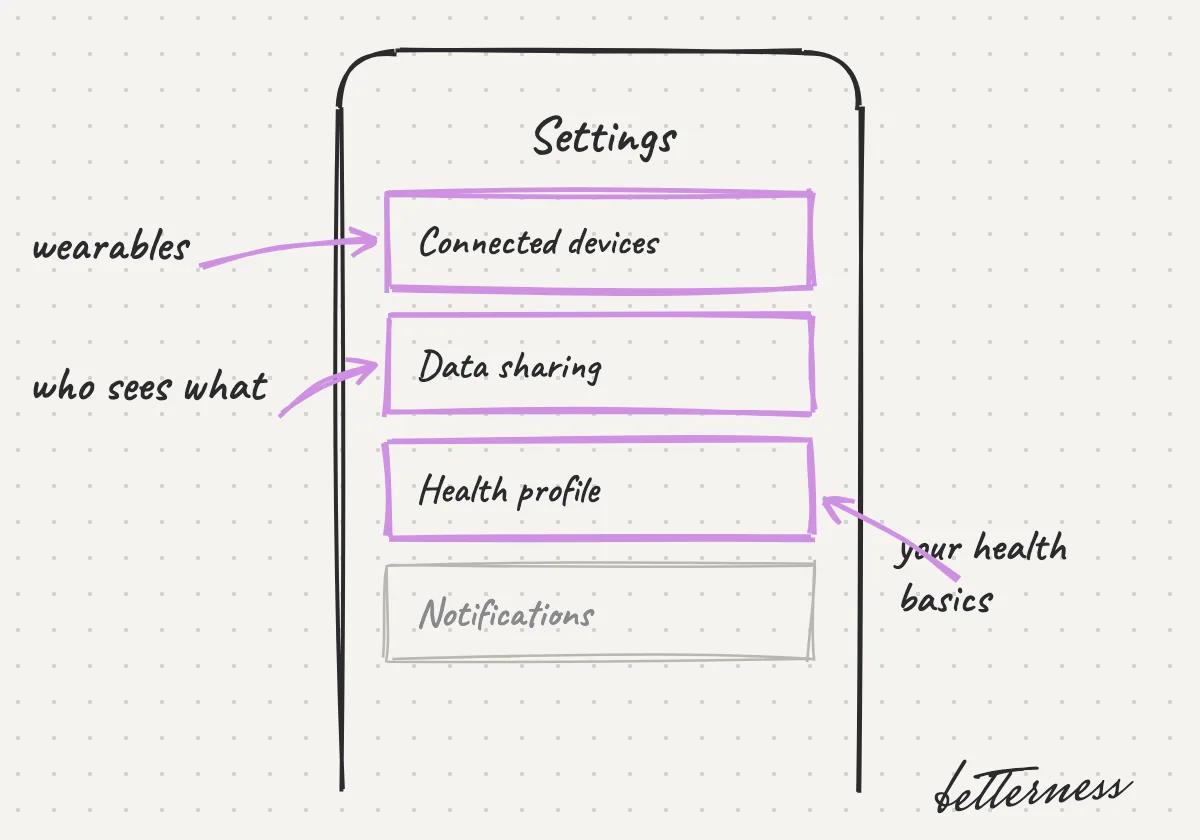
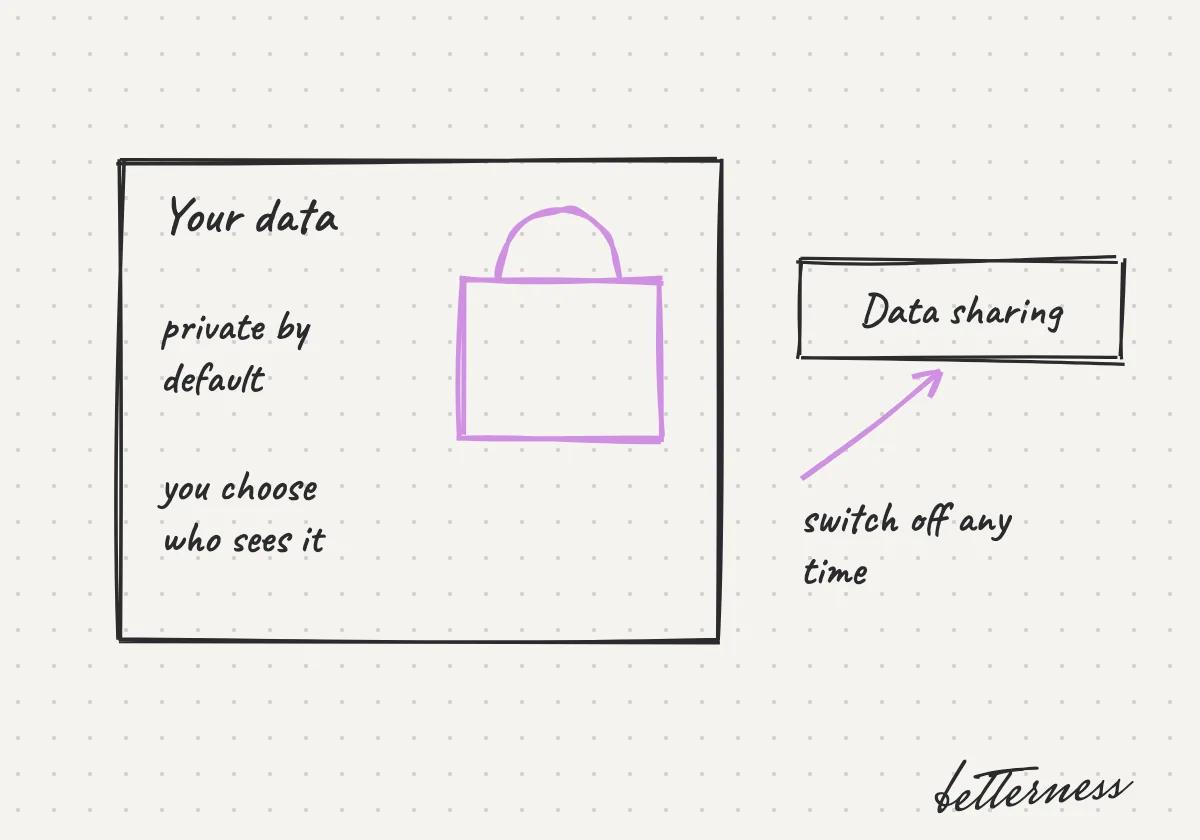
  2. Sketch: Manage wearables, data sharing and your health profile.
    2Manage wearables, data sharing and your health profile.

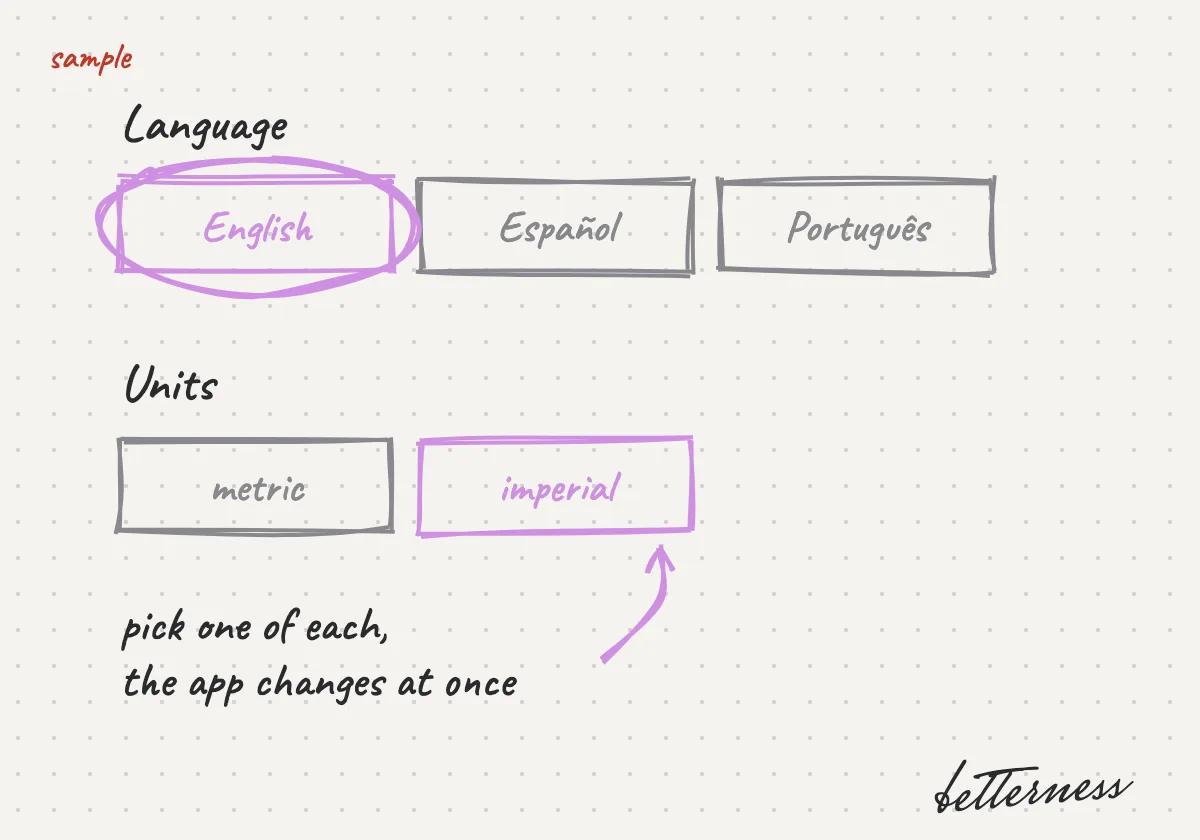
  3. Sketch: Pick your language (English, Spanish, Portuguese) and units.
    3Pick your language (English, Spanish, Portuguese) and units.

  4. Sketch: Read how your data is protected.

    4Read how your data is protected.

Bett-i and settings · 6 steps

Connect Claude or ChatGPT

Connect Betterness to Claude or ChatGPT. Your questions there get answers from your Betterness data, only what you approve.

ChatGPT needs a plan with developer mode: Plus, Pro, Business, Enterprise or Edu. On Claude's Free plan you can add one custom connector.
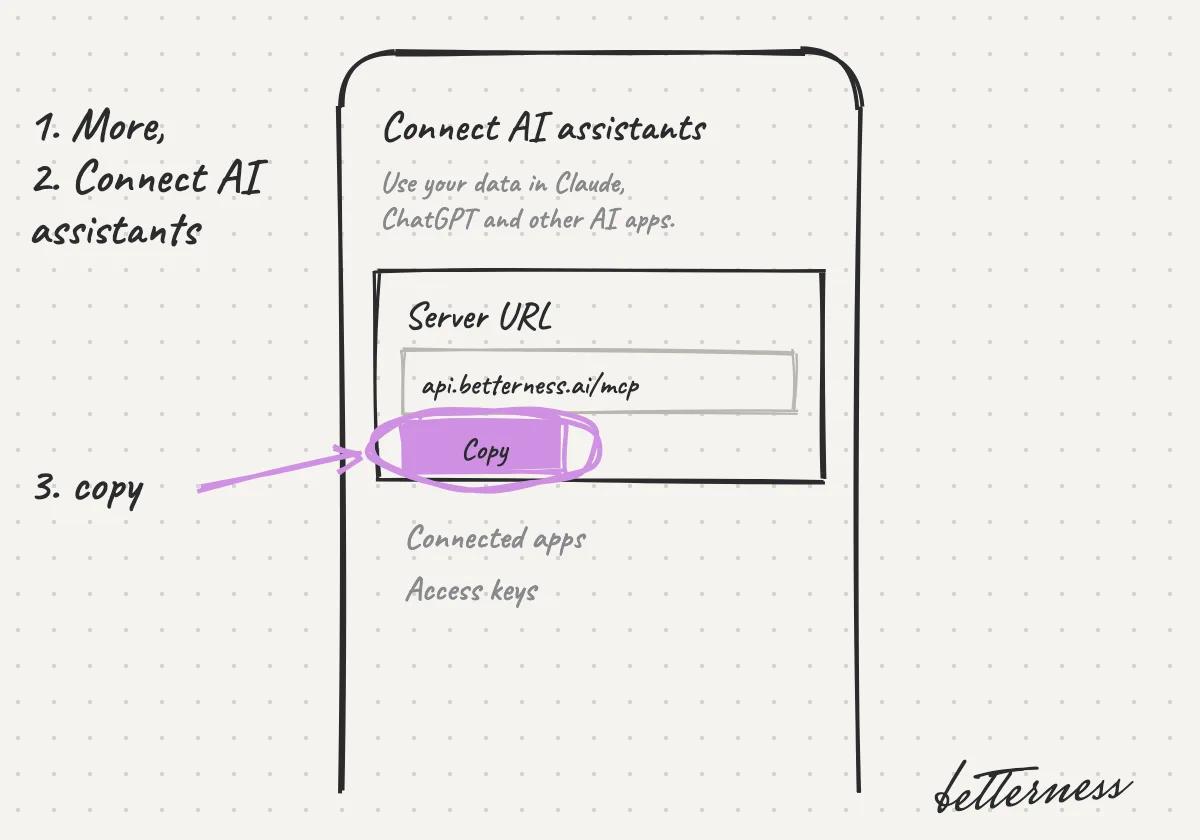
  1. Sketch: a phone on Connect AI assistants, with Copy circled under the server URL api.betterness.ai/mcp.

    1In Betterness, open More, then Connect AI assistants, and copy the server URL.
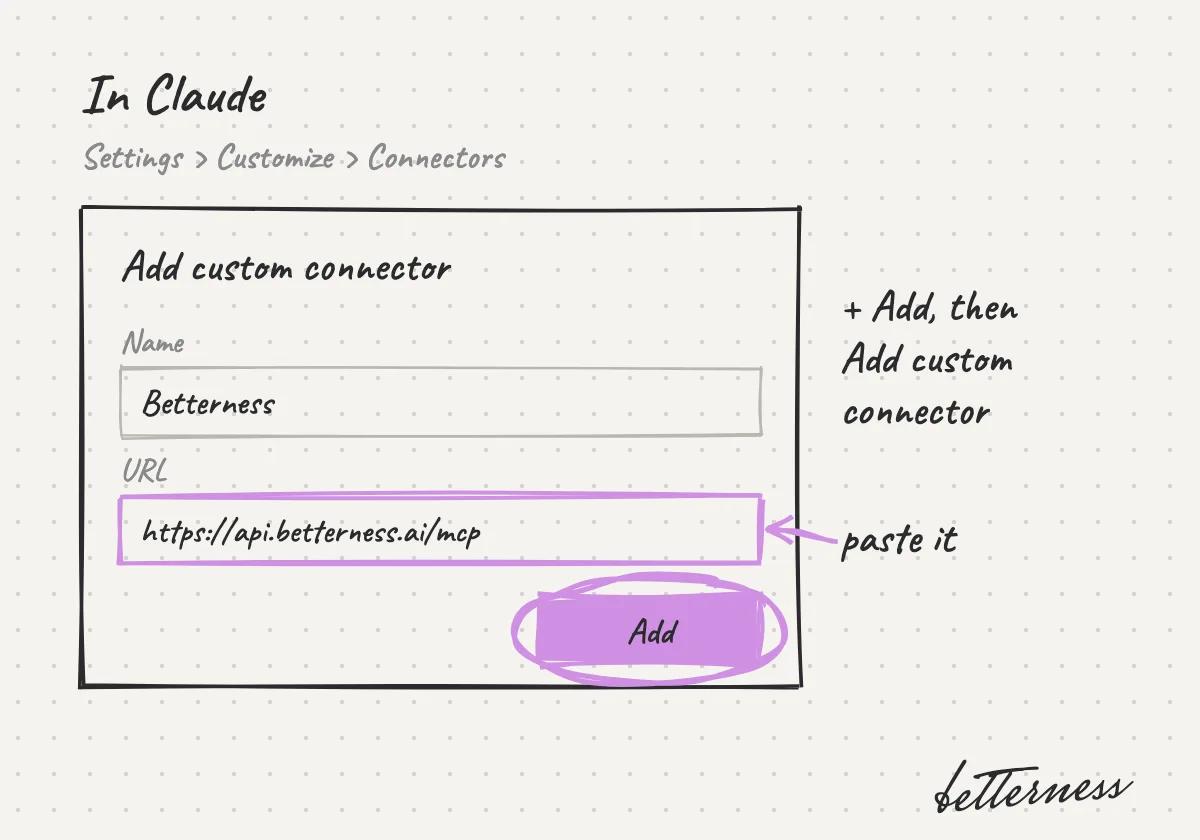
  2. Sketch: the Add custom connector form in Claude, named Betterness, with the URL pasted and Add circled.

    2In Claude, open Settings, Customize, Connectors. Tap + Add, then Add custom connector, name it Betterness and paste the URL.
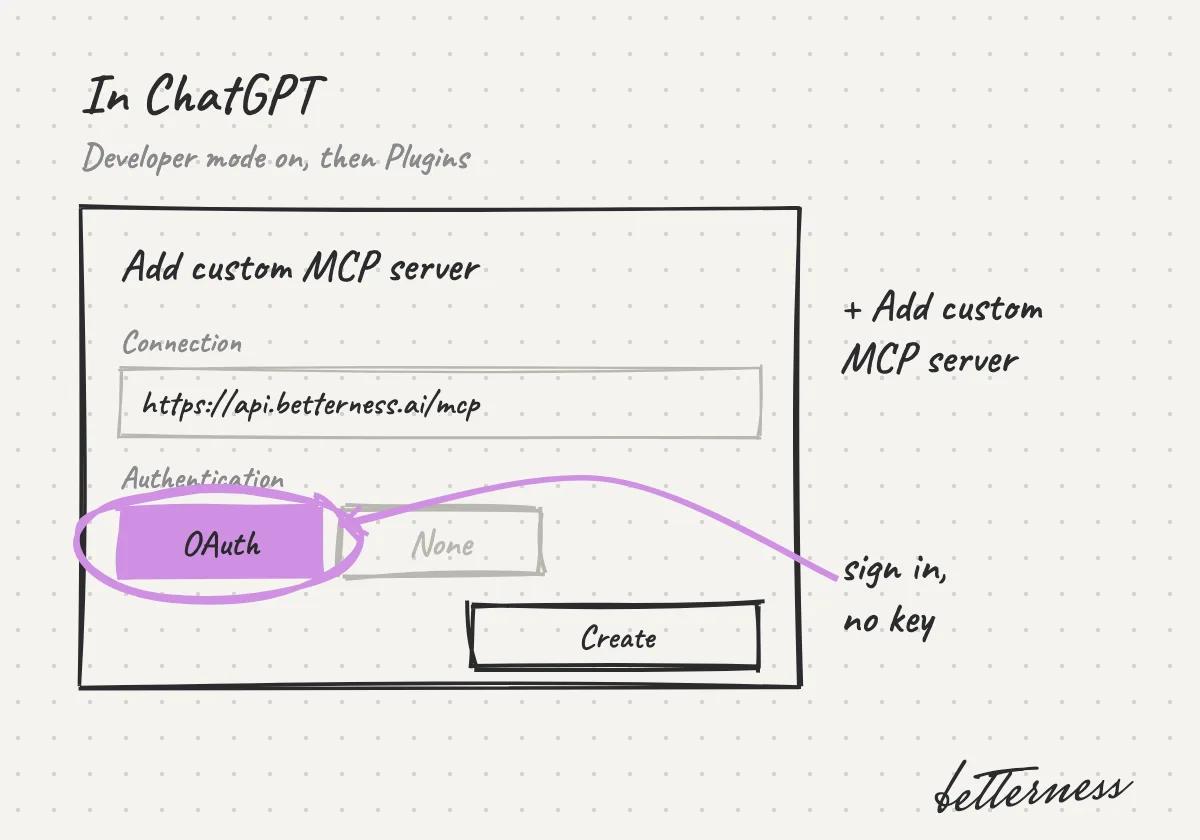
  3. Sketch: the Add custom MCP server form in ChatGPT, with the URL and OAuth circled.

    3In ChatGPT, turn on developer mode, open Plugins and add a custom MCP server with the same URL. Choose OAuth.
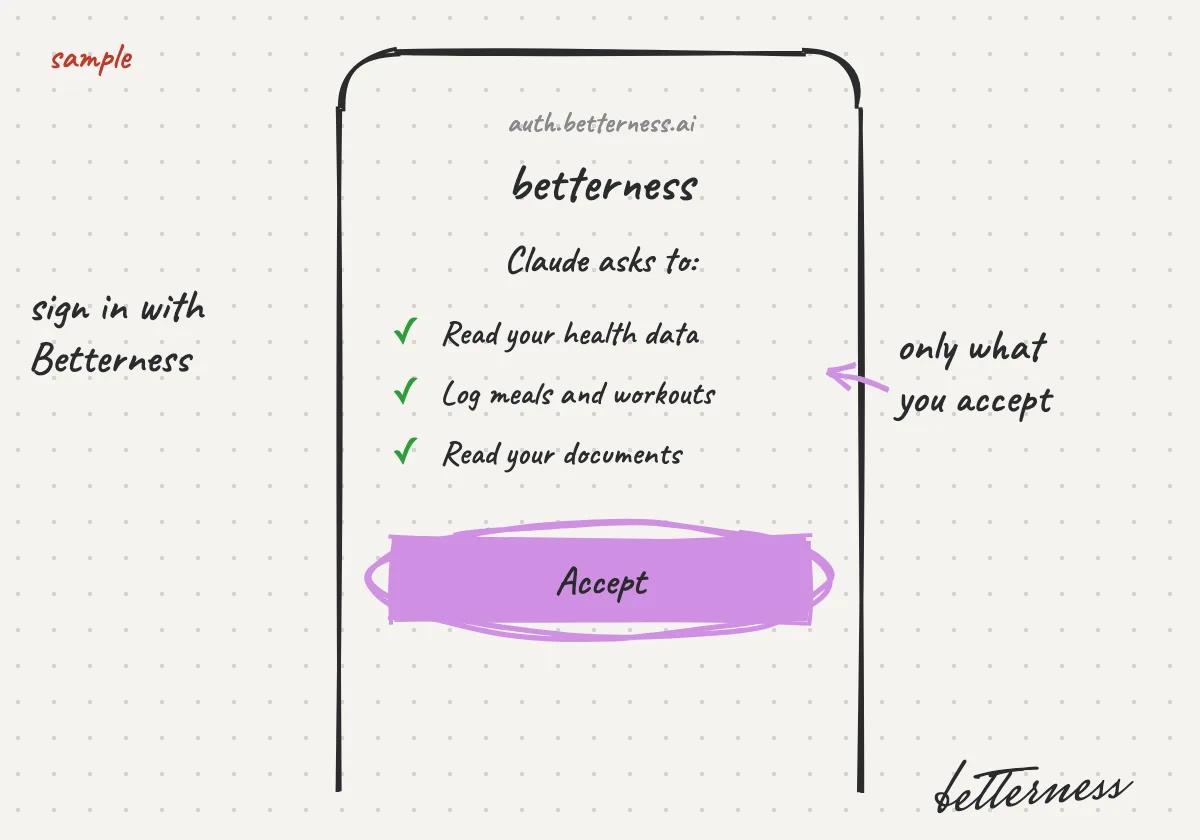
  4. Sketch: the Betterness sign-in page listing what Claude asks for, with Accept circled.

    4Sign in with your Betterness account and accept what the app may read and do.
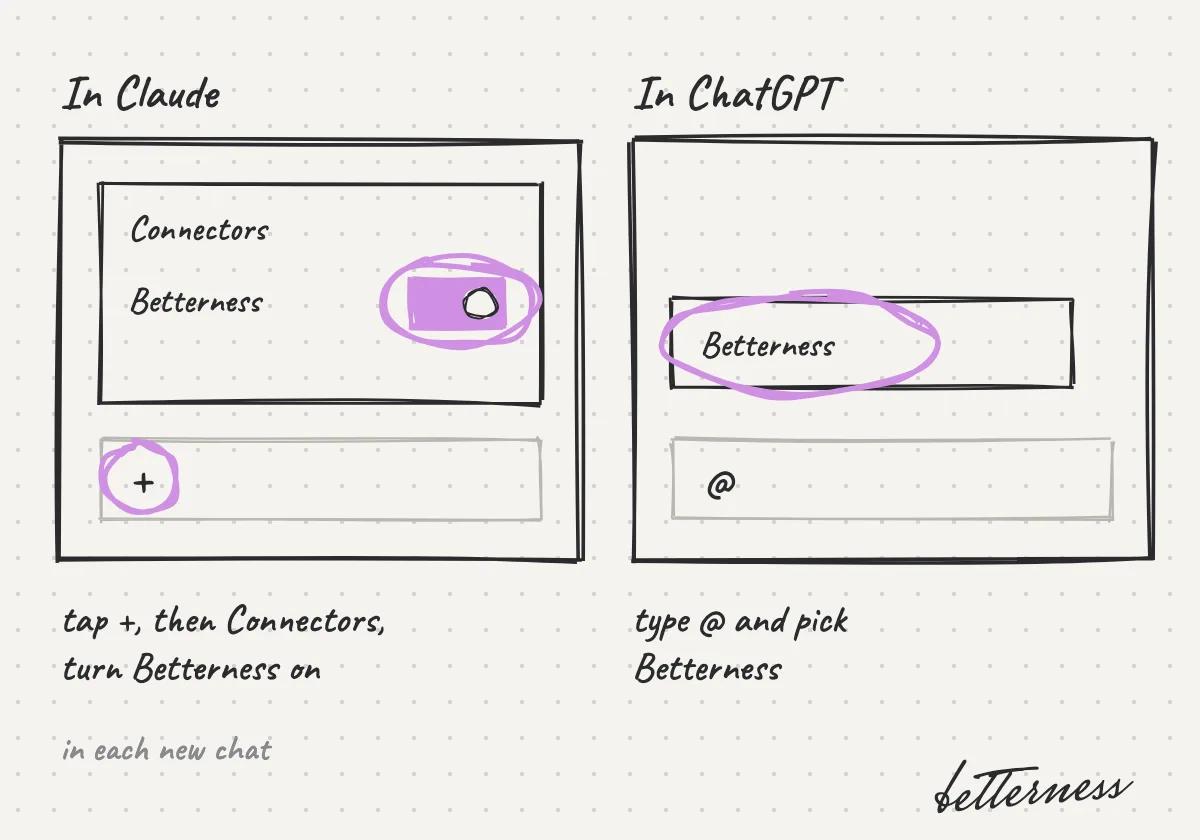
  5. Sketch: Claude's Connectors menu with Betterness switched on, and ChatGPT's @ menu with Betterness picked.

    5In a new chat, turn Betterness on. In Claude, tap + and then Connectors. In ChatGPT, type @ and pick Betterness.
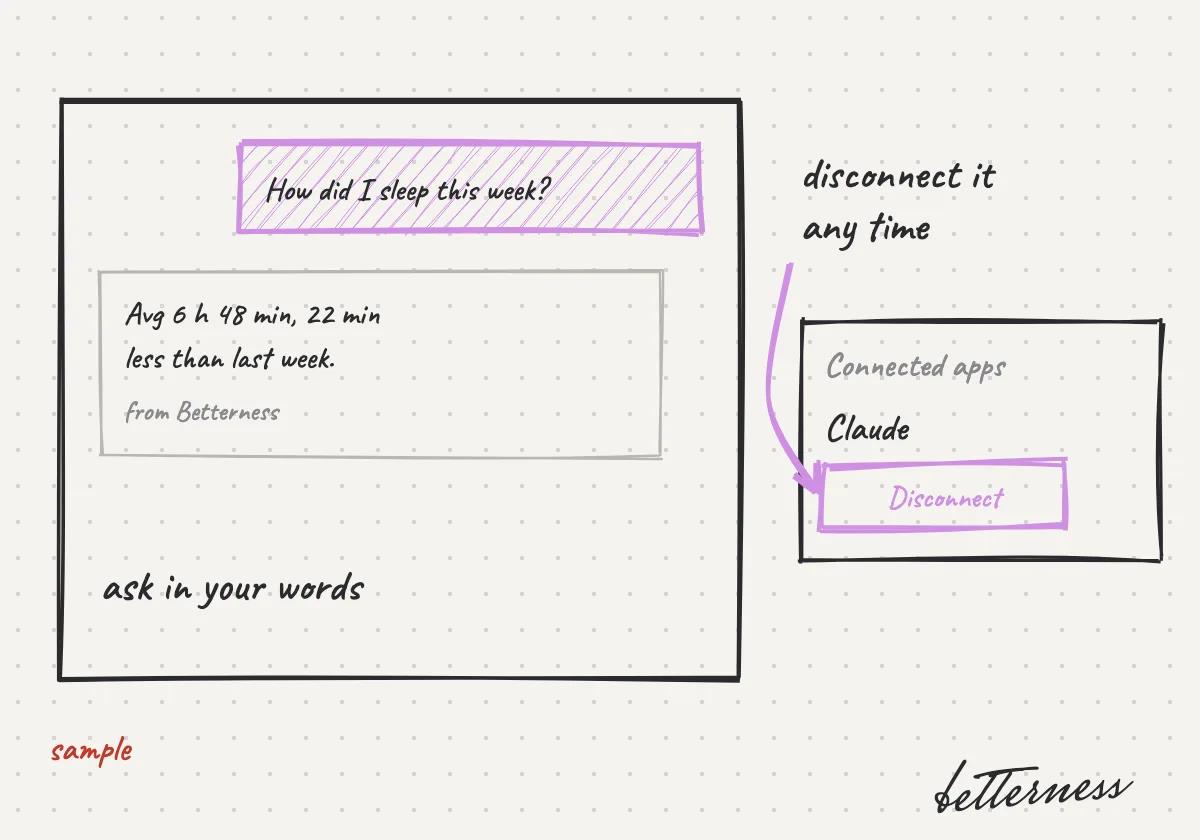
  6. Sketch: a chat asking how I slept this week, answered from Betterness, next to Connected apps with Disconnect.

    6Ask in your own words. You can disconnect the app any time in Connected apps.

Bett-i and settings · 4 steps

Your Inbox

Messages from your Spaces and notifications about your day arrive in one place, and each one takes you to what it is about.
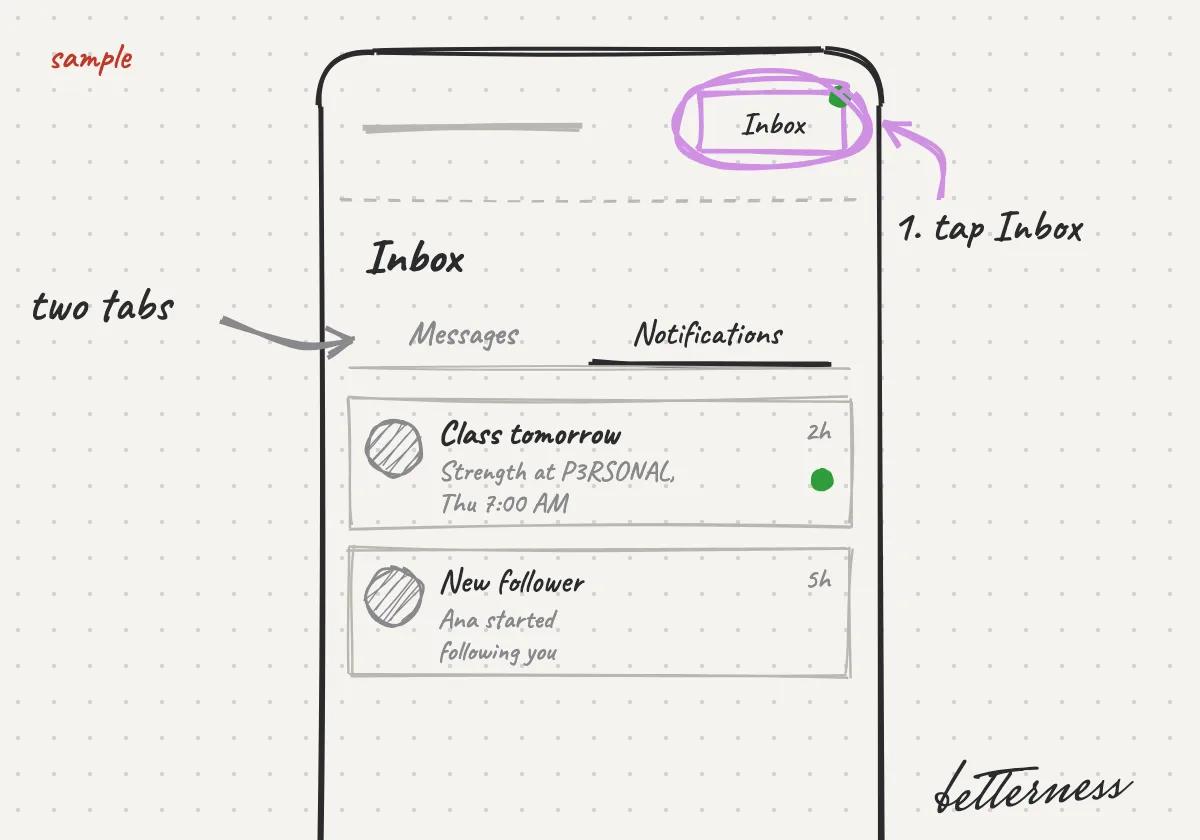
  1. Sketch: Tap Inbox at the top right. Messages and Notifications are two tabs.
    1Tap Inbox at the top right. Messages and Notifications are two tabs.

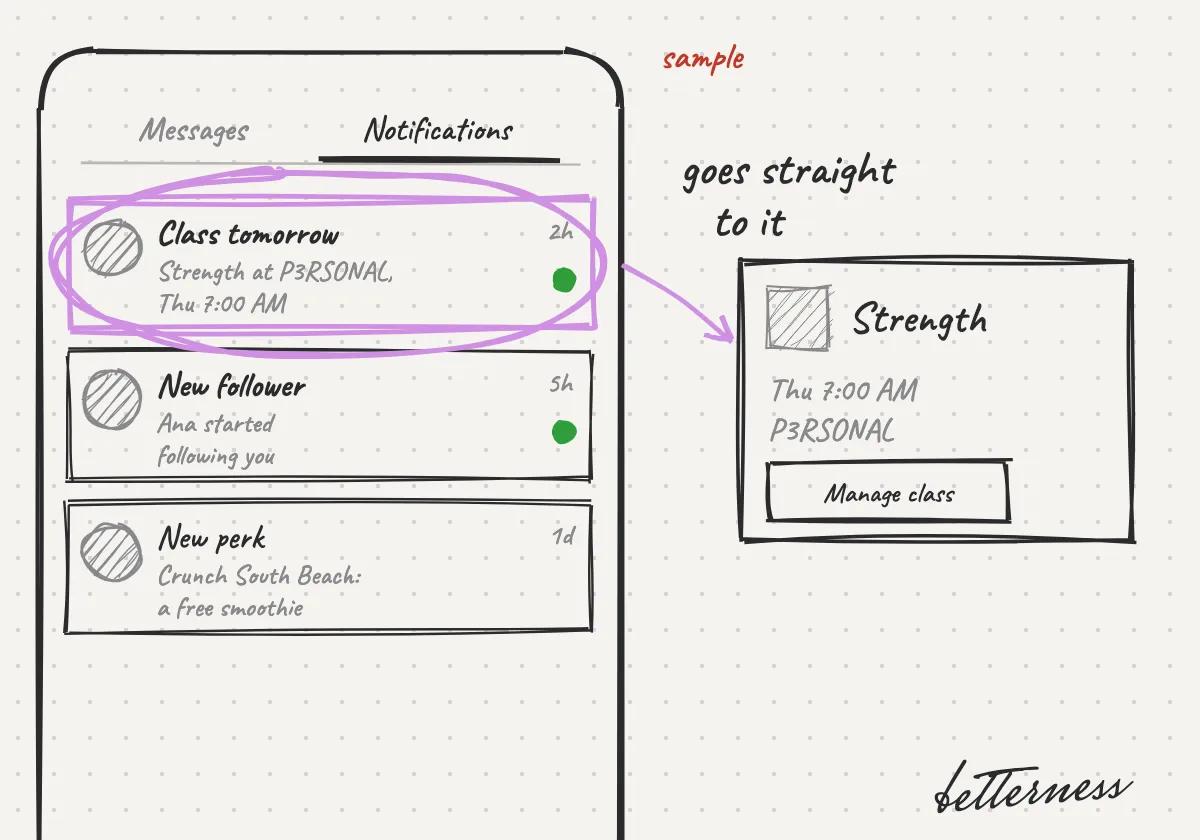
  2. Sketch: Tap a notification to go straight to it.
    2Tap a notification to go straight to it.

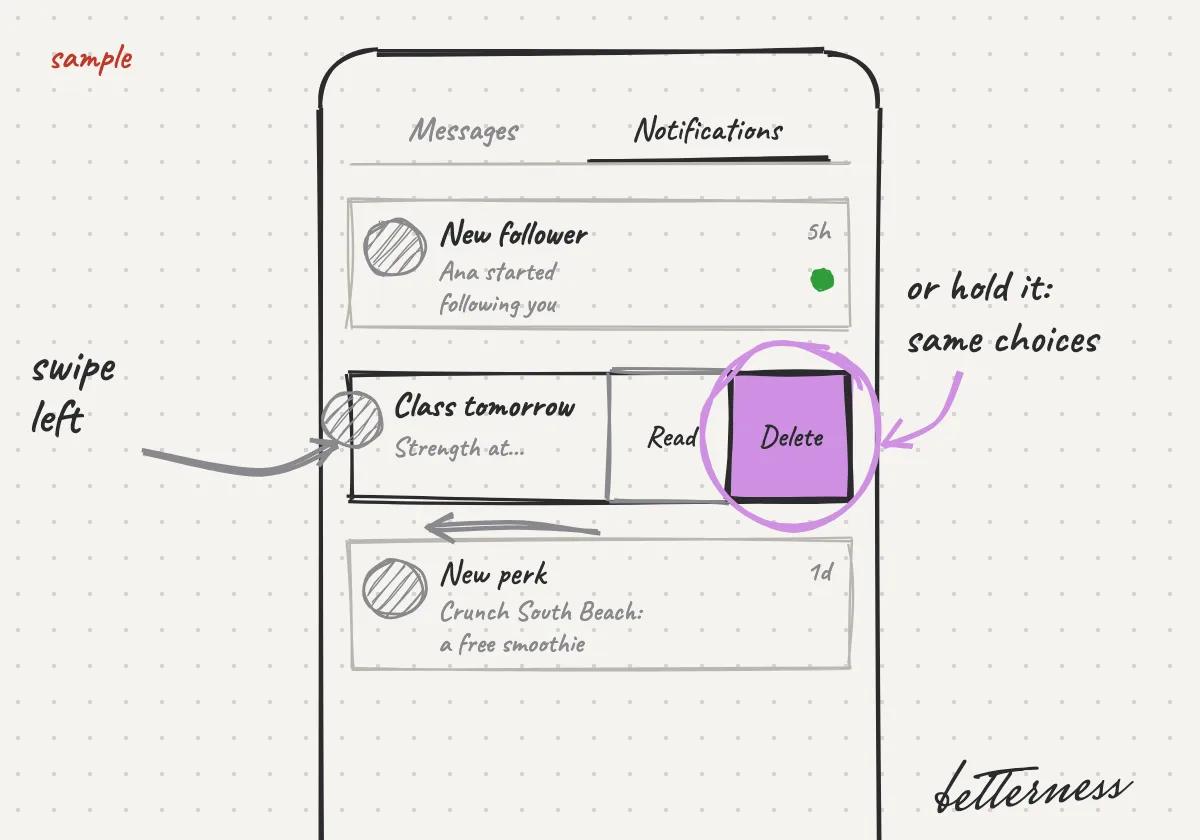
  3. Sketch: Swipe left on a notification to delete it or mark it read. Or hold it for the same choices.
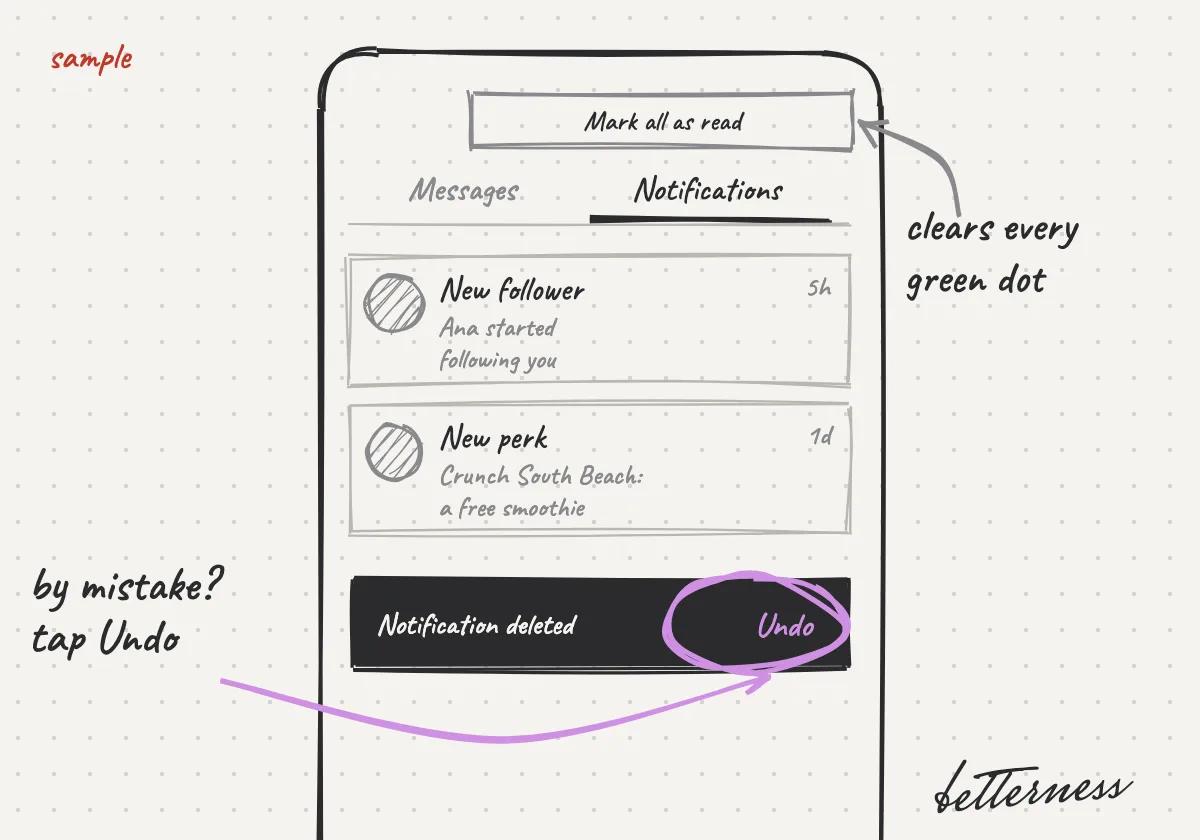
    3Swipe left on a notification to delete it or mark it read. Or hold it for the same choices.

  4. Sketch: Deleted one by mistake? Tap Undo. Mark all as read clears every dot.

    4Deleted one by mistake? Tap Undo. Mark all as read clears every dot.

Get the free app.

Free on iPhone, Android and the web.

Download on the App StoreGet it on Google Play
Sign upLog in

Better Health. Better Life. Together.

Download on the App StoreGet it on Google Play
Betterness

Product

  • How it works
  • Bett-i

Resources

  • Tutorials
  • Podcast

Company

  • About
  • News
  • Contact

Legal

  • Privacy
  • Terms
  • Health data
  • Delete your account

For businesses

  • Betterness One ↗, opens Betterness One in a new tab

News from Betterness: the Friday Letter, launches and stories, by email.

  • Instagram ↗, opens in a new tab
  • X ↗, opens in a new tab
  • YouTube ↗, opens in a new tab
  • LinkedIn ↗, opens in a new tab
Download on the App StoreGet it on Google Play
HIPAA, powered by Vanta

HIPAA compliance monitored by Vanta.

Betterness, Inc. · Betterness gives health information, not medical advice. Our stories use fictional people.